What Is the Discipline & Behaviour Management Module?
The Discipline & Behaviour Management Module is a structured incident tracking system built into SSMS that gives school administrators a centralised, searchable record of every student conduct issue – from minor classroom disruptions through to serious offences requiring suspension or escalation.
Rather than relying on paper incident books, scattered emails, or verbal records, this module captures every disciplinary event in a consistent, auditable format. Each incident is linked to a student, categorised by offence type and severity, assigned an action, tracked for parental notification, and followed through to resolution.
Access Path: Admin → Discipline | Route: /admin/discipline
Permissions: School Admin · Principal · Vice-Principal · Teacher (view & create only)
Why It Exists
Schools deal with student behaviour incidents daily. Without a proper system:
Records get lost or forgotten between terms
Parents dispute incidents because there is no documented evidence
Repeat offenders are not easily identified
Suspension decisions cannot be justified with a full history
Regulators and accreditation bodies cannot audit conduct management
The Discipline Module solves all of these by creating a permanent, school-scoped audit trail for every reported incident.
Core Concepts
| Concept | Description |
|---|---|
| Incident | A recorded event of student misconduct – the core unit of the module |
| Category | The offence type (e.g., Bullying, Late to Class, Fighting) with a preset severity level |
| Severity | A four-tier scale: Minor → Moderate → Serious → Severe |
| Action Taken | What was done in response (detention, written warning, suspension, etc.) |
| Suspension Days | How many school days the student was suspended (0 = no suspension) |
| Parent Notification | Whether the parent/guardian was informed and their response |
| Resolution Status | The current state of the case: Open, Under Review, Resolved, Escalated, or Appealed |
| Student Profile | A dedicated page showing a student's complete discipline history in chronological order |
Severity Scale
| Level | Typical Offences | Default Response |
|---|---|---|
| Minor | Late to class, uniform violation, phone use | Verbal warning |
| Moderate | Cheating, disrespect to staff, repeated minor offences | Written notice / detention |
| Serious | Bullying, damage to property, repeated moderate offences | Parent meeting / formal warning |
| Severe | Fighting, harassment, theft, substance use, assault | Suspension / escalation to authority |
Resolution Statuses
| Status | Meaning |
|---|---|
| Open | Incident reported, no action confirmed yet |
| Under Review | Being investigated or discussed with parties involved |
| Resolved | Action taken and case closed; system records who resolved it and when |
| Escalated | Referred to higher authority (e.g., principal, board, external body) |
| Appealed | Student or parent has appealed the decision |
Module Pages
| Page | Purpose | |
|---|---|---|
| Dashboard | Overview stats, recent incidents, severity chart | |
| Records List | Full filtered incident log | |
| Report Incident | Create a new incident record | |
| Incident Detail | Full read-only view of one incident | |
| Edit Incident | Update any field of an incident | |
| Student Profile | Complete discipline history for one student | |
| Categories | Manage offence types and severities |
Permissions
| Permission Code | Who Has It | What It Allows |
|---|---|---|
discipline.view | Admin, Principal, VP, Teacher | View dashboard, records, student profiles |
discipline.create | Admin, Principal, VP, Teacher | Report new incidents |
discipline.edit | Admin, Principal, VP | Edit existing records |
discipline.delete | Admin, Principal, VP | Delete incident records |
discipline.categories | Admin, Principal, VP | Create, edit, delete offence categories |
Note: Teachers can view and create incidents but cannot edit, delete, or manage categories.
Step-by-Step Guide for Administrators
Step 1 – Access the Module
Log in as School Admin, Principal, or Vice-Principal
In the left sidebar, click Discipline (usually under the Academic section)
The Discipline Dashboard opens at
/admin/discipline
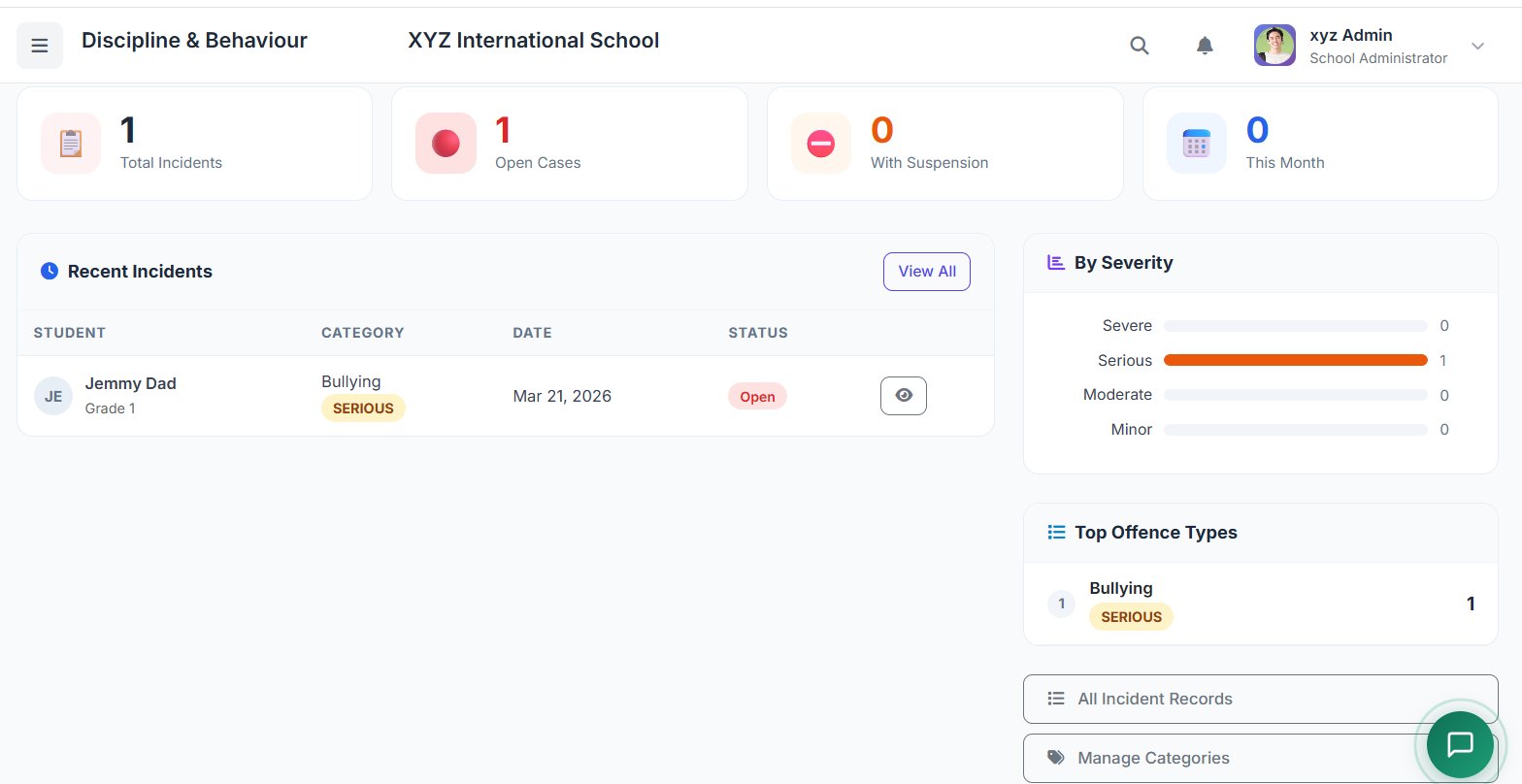
Step 2 – Read the Dashboard
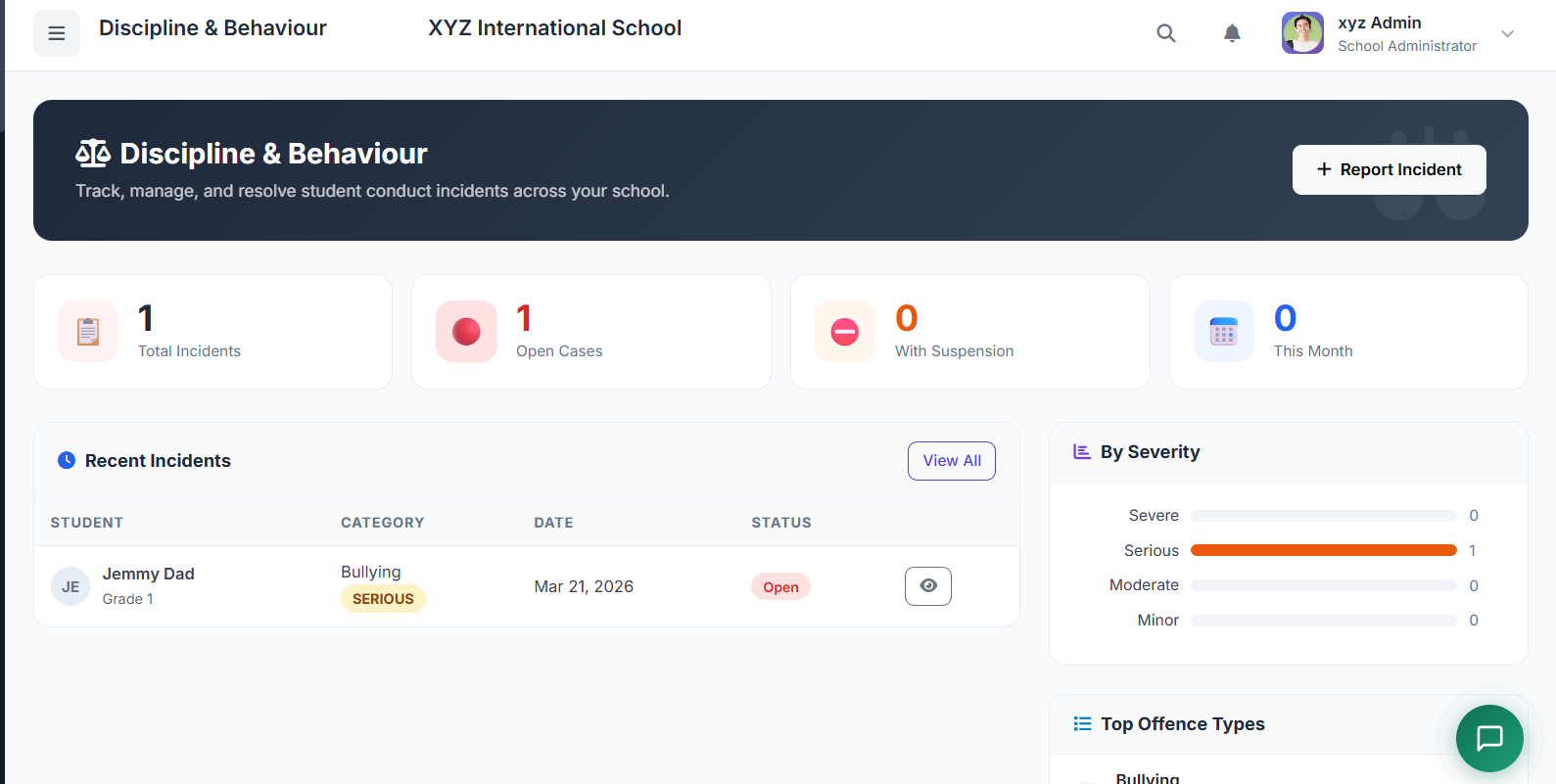
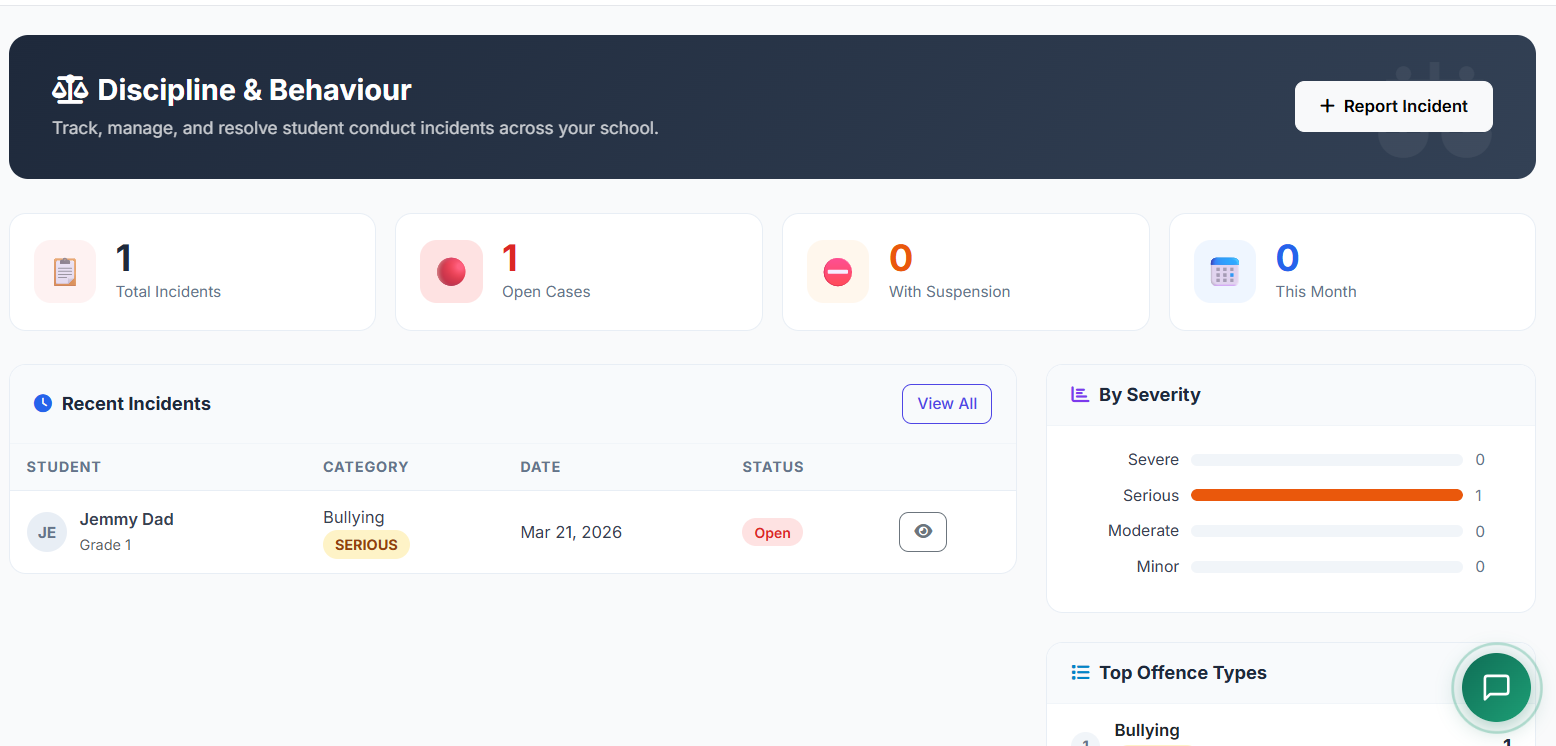
The dashboard gives an instant school-wide conduct overview.
Stat Cards (top row):
Total Incidents – all recorded incidents in the school's history
Open Cases – incidents with status = Open that need attention
With Suspension – incidents where suspension days > 0
This Month – incidents recorded in the current calendar month
Recent Incidents table – the 10 most recent incidents with student name, category, severity badge, date, and resolution status. Click the eye icon to view any incident in full detail.
By Severity chart – horizontal bar chart showing the distribution of Minor / Moderate / Serious / Severe incidents.
Top Offence Types – the 5 most frequently recorded categories, ranked by count.
Step 3 – Set Up Offence Categories First
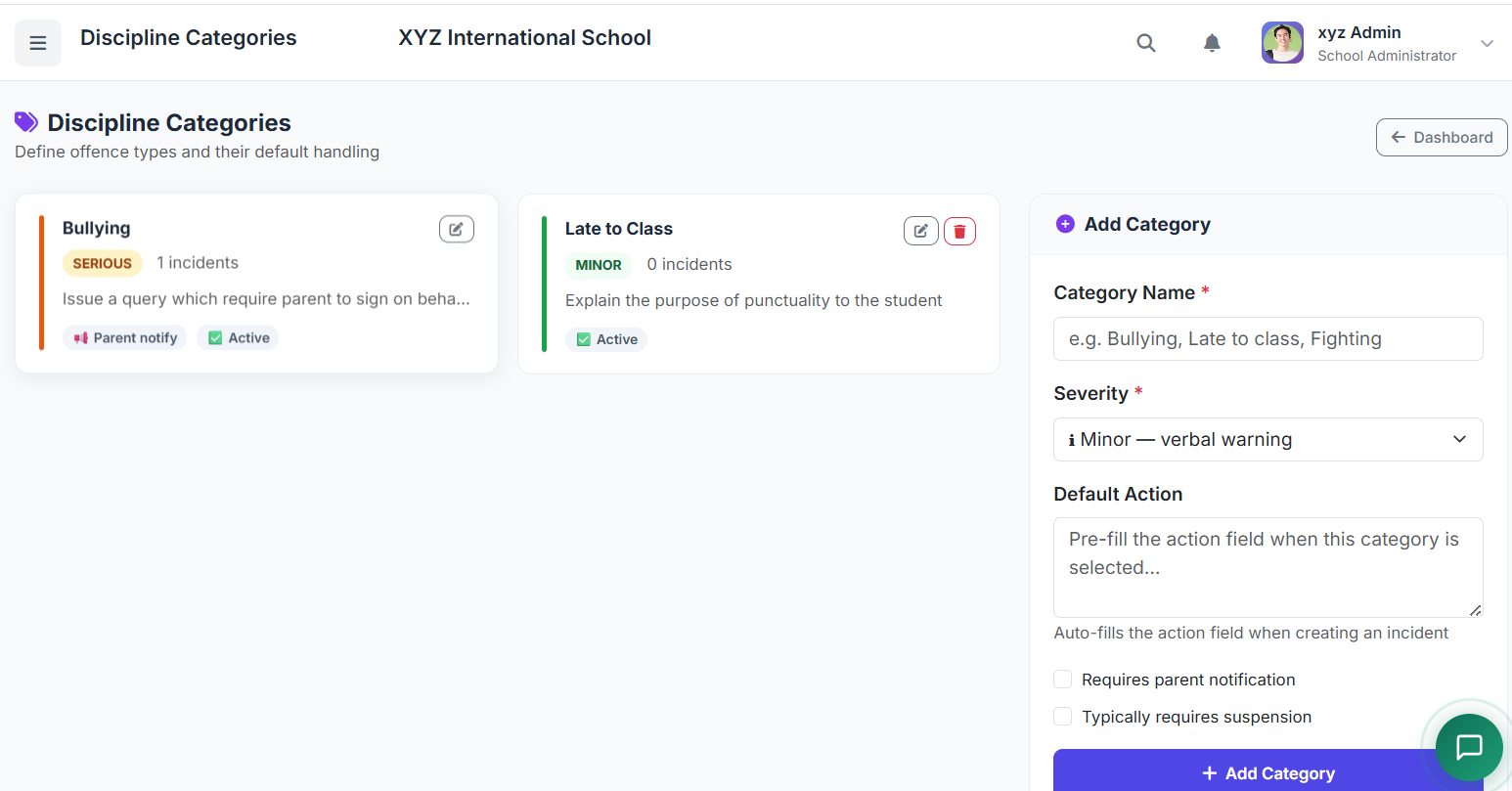
Before recording incidents, configure the categories that fit your school's discipline policy.
Click Manage Categories on the dashboard, or go to
/admin/discipline/categoriesThe right panel shows the Add Category form
Fill in:
| Field | Description |
|---|---|
| Category Name | Descriptive name (e.g., Bullying, Mobile Phone Violation) |
| Severity | Choose from Minor, Moderate, Serious, or Severe |
| Default Action | Optional text that auto-fills the "Action Taken" field (saves time) |
| Requires Parent Notification | Tick if this offence always demands parent contact |
| Requires Suspension | Tick if this offence typically results in suspension |
Click Add Category
The category appears immediately in the left panel as a card, colour-coded by severity with usage count shown.
To edit a category: Click the pencil icon → update fields → click Update Category
To delete a category: The trash icon only appears if the category has zero incident records attached. Categories in use cannot be deleted to preserve historical data integrity.
Recommended starter categories:
| Severity | Categories |
|---|---|
| Minor | Late to Class, Improper Uniform, Mobile Phone Use |
| Moderate | Cheating/Plagiarism, Disrespect to Staff, Vandalism |
| Serious | Bullying, Repeated Misconduct, Truancy |
| Severe | Fighting, Theft, Substance Use, Assault |
Step 4 – Report a New Incident
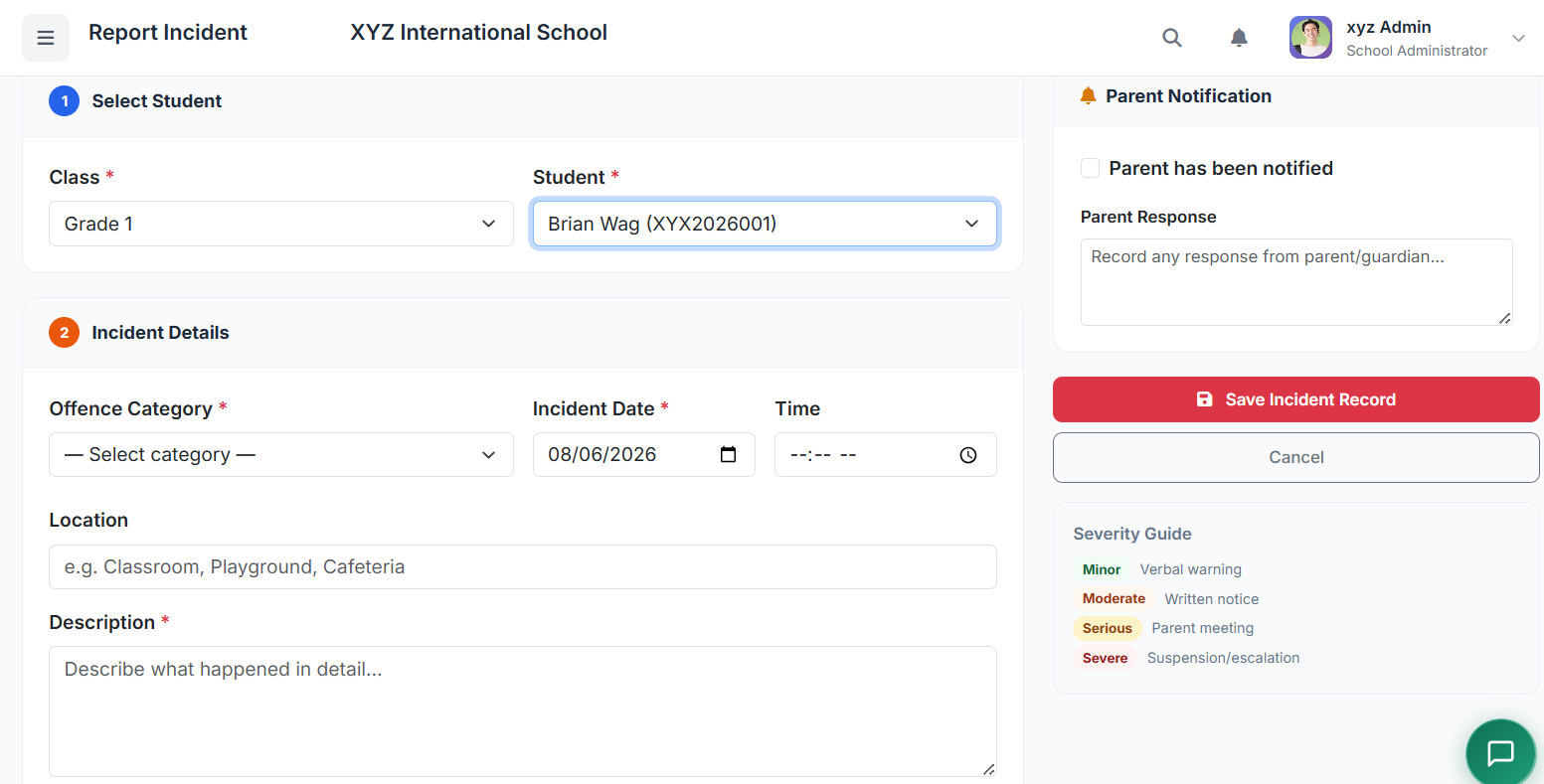
Click Report Incident from the dashboard, the records list, or go to
/admin/discipline/createThe form is organised in 3 steps:
Step 1 – Select Student:
Choose the Class from the dropdown
The Student dropdown automatically loads all active students in that class (via AJAX)
Select the student involved
Step 2 – Incident Details:
Offence Category – choose from the grouped list (grouped by severity: Severe → Serious → Moderate → Minor)
Displays the severity level with a colour-coded badge
Auto-fills the Action Taken field with the category's default action (if set)
Shows a warning flag if the category requires parent notification
Shows a suspension prompt if the category typically requires suspension
Incident Date – defaults to today; can be backdated
Time – optional, records the time of the incident
Location – optional (Classroom, Playground, Cafeteria, etc.)
Description – required; write a clear, factual account of what happened
Step 3 – Action & Resolution:
Action Taken – what was done (pre-filled from category default if set)
Suspension Days – enter the number of days suspended; leave 0 if none
Initial Status – usually Open; change to Under Review if already being investigated
Right panel – Parent Notification:
If the selected category requires parent notification, the checkbox is auto-ticked
Tick Parent has been notified to record that contact was made
Enter the Date Notified
Record any Parent Response (verbal agreement, dispute, etc.)
Click Save Incident Record – the record is saved and you are redirected to the records list with a success confirmation
Step 5 – View an Incident in Detail
From the records list or dashboard, click the eye icon on any incident row, or click the incident title
The detail page shows:
| Section | Content |
|---|---|
| Severity banner | Offence type, severity, date, time, and location at the top |
| Resolution status badge | Colour-coded current status (Open = red, Resolved = green, etc.) |
| Student section | Name, admission number, class/section |
| Incident Description | Full text of what was recorded |
| Action Taken | What was done, plus suspension days highlighted if applicable |
| Parent Notification | Whether notified, when, and their response |
| Resolution section | Who reported it, who resolved it (if closed), resolution timestamp |
| Other Incidents (same student) | Up to 10 previous incidents; click Full History to see all |
Step 6 – Edit an Incident
From the detail page, click Edit (yellow button)
The edit form pre-fills all existing values
You can update any field:
Change the category, date, description, or location
Update the action taken or add suspension days
Change the resolution status – if changed to Resolved, the system automatically records who resolved it and the timestamp
Update parent notification details and response
Click Update Record
Step 7 – View a Student's Full Discipline History
Every student has a dedicated discipline profile:
From any incident detail page, click Student Profile (blue button)
Or from the records list, click the student's name
Or navigate directly to
/admin/discipline/student/{student_id}
The profile page shows:
Student header with photo, name, admission number, class/section, and status
Summary stats – total incidents, open cases, total suspension days accumulated
Chronological incident timeline – every incident colour-coded by severity, showing category, date, reporter, and resolution status
Each row has a View button to open that specific incident detail
This page is the primary tool for identifying repeat offenders and compiling evidence for serious decisions.
Step 8 – Filter and Search Incident Records
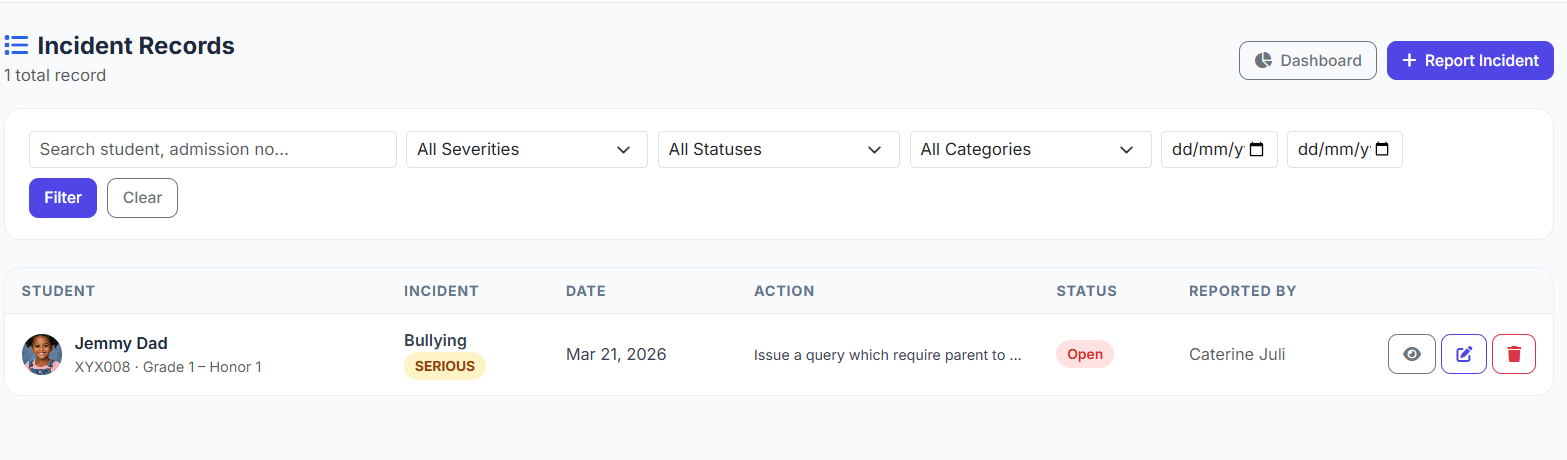
The Records List (/admin/discipline/records) has a full filter bar:
| Filter | What It Does |
|---|---|
| Search box | Matches student name, admission number, or description text |
| Severity | Filter by Minor / Moderate / Serious / Severe |
| Status | Filter by Open / Under Review / Resolved / Escalated / Appealed |
| Category | Filter by a specific offence type |
| Date From / Date To | Narrow to a specific date range |
To apply filters: fill in one or more fields and click Filter
To reset: click Clear
The total record count updates to show how many records match the current filter. Pagination handles large result sets (20 records per page).
Step 9 – Delete an Incident Record
From the records list, click the red trash icon on the row
Or from the detail page, click the trash icon (top right)
Confirm when prompted – deletion is permanent
Important: Only delete records if the incident was logged in error. For dismissed cases or pardoned incidents, change the Resolution Status to Resolved instead of deleting – this preserves the audit trail.
Role Summary
| Role | View | Create | Edit | Delete | Manage Categories |
|---|---|---|---|---|---|
| School Admin | ✅ | ✅ | ✅ | ✅ | ✅ |
| Principal | ✅ | ✅ | ✅ | ✅ | ✅ |
| Vice-Principal | ✅ | ✅ | ✅ | ✅ | ✅ |
| Teacher | ✅ | ✅ | ❌ | ❌ | ❌ |
Teachers can report incidents, which are then followed up by the school admin.
Tips & Best Practices
On recording incidents:
Record incidents as soon as possible after they occur – details fade quickly
Use the Description field for objective facts only, not opinion or judgement
If multiple students are involved in the same incident, create a separate record for each student
Always record what action was taken, even if just "verbal warning issued"
On categories:
Keep category names short and specific – avoid overlapping categories
Use the Default Action field to create consistent school-wide responses
Review categories at the start of each academic year and deactivate any that are no longer relevant
On parent notification:
Always tick "Parent notified" when contact has been made – this creates a legal record
Record the parent's response even if it was verbal, so there is a written account
For Serious and Severe incidents, ensure notification is done before the end of the school day
On resolution:
Move cases from Open → Under Review → Resolved systematically
Never leave Severe incidents in Open status for more than 24 hours
Use Escalated status when the matter goes to the school board or external authority
Use Appealed status when a parent formally disputes the outcome
For reporting purposes:
Use date range filters to pull all incidents for a given term or academic year
The dashboard's severity chart and top categories panel are useful for governor/trustee reports
A student's discipline profile provides everything needed for a parent meeting
Troubleshooting
| Problem | Likely Cause | Solution |
|---|---|---|
| Student dropdown is empty after selecting class | No active students enrolled in that class | Check student records – verify current_class_id is set and status = active |
| Category action does not auto-fill | Category has no Default Action set | Go to Categories, edit the category, and add a default action |
| "Record not found" when viewing an incident | The incident belongs to a different school | Confirm you are logged in as the correct school admin |
| Cannot delete a category | Category has incidents attached to it | Archive it by setting status = Inactive instead of deleting |
| Resolved status does not record resolver | The record was already in Resolved status | The resolver is only auto-captured on the first status change to Resolved |
| Teacher cannot access the module | Teacher role lacks discipline.view permission | Visit /system-admin/run-seeds to re-seed permissions, or assign manually |
Closing
The Discipline & Behaviour Management Module transforms conduct tracking from a chaotic, paper-based process into a structured, auditable, and searchable system. With clear severity tiers, resolution statuses, and student history profiles, administrators can make informed decisions, identify repeat offenders, and maintain transparent communication with parents – all while building a permanent record that stands up to scrutiny.