Overview
The SSMS topbar contains two interactive icons on the right side of the header bar, sitting to the left of your profile menu. These widgets are always visible regardless of which module you are currently working in.
| Icon | Name | What It Does |
|---|---|---|
| 🔍 | Global Search | Instantly find any student, staff member, or class across your school |
| 🔔 | Notification Bell | Shows role-specific alerts, pending actions, and in-app messages |
1. Global Search
What It Is
A school-wide search tool that lets you locate any record in seconds without navigating through menus. It searches across students, staff, and classes simultaneously and takes you directly to the record you select.
How to Open It
There are two ways:
| Method | Action |
|---|---|
| Click | Click the 🔍 magnifying glass icon in the topbar |
| Keyboard Shortcut | Press Ctrl + K (Windows/Linux) or Cmd + K (Mac) from anywhere in SSMS |
Step-by-Step Guide
Step 1: Open the Search Overlay
Click the search icon or press Ctrl + K. A full-screen overlay appears with a search input in the centre.
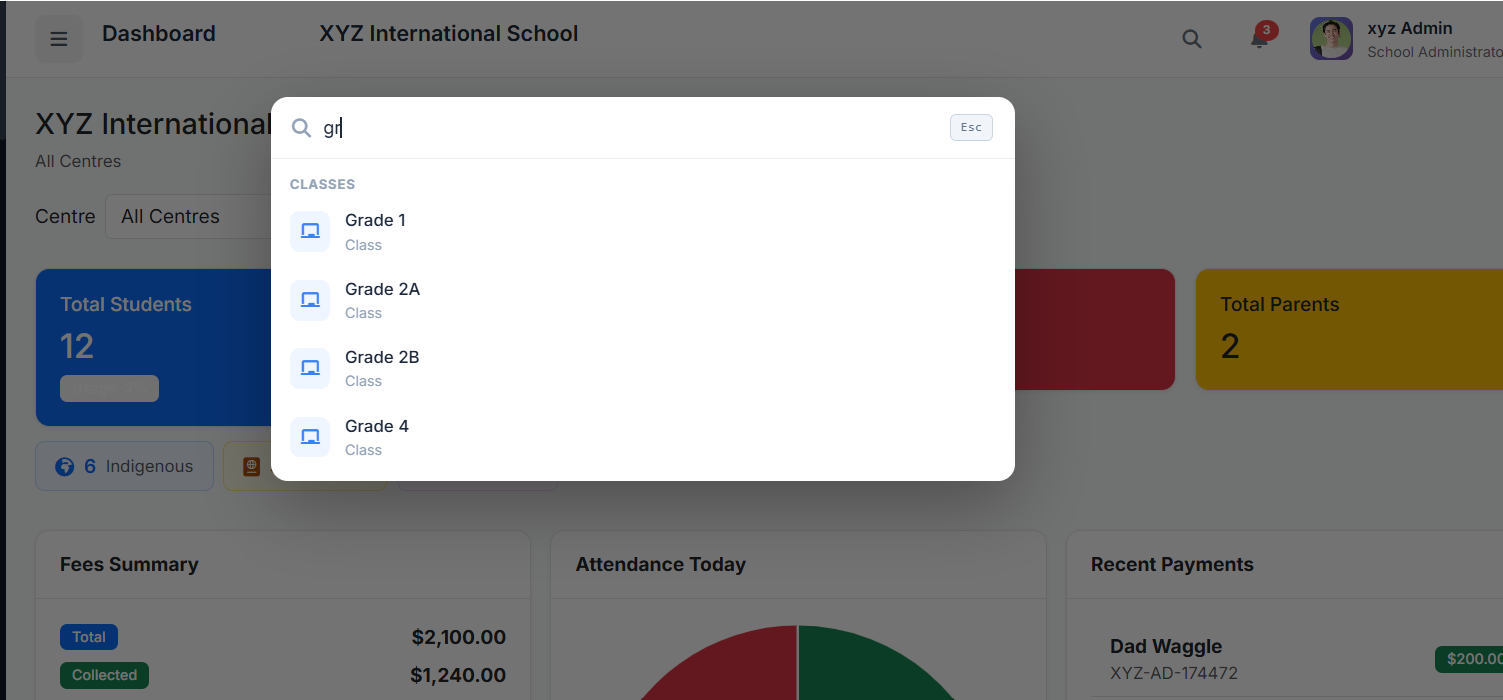
Step 2: Type Your Search Term
Start typing a student's name, admission number, staff name, email address, or class name. Results begin appearing automatically after 2 characters with a short delay.
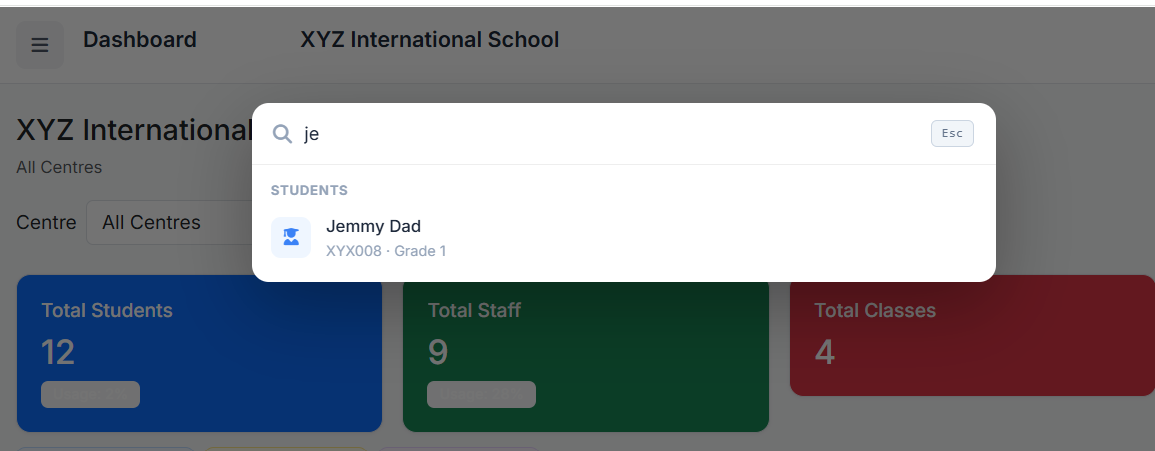
Step 3: Review the Results
Results are grouped by category:
| Category | Information Shown |
|---|---|
| Students | Full name, admission number, current class |
| Staff | Name and role |
| Classes | Class name |
Step 4: Navigate to a Record
Click any result row to go directly to that record's page. The overlay closes automatically.
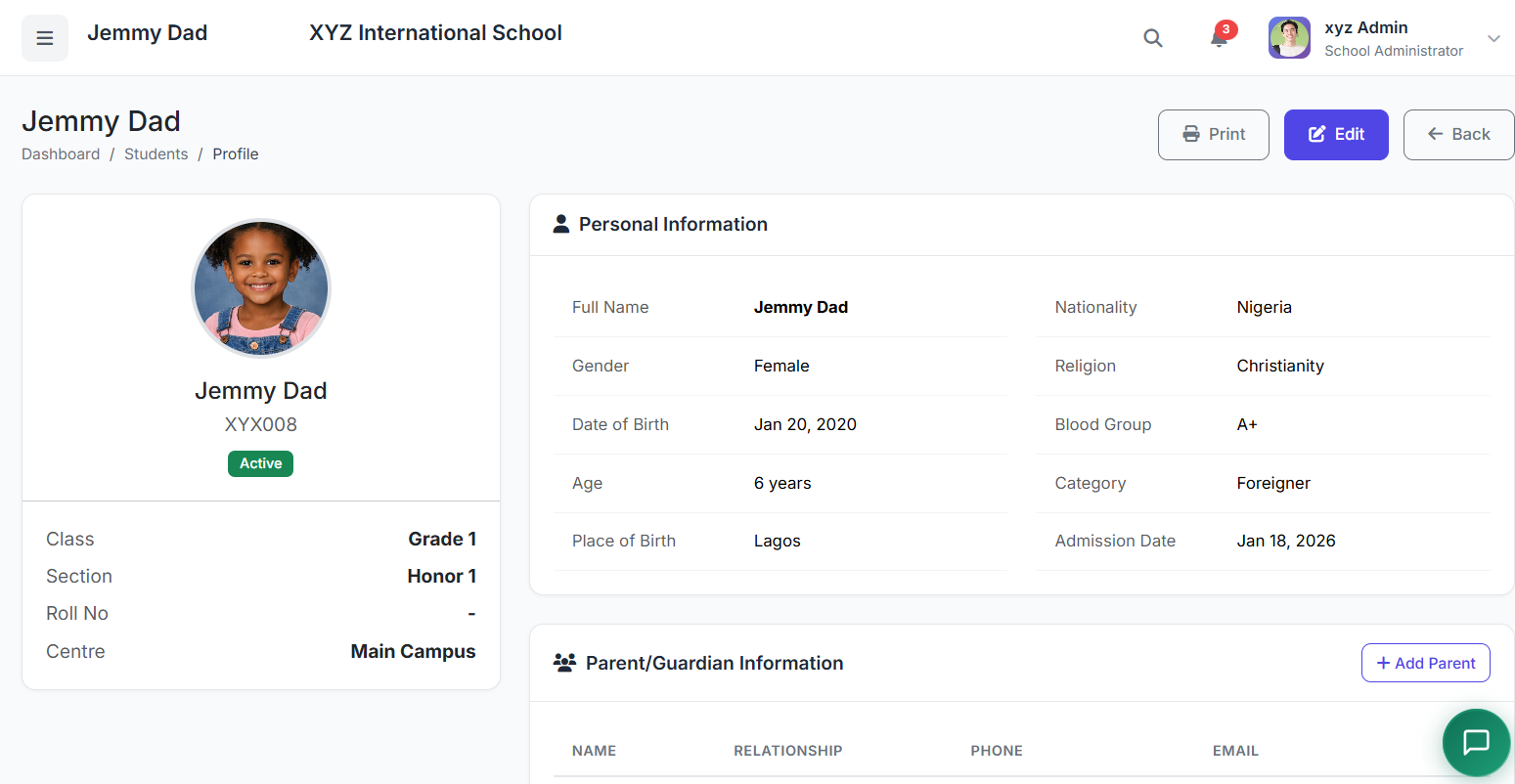
Step 5: Close Without Selecting
Use any of these methods:
Press Esc on your keyboard
Click the Esc button displayed in the top-right corner of the search box
Click anywhere on the dark background outside the search panel
Important Notes
| Feature | Detail |
|---|---|
| Search type | Live – results refresh as you type; no need to press Enter |
| Scope | Always scoped to your school (and your assigned centre if you are a Principal) |
| Maximum results | 14 total (up to 6 students, 4 staff, 4 classes) |
| Search box | Clears automatically each time you open and close the overlay |
2. Notification Bell
What It Is
A real-time alert centre that surfaces actionable information relevant to your role.
Key Difference: Unlike the dashboard's Recent Activities section (which shows a history of all system events), the notification bell shows things that need your attention right now – overdue fees, pending approvals, absences, and personal messages directed specifically at you.
The Badge
A red numbered badge on the bell icon shows how many unread or active alerts you have. This count updates automatically when the page loads.
If there are no alerts, the badge is hidden.
How to Open It
Click the 🔔 bell icon in the topbar. A dropdown panel slides open immediately below the icon.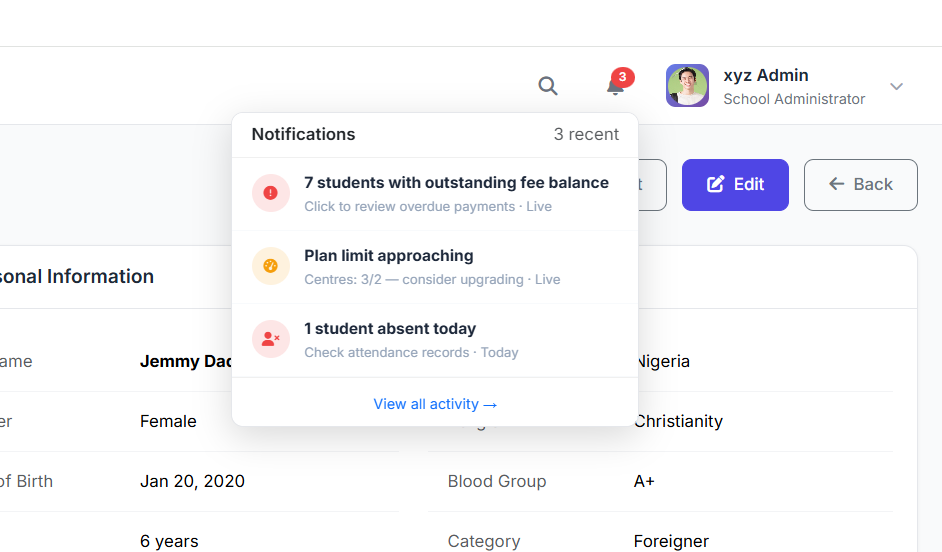
Step-by-Step Guide
Step 1: Click the Bell Icon
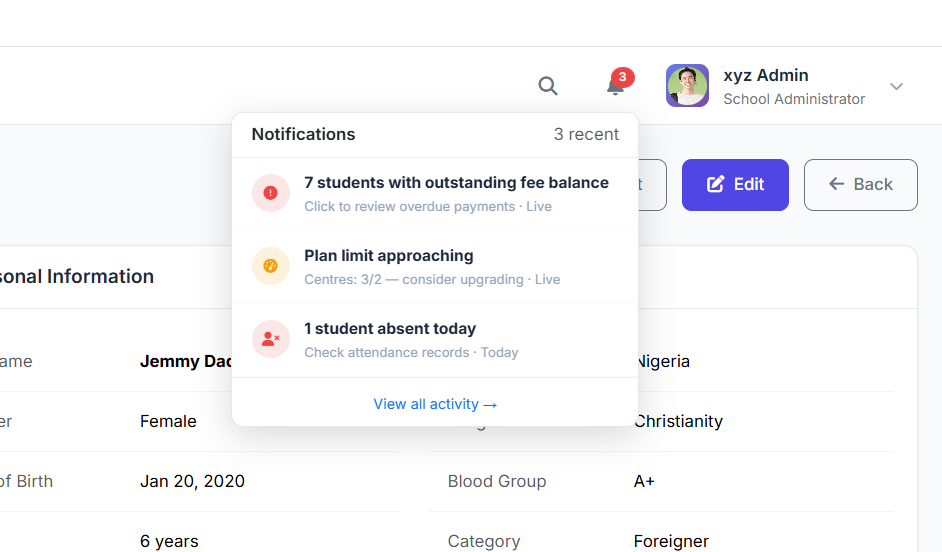
The notification panel opens showing your current alerts, each with a coloured indicator, title, detail line, and timestamp.
Step 2: Read Your Alerts
Unread notifications are displayed in bold. Each item shows:
| Element | Description |
|---|---|
| Coloured dot | Indicates severity (red = urgent, amber = warning, blue = informational) |
| Title | Short description of the alert |
| Detail line | Context (count, name, amount, etc.) |
| Timestamp | "just now", "4h ago", "Today", or "Live" for real-time data |
Step 3: Act on an Alert
Alerts that link to a specific page (e.g., overdue fees, leave requests, attendance) are clickable. Clicking one takes you directly to the relevant module.
Step 4: Mark a Personal Notification as Read
Personal in-app messages (sent to you specifically) show a small ✓ checkmark button on the right. Click it to mark the notification as read – the item fades and the badge count decreases immediately without a page reload.
Step 5: View Full Activity Log
At the bottom of the panel, click "View all activity →" to open the full audit log.
Step 6: Close the Panel
Click anywhere outside the notification panel to close it.
What Each Role Sees
The notification bell is role-aware – each user only sees alerts relevant to their responsibilities:
| Role | Alerts Shown |
|---|---|
| School Administrator | Students with outstanding fee balances · Pending leave requests · Plan limit warnings (when usage exceeds 80%) · Students absent today · Personal in-app messages |
| Accountant | Students with outstanding fee balances · Personal in-app messages |
| Principal / Vice Principal | Pending leave requests awaiting approval · Students absent today · Personal in-app messages |
| Teacher | Homework due today (their assigned classes) · Upcoming exams this week (their subjects) · Students absent today · Personal in-app messages |
| Parent / Student | Personal in-app messages only |
Understanding Alert Types
| Colour | Meaning | Examples |
|---|---|---|
| 🔴 Red | Requires immediate attention | Overdue fees, students absent today |
| 🟡 Amber | Action needed soon | Pending leave requests, plan limit approaching |
| 🔵 Blue | Informational / upcoming | Homework due today, upcoming exams |
| ⚫ Grey | Low priority / read | Older or already-read notifications |
Live vs. In-App Alerts
| Type | Description | Can Be Dismissed? |
|---|---|---|
| Live Alerts | Generated in real time from current database state. Reflect what is happening right now (e.g., overdue fee count, today's absence count, pending leave requests). Resolve automatically when the underlying issue is addressed. | ❌ No – they disappear when the issue is resolved |
| In-App Messages | Notifications sent to you personally by the system or an administrator (e.g., payment confirmation, result published, system announcement). Show a ✓ button to mark as read. | ✅ Yes – click the checkmark button |
Live alert examples:
Overdue fee count
Today's absence count
Pending leave requests
In-app message examples:
Payment confirmation
Result published
System announcement
Keyboard Shortcuts Summary
| Shortcut | Action |
|---|---|
Ctrl + K / Cmd + K | Open Global Search from anywhere |
Esc | Close Global Search overlay |
Troubleshooting
| Problem | Likely Cause | Solution |
|---|---|---|
| Search returns no results | Typo or search term too short | Check spelling; minimum 2 characters required |
| Search results missing expected records | Record type not included in search | Global Search covers students, staff, and classes only |
| Notification badge shows count but panel is empty | Page needs refresh | Refresh the page to sync notification state |
| Clicking notification does nothing | Alert type has no link | Some informational alerts are read-only |
| Cannot mark live alert as read | Live alerts resolve automatically | Address the underlying issue (pay fee, approve leave, etc.) |
Closing
The Topbar Widgets are designed to make navigation and alert management effortless:
Global Search (
Ctrl + K) gets you anywhere in SSMS in seconds – no more clicking through menusNotification Bell keeps you on top of what matters – overdue fees, pending approvals, and personal messages – all role-aware and real-time
Together, they ensure you spend less time hunting for information and more time acting on it.