Overview
The Parent module gives parents and guardians a secure, centralised portal to track their child’s academic progress, attendance, finances, transport, and school communications. Designed for multi-campus schools, it respects centre-level access and academic year filtering throughout.
Getting Started
Access
Role: Parent (school-level)
Login: Email/password or provisioned credentials
Data scope: Parents automatically see information for all children linked via
student-parents, across any centres they attend
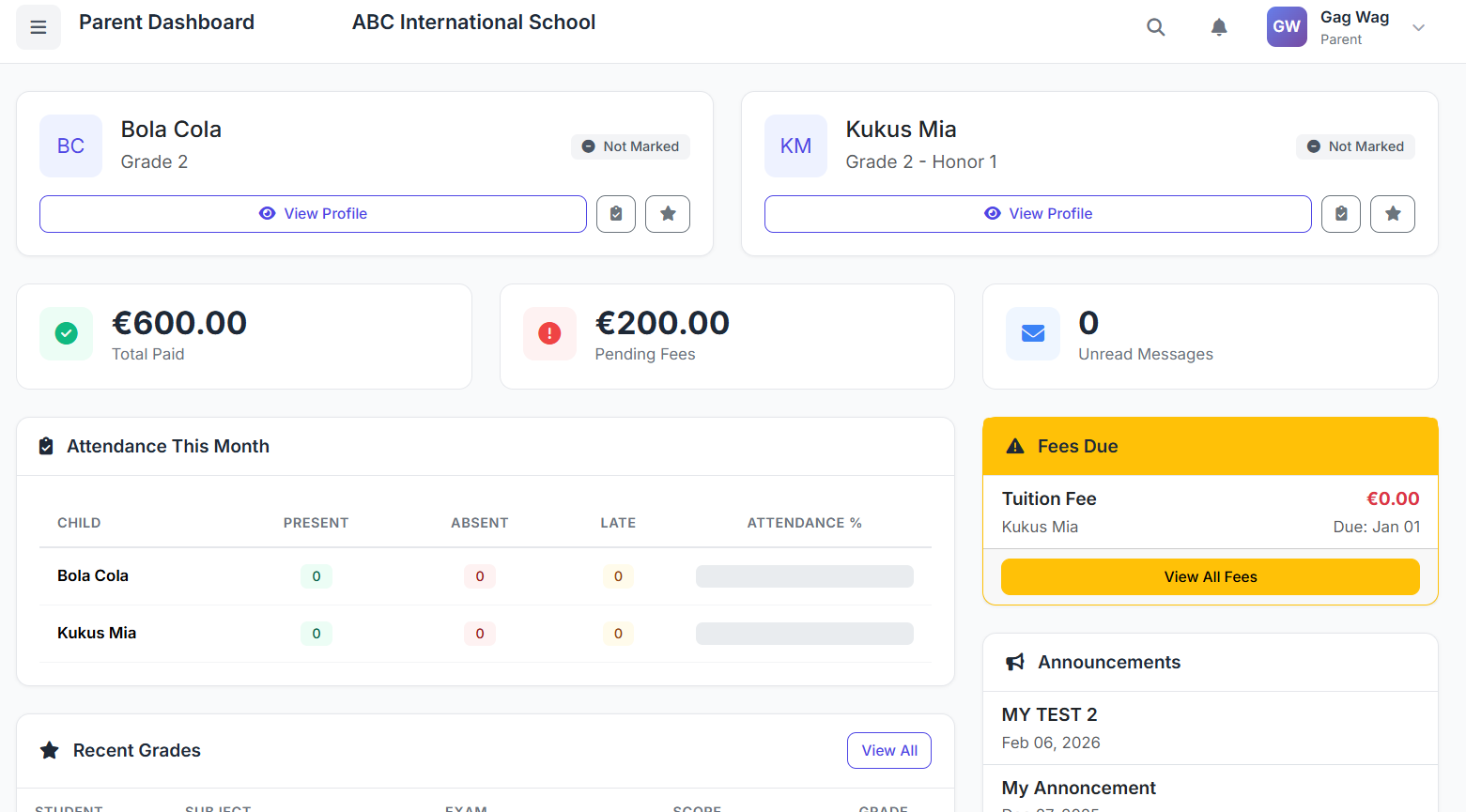
Dashboard
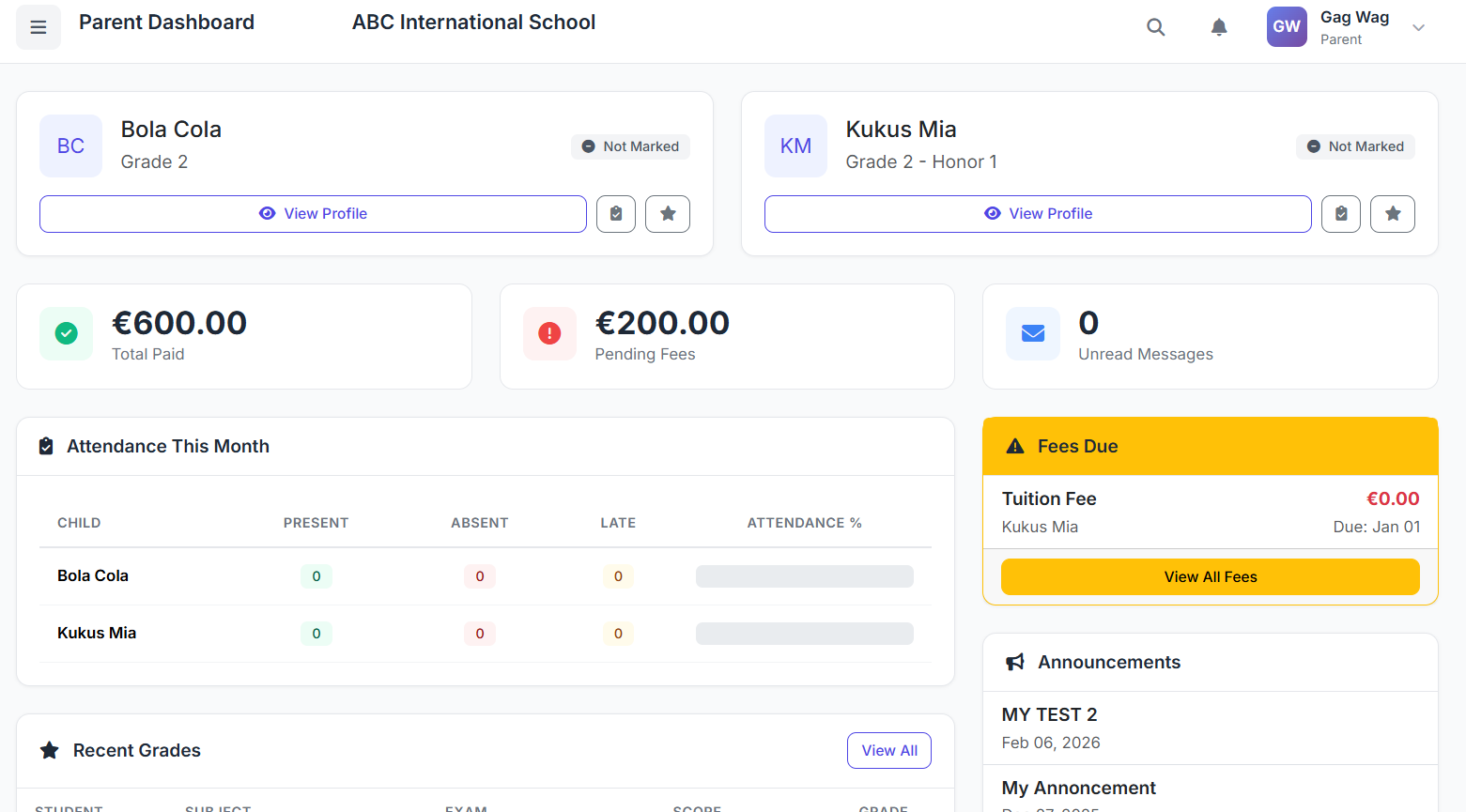
The dashboard is your home screen – a launchpad to every major section.
At a glance:
My Children
Attendance
Timetable
Grades & Results
Report Cards
Finance (fee status, payment history, invoices)
Announcements & Messages
How to use:
Log in to the Parent portal.
Select Dashboard from the left menu.
Click any card to jump straight to that section.
My Children
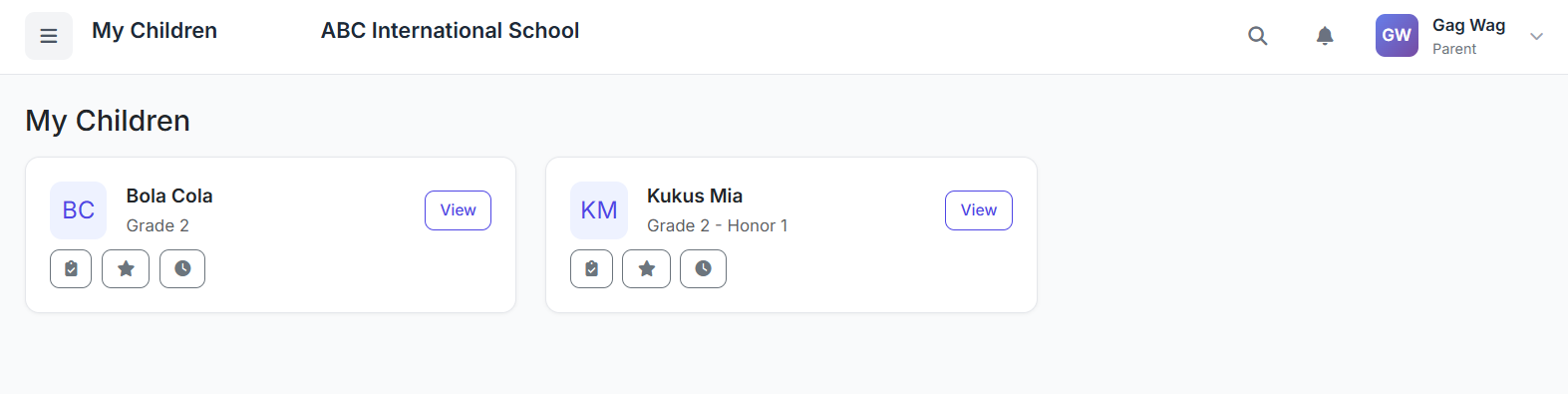
View all children linked to your account and their basic profile details.
How to use:
Click My Children in the left menu.
Browse the list; click a child’s name to view full profile (if enabled).
Attendance
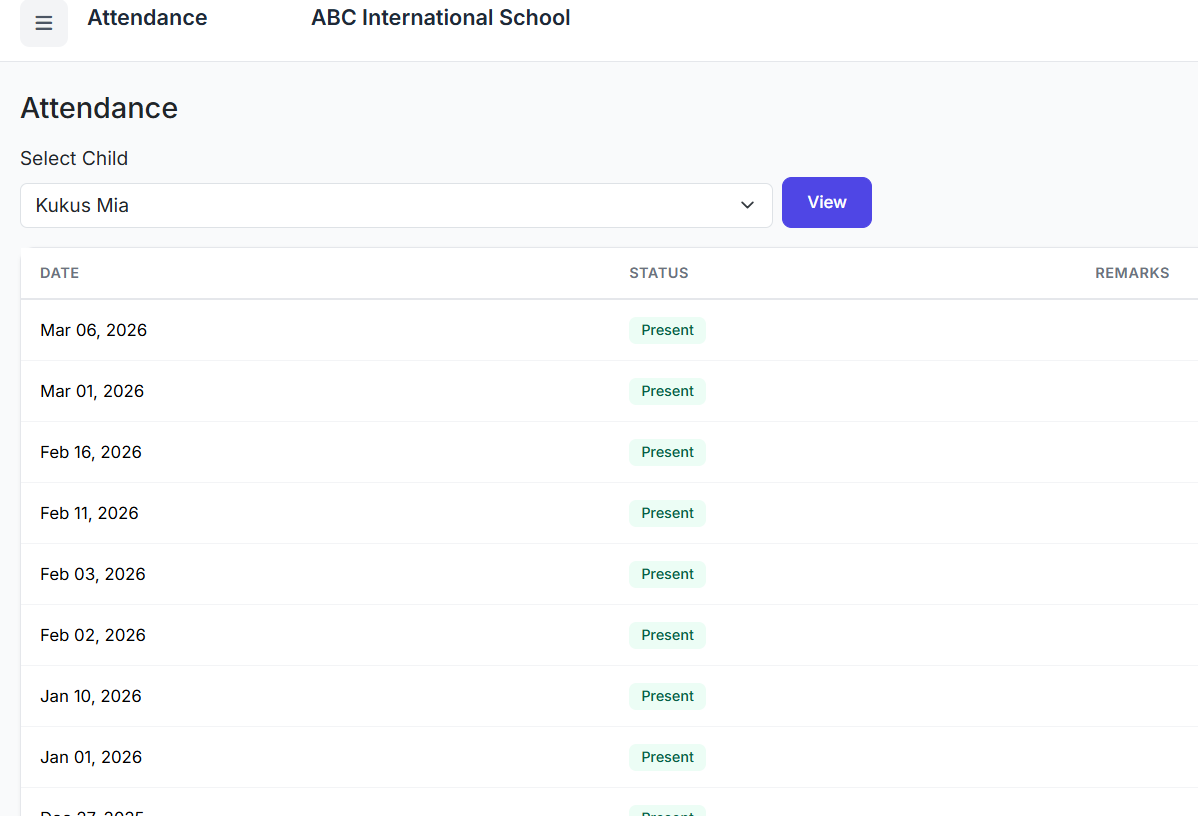
Quickly check recent attendance summaries.
How to use:
Click Attendance in the left menu.
Select a child (if prompted).
View their attendance record.
Timetable
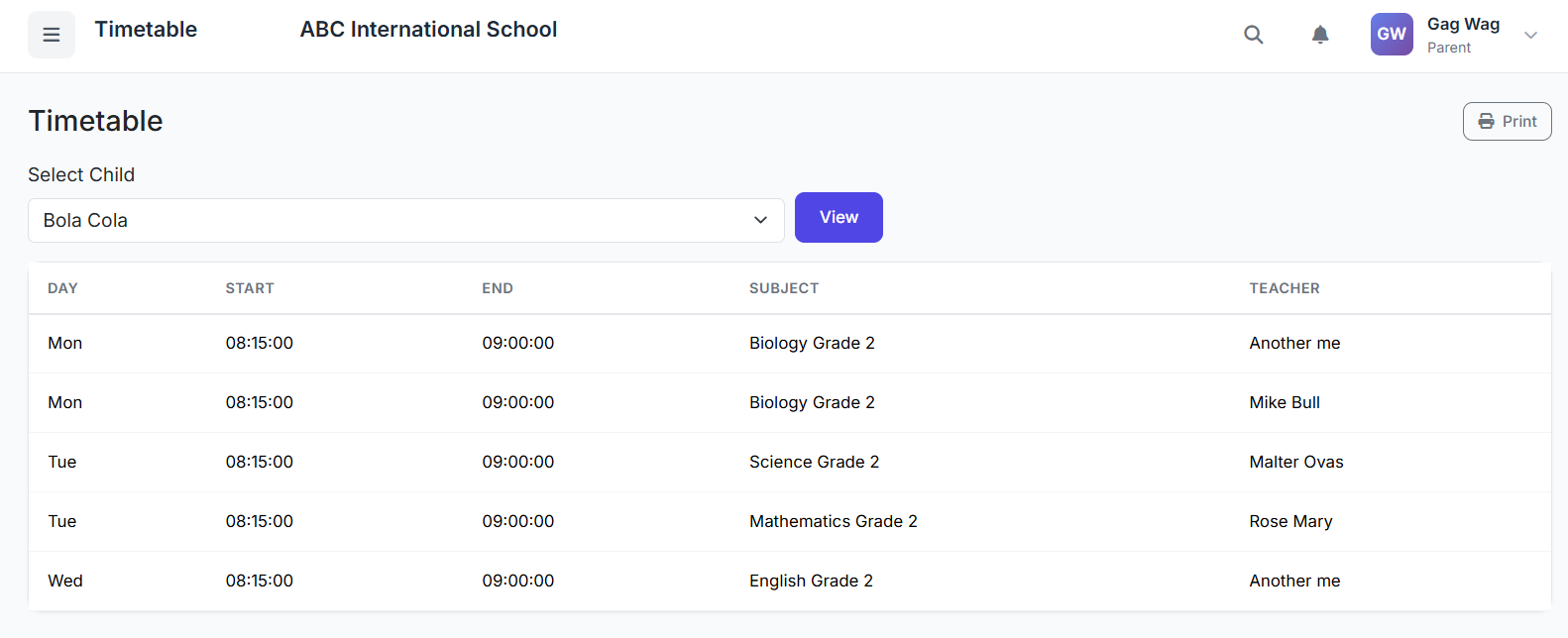
View your child’s weekly class schedule.
How to use:
Click Timetable in the left menu.
Choose a child from the dropdown.
View the weekly timetable (Monday–Sunday).
Click Print for a clean, printer-friendly version with school logo.
Grades & Results
View assessment marks and exam results, organised by subject and exam.
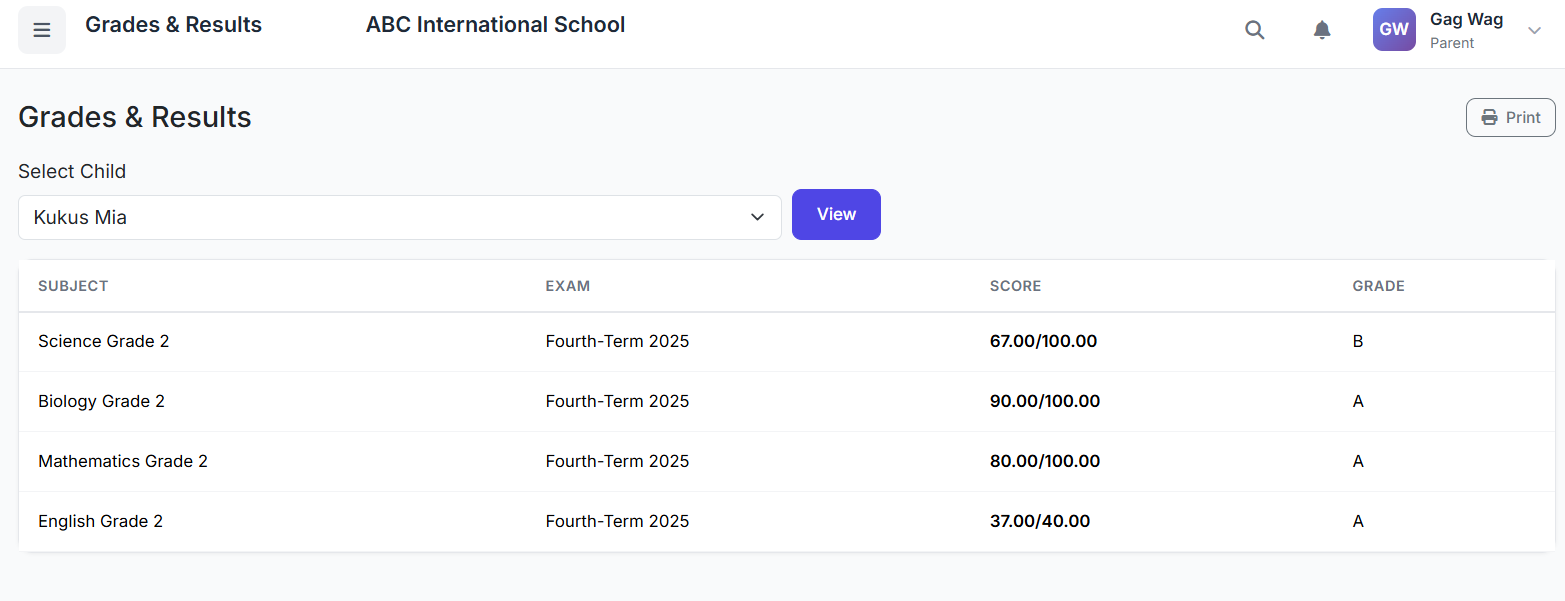
How to use:
Click Grades & Results in the left menu.
Select a child, and filter by exam if available.
Click Print to generate a printable results page.
Report Cards
Two ways to view academic performance:
1. Report Cards List
Shows term/year summaries if
report cardsdata existsClick any card to open the full report
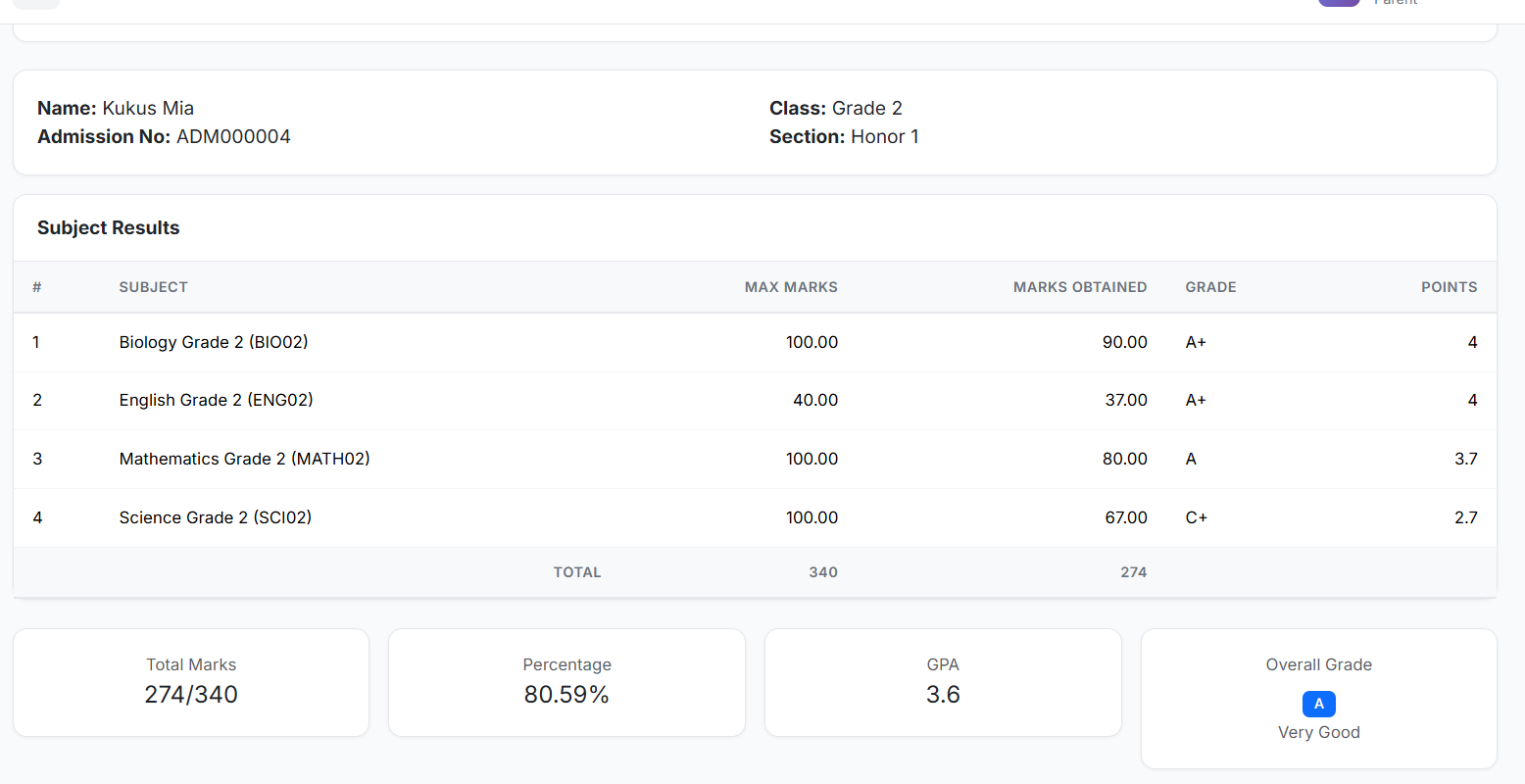
2. Detailed Report Card (per exam)
If no summary cards exist, choose an exam from the dropdown and click View
Full report includes:
School header with logo and contact details
Student details (name, admission no., class/section)
Subject-wise marks, grades, and points
Overall totals, percentage, GPA, and final grade
Click Print for a formatted print view
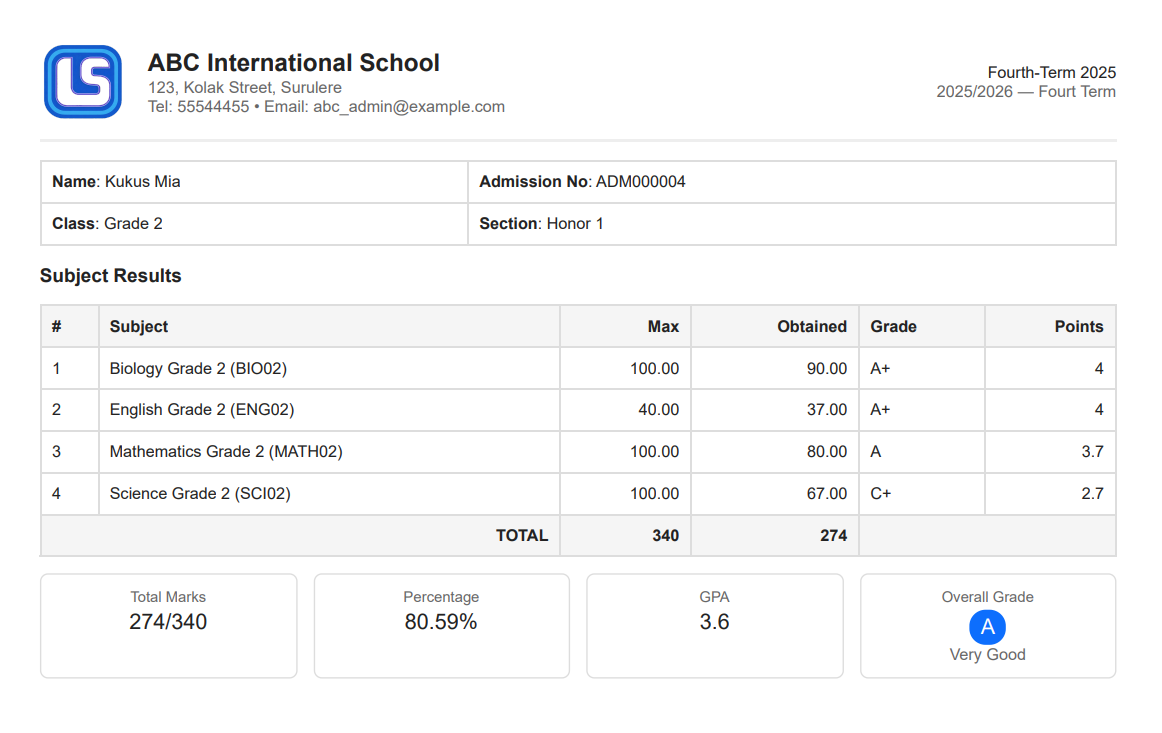
How to use:
Click Report Cards in the left menu.
Select a child.
Either click a summary card or choose an exam and click View.
From the detailed view, click Print.
Finance
Fee Status
See a summary of total fees, paid amount, and outstanding balance per child.
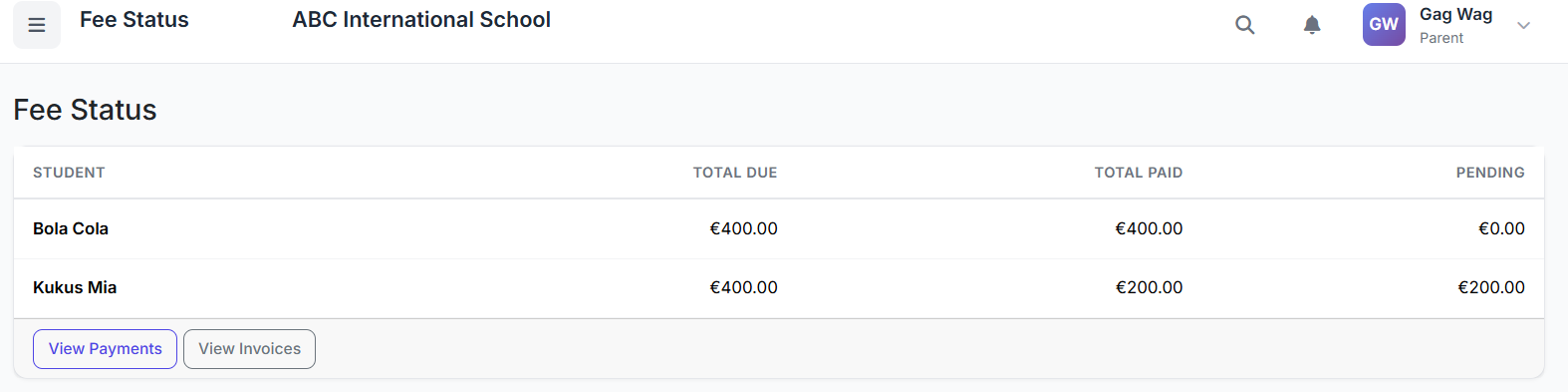
How to use:
Click Finance → Fee Status.
Review each child’s balance.
Payment History
View past payments with date, category, amount, payment method, and reference.

How to use:
Click Finance → Payment History.
Select a child to see their payment record.
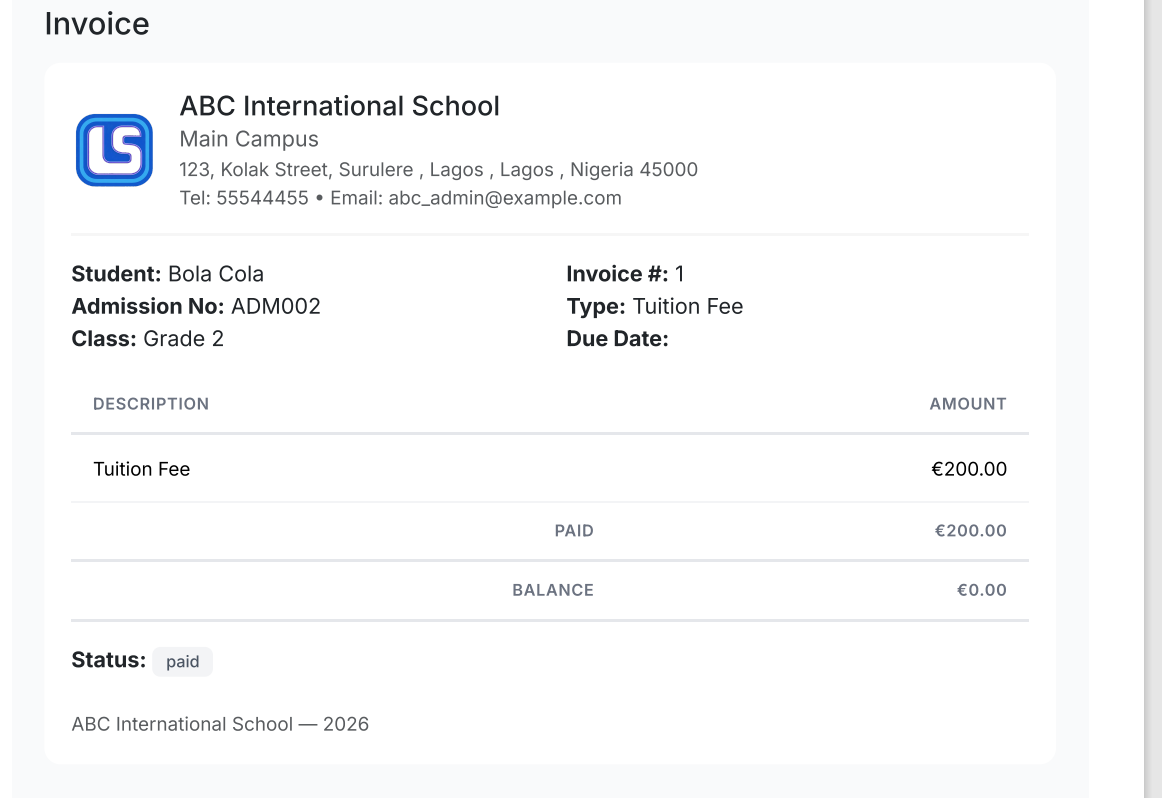
Invoices
Access itemized invoices showing final amount, amount paid, and balance.
How to use:
Click Finance → Invoices.
Select a child and choose an invoice to view.
The invoice includes school header and child details.
Communication
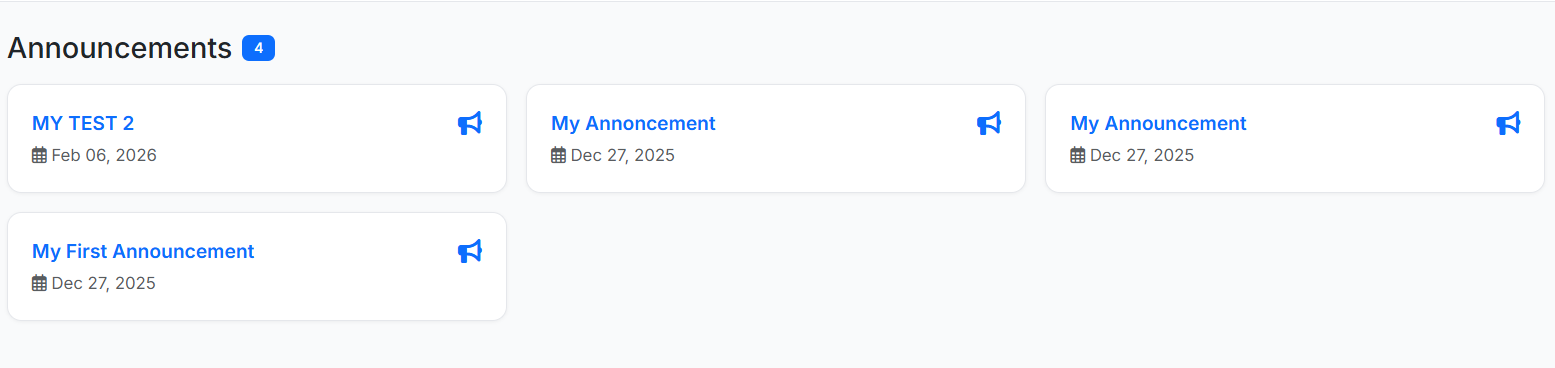
Announcements
School-wide published announcements, shown as clean, dated cards.
How to use:
Click Communication → Announcements.
Browse announcements; click any card to read the full message.
Messages
View recent conversations and messages (if messaging is enabled).
How to use:
Click Communication → Messages.
See your latest conversations.
Transport (optional)
If enabled, view your child’s assigned transport routes and stops.
How to use:
Click Transport in the left menu.
Review route and stop details.
Print Views
Several sections include a dedicated print layout with school branding.
Printable pages:
Timetable
Grades & Results
Detailed Report Card
All print pages automatically handle school logos – whether stored as a full URL or relative path.
Privacy & Security
Every request verifies your parent profile and linkage to each child via
student-parents.You will never see information for children not linked to your account.
Centre-level data isolation is enforced throughout.
Tips for School Administrators
Link each parent to their children in
student-parents.Keep each student’s
current classandcurrent sectionup to date.Set the current academic year in the admin module.
Store school logos as a full URL or valid web path for clean print output.
Publish announcements to make them visible in the parent portal.