Module Overview
The Homework & Assignment Module is an integrated academic workflow tool within SSMS that connects teachers, students, and parents in a structured homework lifecycle – from creation and distribution through submission, grading, and feedback.
Unlike a simple notice board, the module enforces school-level data isolation, class/section targeting, file-based or text-based submission, and a full grading pipeline – all within the same platform that manages attendance, timetables, and fees.
Important Note: This module does not directly affect exam scores and grading. However, teachers may incorporate homework marks into final subject scores. For example, exams/tests may contribute 70% while homework contributes 30%, making a total of 100%. The exam score entered by the teacher is the final combined aggregate score for the term in that subject. Multiple homework assignments may be given throughout the academic year – weekly, monthly, or once per term.
Purpose & Goals
Centralise all homework activity – no paper slips, no separate messaging apps
Give teachers a structured way to assign, track submissions, and record marks
Allow parents to monitor their child's assignments and submit work on their behalf
Give school administrators school-wide visibility and oversight
Maintain strict school isolation so no data leaks across tenants
Core Concepts
| Feature | Description |
|---|---|
| Homework | An academic task assigned by a teacher to a specific class (and optionally a section), with a due date, subject, maximum marks, and an optional attachment |
| Submission | A student's response to homework – may include typed text, an uploaded file (PDF, Word, image), or both |
| Grading | A teacher reviews a submission, enters marks obtained (out of max marks), and optionally writes feedback. Status moves from 'Submitted' to 'Graded' |
| Status Flow | Homework: Active → Expired (past due date) or Cancelled. Submission: Not Submitted → Submitted → Graded (or Late if submitted after due date) |
| School Isolation | All homework records are scoped to a school_id. Parents only see homework for their own children's classes. Teachers only see their own assignments |
| Section Targeting | Homework can target an entire class (section_id = NULL) or a specific section |
User Roles & Access Rights
| Role | Create | Edit | View | Grade | Delete |
|---|---|---|---|---|---|
| School Admin / Principal | ❌ | ❌ | ✅ (all) | ❌ | ✅ |
| Teacher | ✅ | ✅ (own only) | ✅ (own only) | ✅ | ✅ (own only) |
| Parent | ❌ | ❌ | ✅ (child's classes) | ❌ | ❌ |
Note: Students are not covered in this module version – the parent portal acts as the submission interface for students.
Administrator Guide
Administrators have read-only oversight of all homework across the school. This is a governance and audit view – admins cannot create or modify homework, but can monitor activity and remove inappropriate content.
Accessing the Homework Module
Step 1: Log in as School Admin, Principal, or Vice-Principal
Step 2: In the left sidebar, locate the ACADEMIC section
Step 3: Click Homework to open the Homework Management page
Viewing All Homework
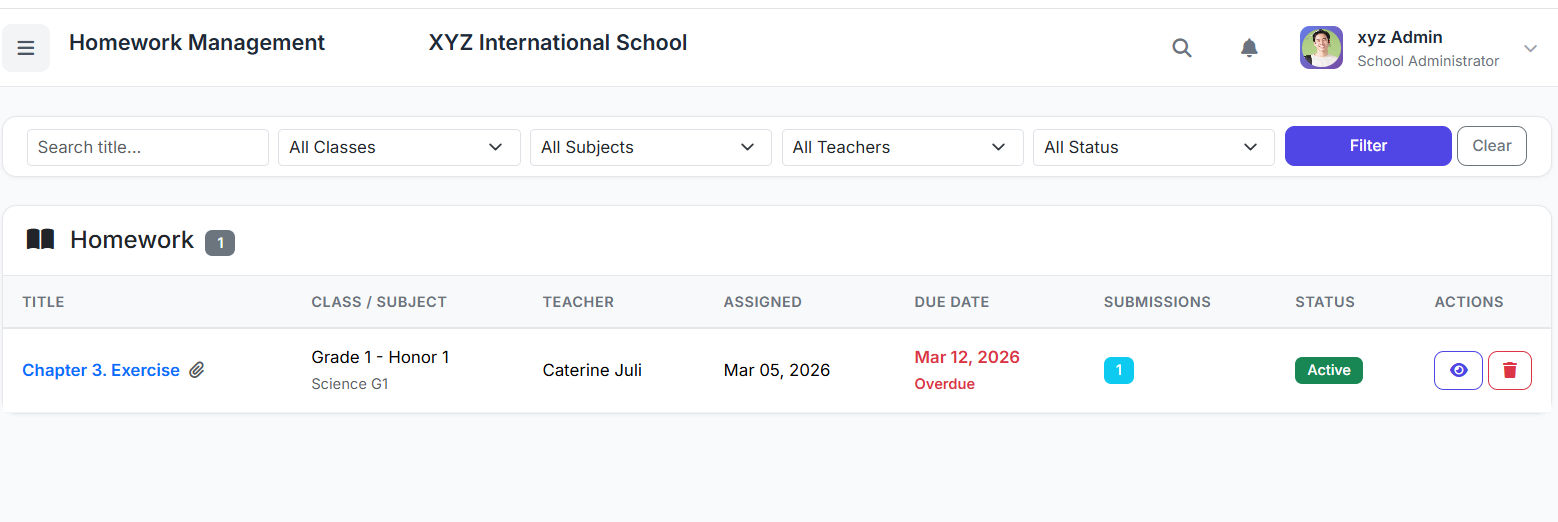
The index page lists all homework created by all teachers in the school. Each row shows:
| Column | Description |
|---|---|
| Title | Clickable link to the detailed view |
| Class / Subject | Which class and subject the homework targets |
| Teacher | The teacher who created it |
| Assigned Date | When it was created |
| Due Date | The submission deadline |
| Submissions | Count of students who have submitted |
| Status badge | Active, Expired, or Cancelled |
Filter Options
Search by title keyword
Filter by class, subject, teacher, or status
Click Filter to apply, Clear to reset
Viewing Homework Details
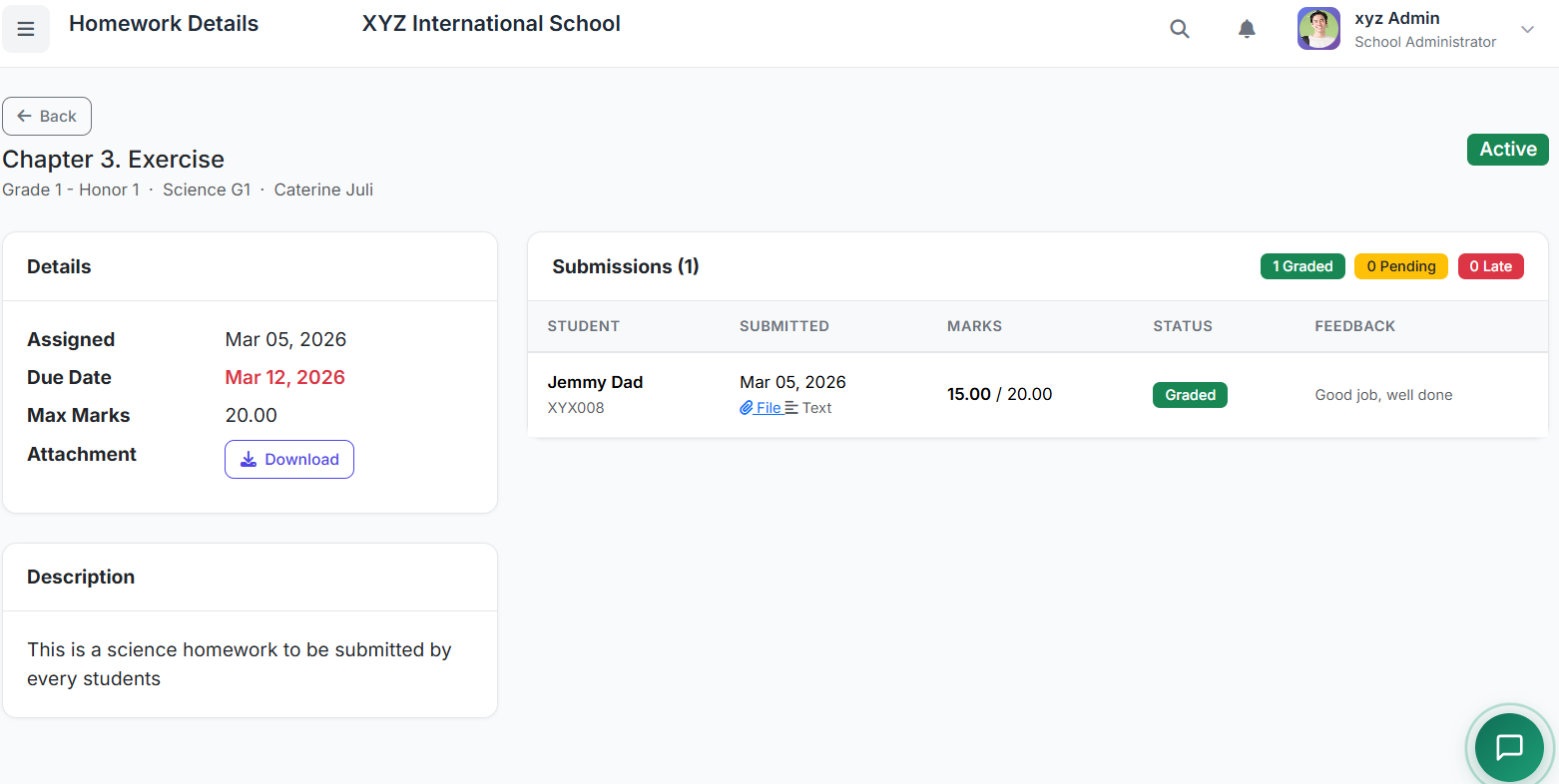
Step 1: Click the homework title or the eye icon in the Actions column
Step 2: The detail page shows: full description, max marks, due date, attachment (download link)
Step 3: The Submissions panel shows all students with status: Not Submitted, Submitted, or Graded
Step 4: Graded submissions show marks obtained and teacher feedback
Note: Admins cannot grade submissions. Grading is exclusively a teacher function.
Deleting Homework
Step 1: On the index page, click the red delete (trash) icon on the row to be deleted
Step 2: Confirm the action when prompted
Step 3: This permanently removes the homework record and is irreversible
Teacher Guide
Full Lifecycle – Create · Manage · Grade
Teachers are the primary users of the homework module. They create assignments, distribute them to their classes, monitor submissions, and record grades with feedback.
The Teacher Portal will be discussed separately in our subsequent videos. For the homework module, we highlight what roles teachers perform within the teacher portal.
Accessing the Module
Step 1: Log in as a Teacher
Step 2: In the sidebar under HOMEWORK, click Homework
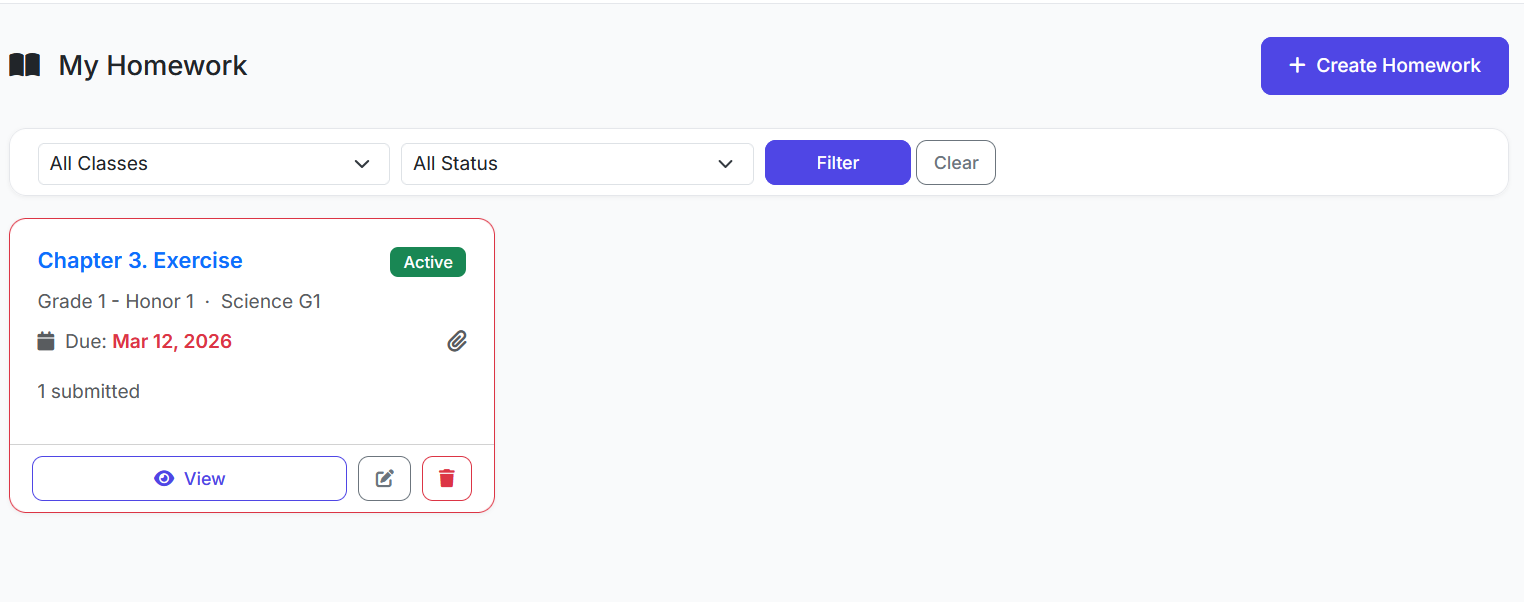
Step 3: The index shows only homework created by you (school-scoped and teacher-scoped)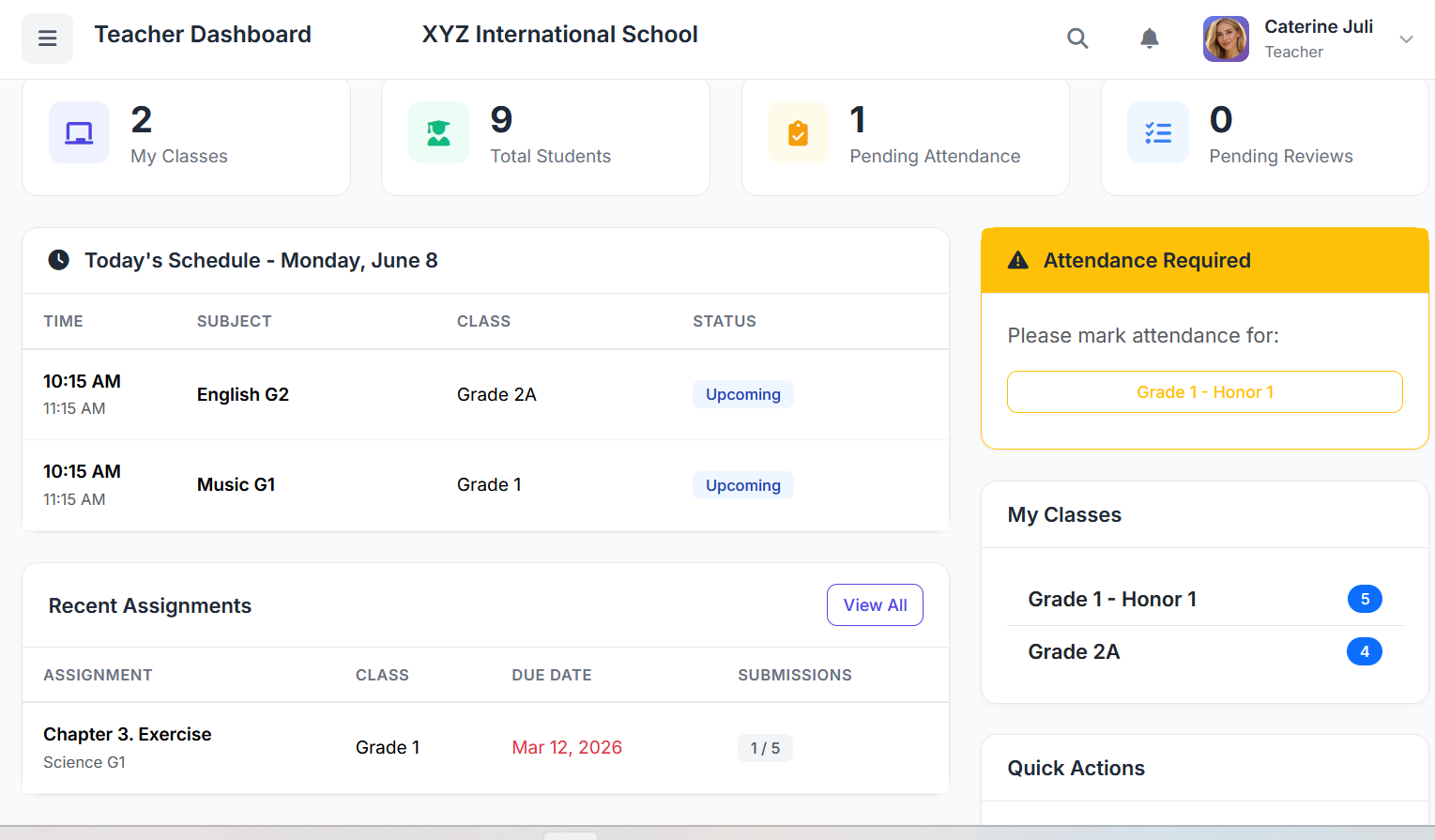
Creating New Homework
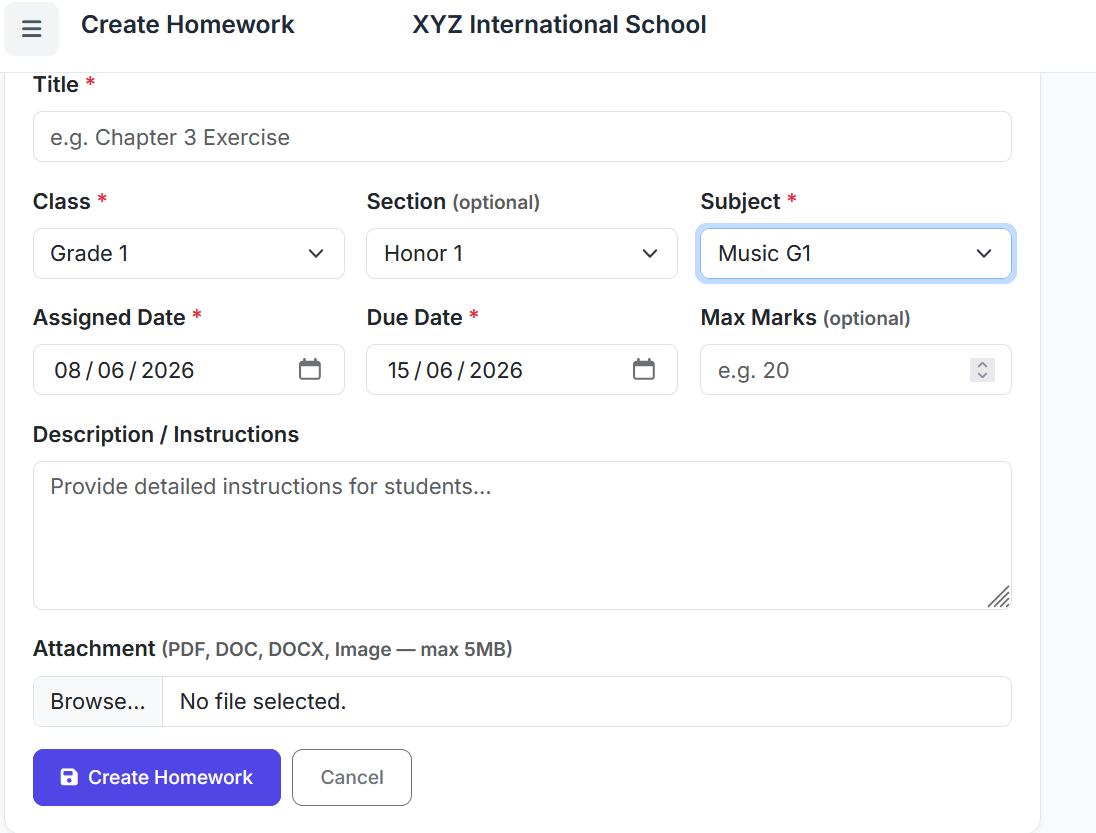
Click + Create Homework on the index page.
| Step | Field | Instructions |
|---|---|---|
| 1 | Select Class | Only classes where you are assigned as a teacher will appear |
| 2 | Select Section (optional) | Leave blank to assign to entire class. Choose a section to target only that group |
| 3 | Select Subject | Filters automatically based on class. Only subjects you teach in that class appear |
| 4 | Enter Title | A concise, descriptive title (e.g., "Chapter 3 Exercise", "Science Lab Report") |
| 5 | Enter Description / Instructions (optional) | Detailed instructions, marking criteria, or notes for students |
| 6 | Set Assigned Date | Defaults to today. Can be backdated if needed |
| 7 | Set Due Date | The deadline for submissions. After this date, any submission is marked as Late |
| 8 | Set Max Marks (optional) | The maximum score this assignment is worth (e.g., 20.00) |
| 9 | Upload Attachment (optional) | Attach a PDF, Word document, or image (worksheet, diagram, etc.) |
Step 10: Click Save Homework – The homework is saved with Active status and becomes visible to parents of students in the target class.
Editing Homework
Step 1: On the index page, click the edit (pencil) icon on the homework row
Step 2: Modify any field: title, description, dates, max marks, or replace the attachment
Step 3: Click Update Homework to save changes
Note: You can only edit homework that you created. You cannot edit another teacher's homework.
Viewing Submissions
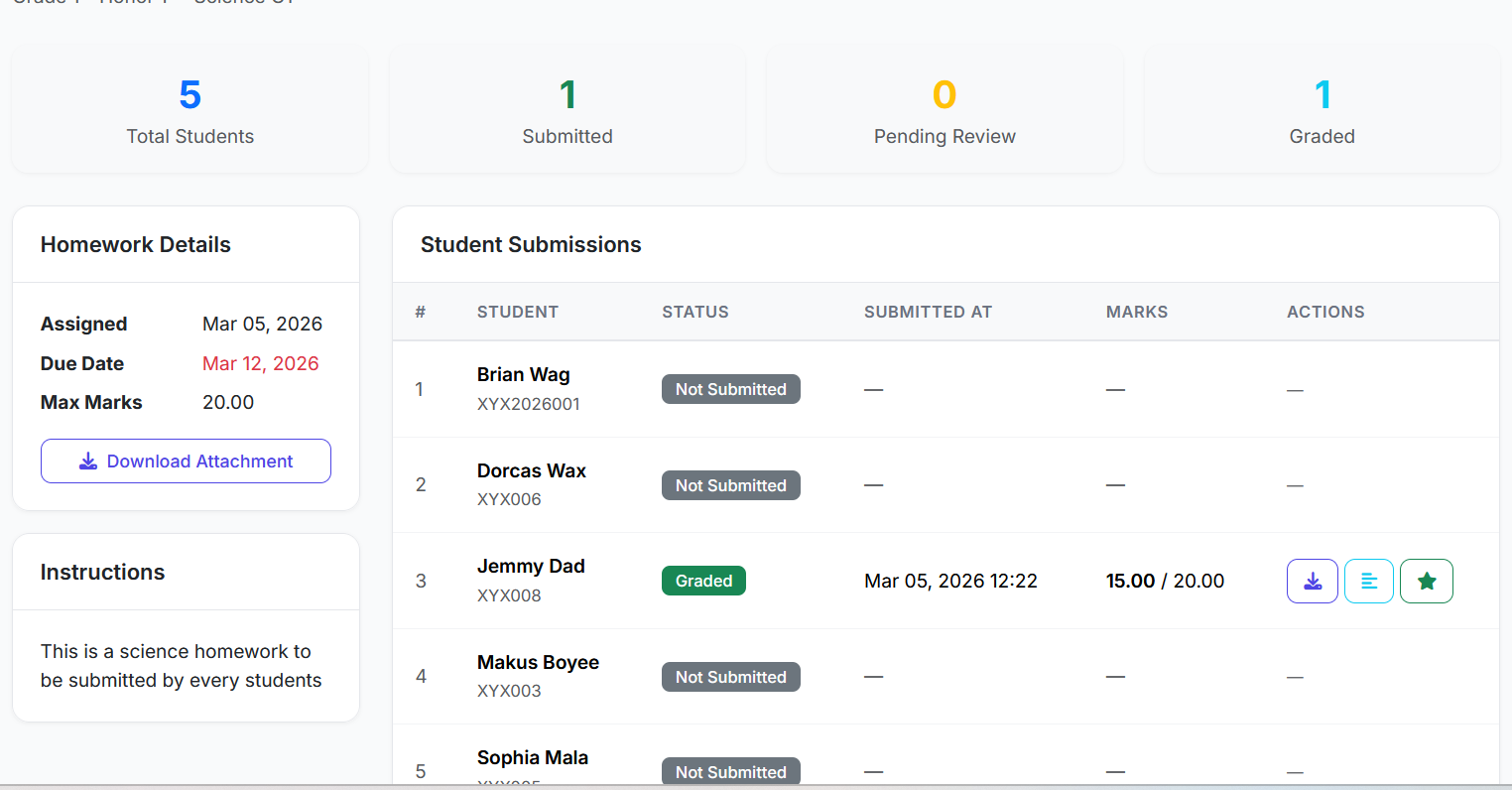
Step 1: Click the homework title or View button to open the detail page
Step 2: The top summary shows:
Total Students
Submitted count
Pending Review count
Graded count
Step 3: The Student Submissions table lists every student in the target class/section with their current status
Submission Statuses
| Status | Meaning | Badge Colour |
|---|---|---|
| Not Submitted | Student has not submitted yet | Dark |
| Submitted | Submitted and awaiting review | Blue/Info |
| Late | Submitted after the due date | Warning |
| Graded | Marks and feedback have been recorded | Green/Success |
Action Buttons per Student Row
| Icon | Action |
|---|---|
| Download icon | Download the student's submitted file |
| View text icon | View the student's typed submission text |
| Grade icon (star) | Open the grading modal for that student |
Grading a Submission
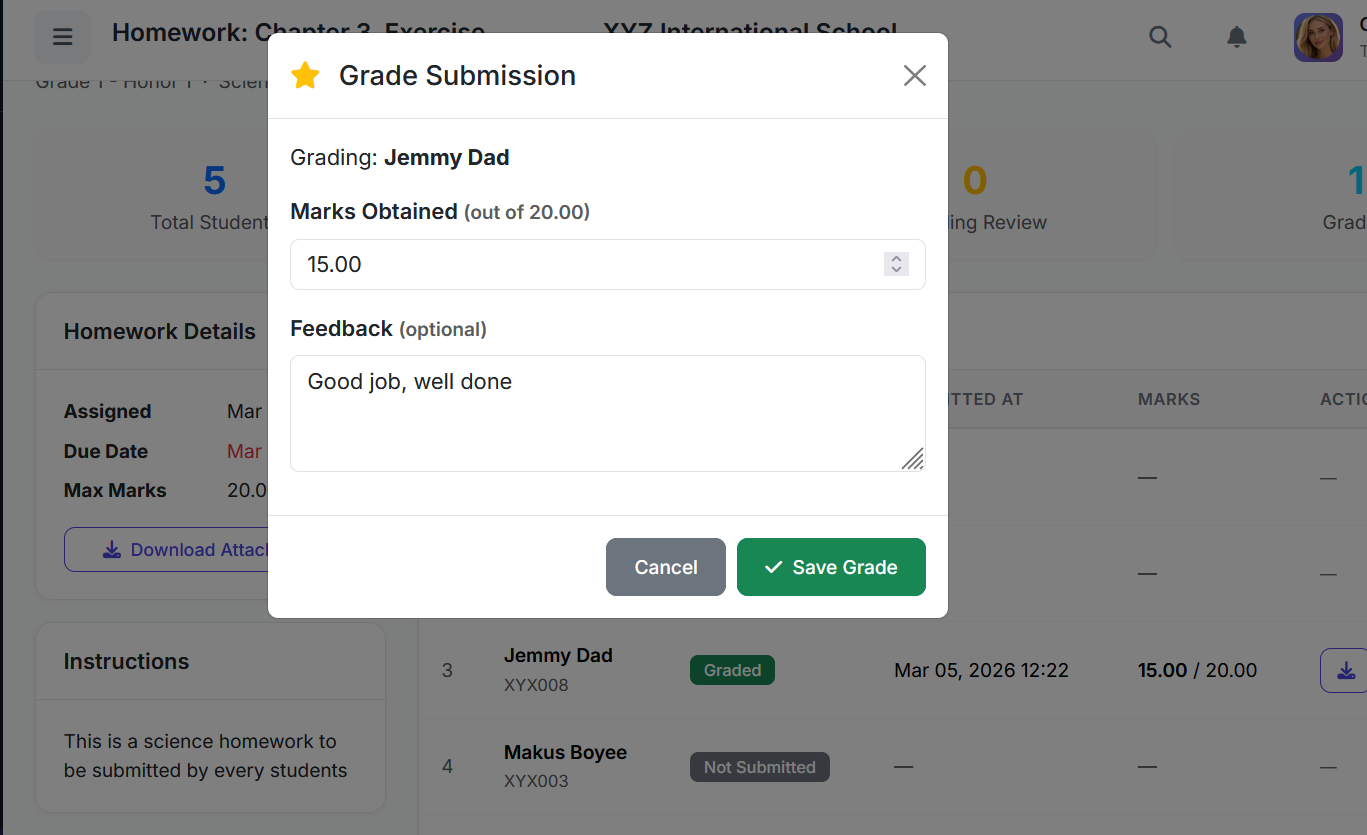
Step 1: On the homework detail page, click the star (grade) icon next to a submitted student
Step 2: A modal dialog opens showing the student's name and submission details
Step 3: Enter Marks Obtained – Must be a number between 0 and the Max Marks value
Step 4: Enter Feedback (optional) – Written comments visible to the parent/student
Step 5: Click Save Grade – The submission status changes to Graded
Deleting Homework
Step 1: On the index page, click the red trash icon on the homework row
Step 2: Confirm when prompted
Note: Deleting homework also removes all associated submission records from the
homework_submissionstable.
Dashboard Integration
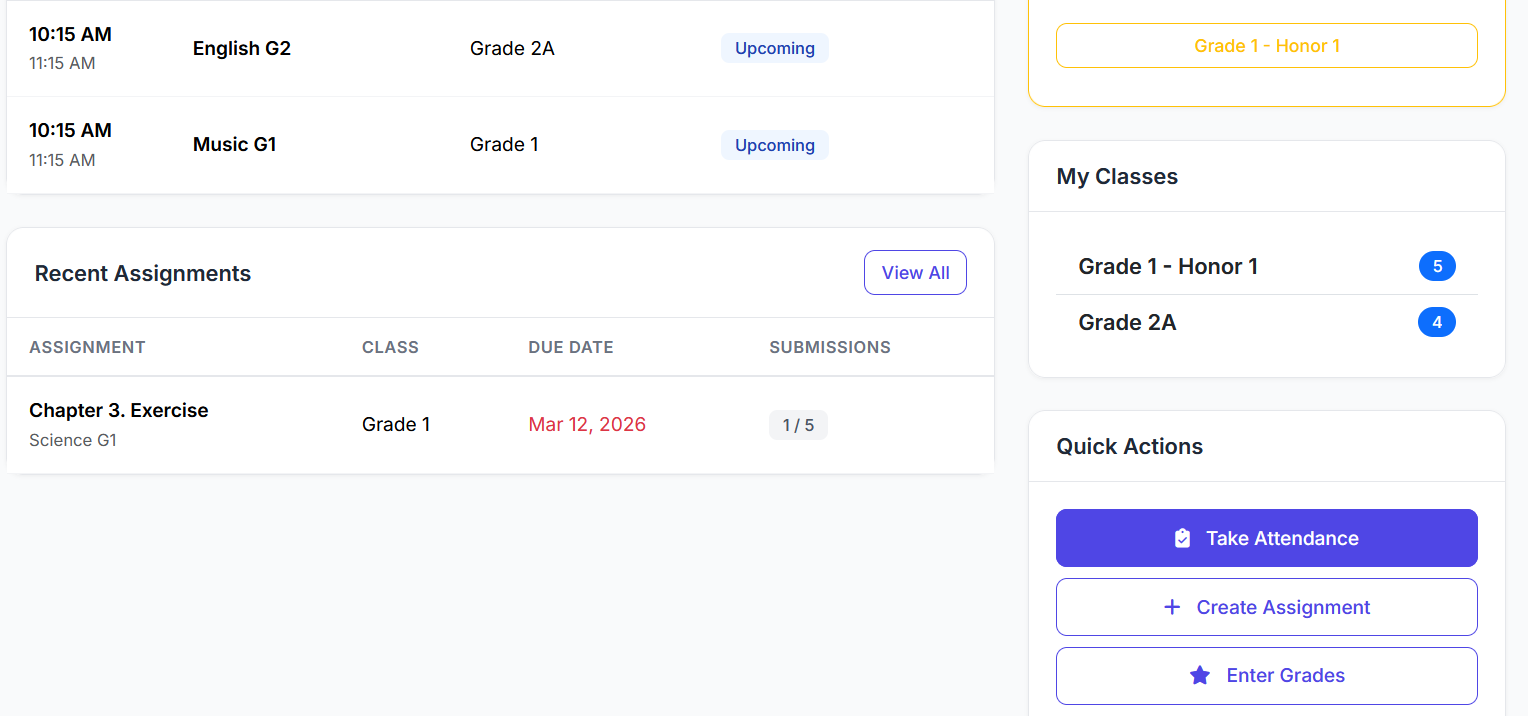
The Teacher Dashboard displays:
Recent Assignments widget – last 5 homework items you created, with submission count vs total students
Pending Reviews stat card – count of submitted homework awaiting your grading
Create Assignment quick action button – links directly to teacher homework page
Parent Guide
View · Submit · Track – On Behalf of Your Child
Parents can view all active homework assigned to their child's class and section, download attachments, submit work on behalf of their child (as text or file), and track grading results – all from the parent portal.
Multi-Child Support
If you have more than one child enrolled:
The homework list shows assignments from ALL your children's classes combined
Each homework item shows the class name so you can identify which child it belongs to
The system deduplicates classes – if two children share a class, it appears only once
Accessing the Homework Module
Step 1: Log in as a Parent
Step 2: In the left sidebar under ACADEMIC, click Homework & Assignment
Step 3: This opens /parent/homework – the Homework Management page
Homework List Page
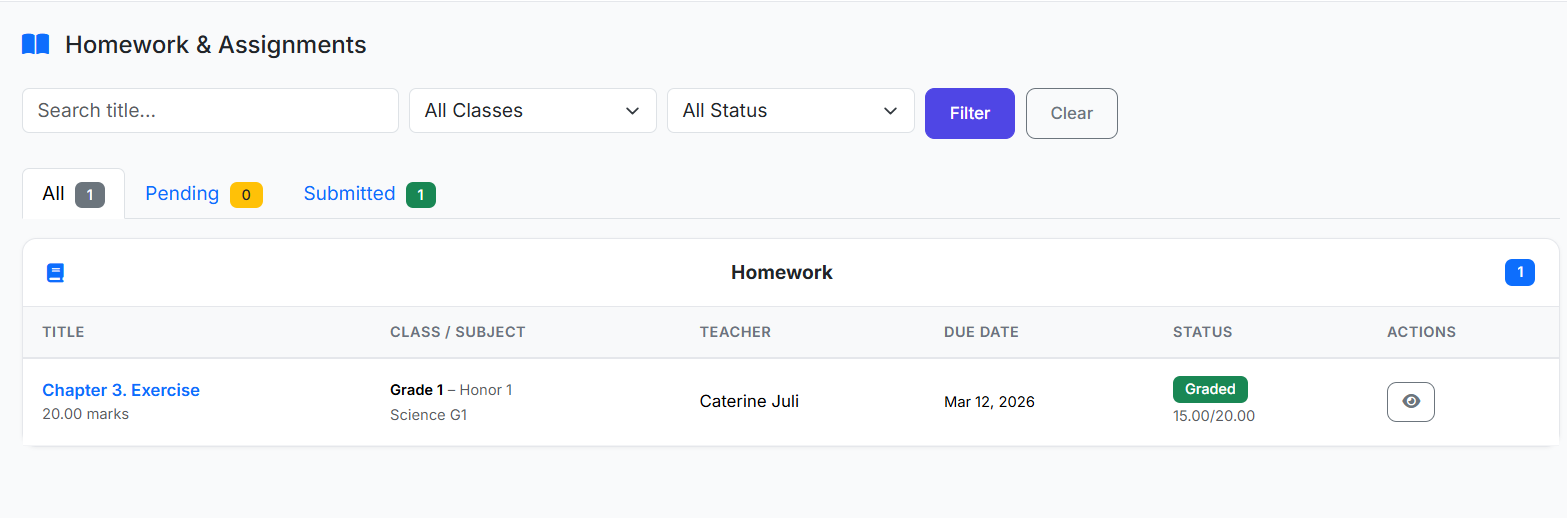
The list shows all active homework for your child's class(es). Columns displayed:
| Column | Description |
|---|---|
| Title | Clickable link to full homework detail |
| Class / Subject | Identifies which class and subject |
| Teacher | The teacher who assigned it |
| Due Date | Shows countdown warning if 3 or fewer days remain, or "Overdue" in red |
| Status badge | Pending, Submitted, Graded, or Overdue |
| Actions | View button (always), Submit/Resubmit button (when applicable) |
Filter and Search Options
Search by homework title
Filter by class (if multiple children)
Filter by status: All, Pending, Submitted
Viewing Homework Details
Step 1: Click the homework title or the eye (View) button
Step 2: The detail page shows:
Full title, class, section, subject, teacher name
Assigned date, due date, max marks
Step 3: If an attachment was uploaded by the teacher, a Download Attachment button appears
Step 4: The Instructions / Description section shows what the teacher wants done
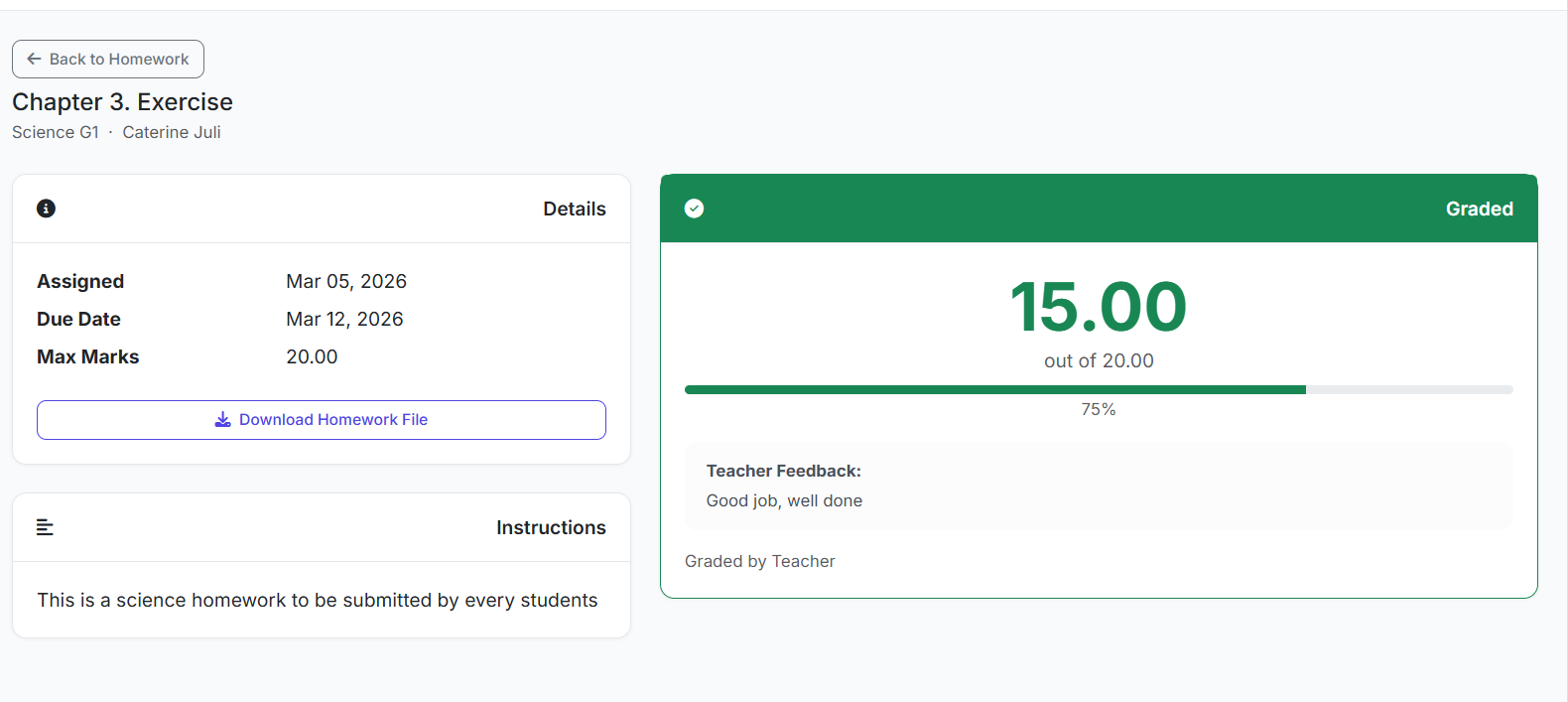
Step 5: If your child has already submitted, a Your Submission panel shows the submission date, file link, text, and any grade/feedback from the teacher
Submitting Homework
Submissions can be made as:
A typed text response
An uploaded file
Both text and file
Step 1: On the homework list, click the green Submit button next to a Pending homework item – OR click View, then scroll to the Submit Homework section
Step 2: In the submission form, type your child's answer in the text area (optional if uploading a file)
Step 3: Click Choose File to upload the submission file (optional if typing text)
Accepted formats: PDF, Word (.doc/.docx), JPEG, PNG, GIF, WebP. Maximum file size applies.
Step 4: At least one of text or file must be provided – the form will not submit if both are empty
Step 5: Click Submit Homework
Step 6: A success message confirms the submission. Status changes to Submitted
Late Submissions
| Scenario | Outcome |
|---|---|
| Due date has passed | Submit button is hidden; homework shows as Overdue |
| Submission in final hours before deadline | Accepted as normal |
| Teacher extends due date | Submit button reappears |
| Submission made after due date | Automatically marked with status 'Late' |
Resubmitting Homework
If the teacher has not yet graded the submission, you can update/replace it.
Step 1: On the homework list, a Resubmit button (outlined green) appears for submitted-but-ungraded items
Step 2: Click Resubmit – opens the submission form pre-filled with the existing submission
Step 3: Update the text or upload a new file
Step 4: Click Submit Homework – the previous submission is overwritten
Note: Once a submission is marked as Graded by the teacher, the Resubmit button disappears and the submission is locked.
Viewing Grades & Feedback
Step 1: After the teacher grades a submission, the status badge changes to Graded (green)
Step 2: On the homework list, the marks obtained / max marks are shown below the status badge
Step 3: Click View on a graded homework to see the full detail including teacher feedback comments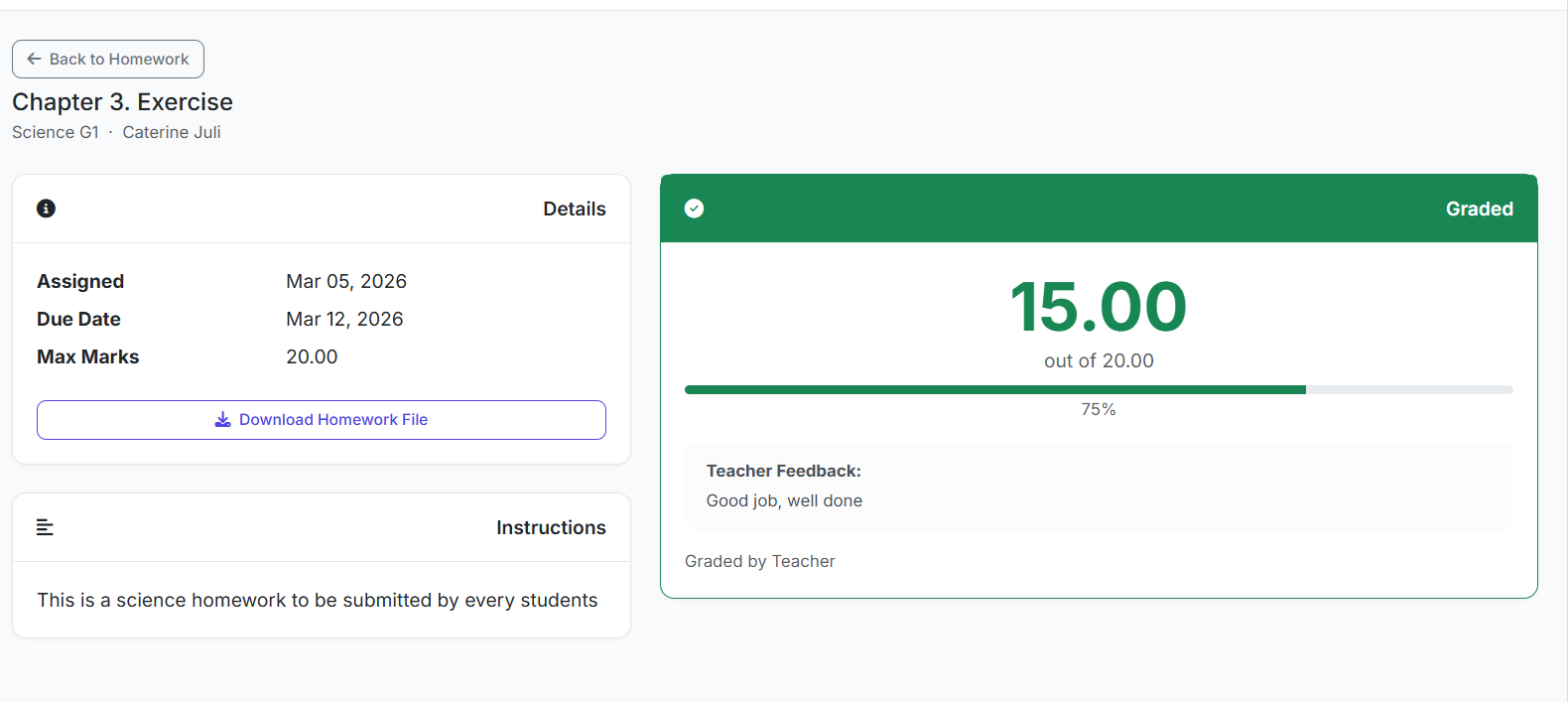
Tips & Best Practices
For Teachers:
Set realistic due dates – allow adequate time for submission
Use the Description field to provide clear instructions and marking criteria
Attach reference materials (worksheets, diagrams, reading links) to support student learning
Grade submissions promptly to keep parents and students engaged
Provide constructive feedback – not just marks
For Parents:
Check the homework list regularly for new assignments
Submit well before the due date to avoid last-minute issues
Use the Resubmit feature if your child improves their work before grading
Review graded homework with your child to understand teacher feedback
For Administrators:
Periodically review homework activity across the school
Use the oversight view to ensure teachers are creating appropriate assignments
Remove any inappropriate or outdated homework content
Troubleshooting
| Problem | Likely Cause | Solution |
|---|---|---|
| Class dropdown is empty (Teacher) | No classes assigned to you | Contact school admin to assign your teaching classes |
| Subject dropdown is empty | No subjects linked to selected class | Verify subject-class assignments in the academic setup |
| Submit button not showing (Parent) | Due date has passed | Contact teacher to request extension or reopen |
| Cannot upload file | Unsupported format or file too large | Use PDF, Word, or image formats within size limits |
| Teacher cannot see homework | Filtering by status or search | Click Clear to reset filters |
| Resubmit button missing | Submission already graded | Teacher would need to regrade if changes are needed |
Closing
The Homework & Assignment Module transforms academic task management from a scattered, paper-based process into a structured, transparent, and auditable workflow. Teachers can create and grade assignments efficiently, parents can monitor and submit work on behalf of their children, and administrators maintain school-wide visibility – all within a single, integrated platform.