What Is the Download Center?
The Download Center is a data export module that gives school administrators a single, organised interface to extract their school's data from SSMS – without needing direct database access, technical knowledge, or third-party tools.
| Type | Format | Purpose |
|---|---|---|
| Data Exports | CSV | Tabular records (students, staff, payments, etc.) |
| Photo Archives | ZIP | All uploaded photos for a people category |
Security First: Everything is automatically scoped to the logged-in admin's school – no data from other schools is ever included.
Access Path: Admin → Download Center | Route: /admin/download
Permissions: School Admin · Principal · Vice-Principal
Why It Exists
Schools regularly need their data for:
Backup and archiving – keeping an offline copy of all records
Reporting – importing into Google Sheets, Excel, Power BI, or custom tools
Migration – moving data to another system or sharing with regulators
Auditing – reviewing attendance, payment history, or homework activity
Photo backups – preserving student and staff ID photos offline
The Download Center handles all of these from one screen, with no SQL knowledge required.
Available Exports
Data Exports (CSV)
| Export | What It Contains |
|---|---|
| Student Data | Admission number, roll number, full name, gender, date of birth, nationality, religion, blood group, category, email, admission date, class, section, status |
| Staff & Teacher Data | Employee code, full name, email, phone, gender, role, department, designation, qualification, specialization, experience years, joining date, resignation date, status |
| Parent / Guardian Data | Parent code, name, email, phone, alternate phone, occupation, address, status, linked children names |
| Classes | Class name, code, level, category, capacity, status, total students, total sections |
| Subjects | Subject name, code, type, credit hours, pass marks, status, assigned classes |
| Fee Payments | Receipt number, student name, admission number, class, fee name, payment date, amount, payment method, transaction reference, academic year, notes, status |
| Student Attendance | Date, student name, admission number, class, section, attendance status, remarks (limited to 50,000 most recent records) |
| Homework & Assignments | Title, class, section, subject, teacher, assigned/due dates, max marks, status, total submissions, graded count, average marks |
Security note: Passwords, authentication tokens, and system-level credentials are never included in any export.
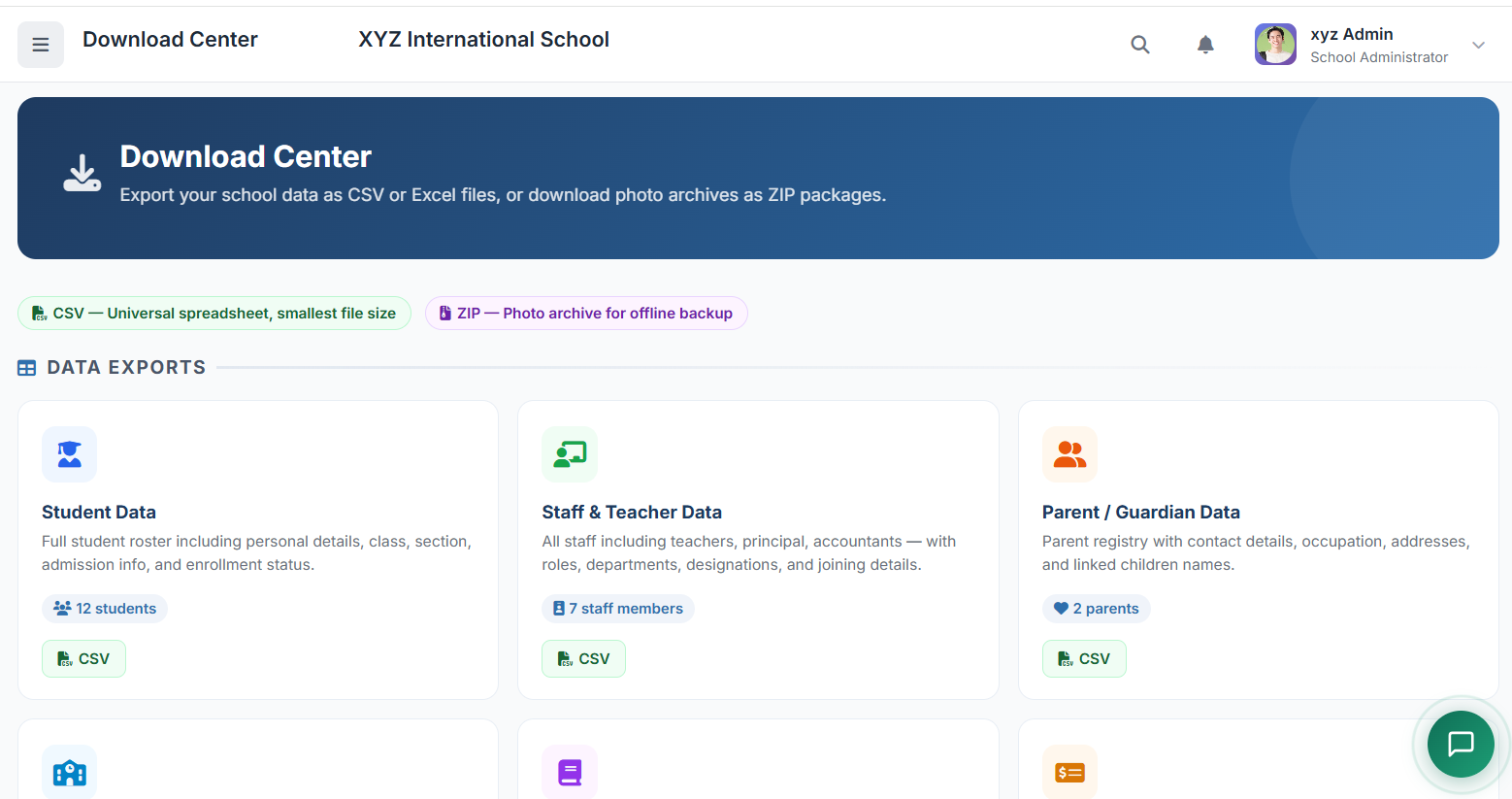
Photo Archives (ZIP)
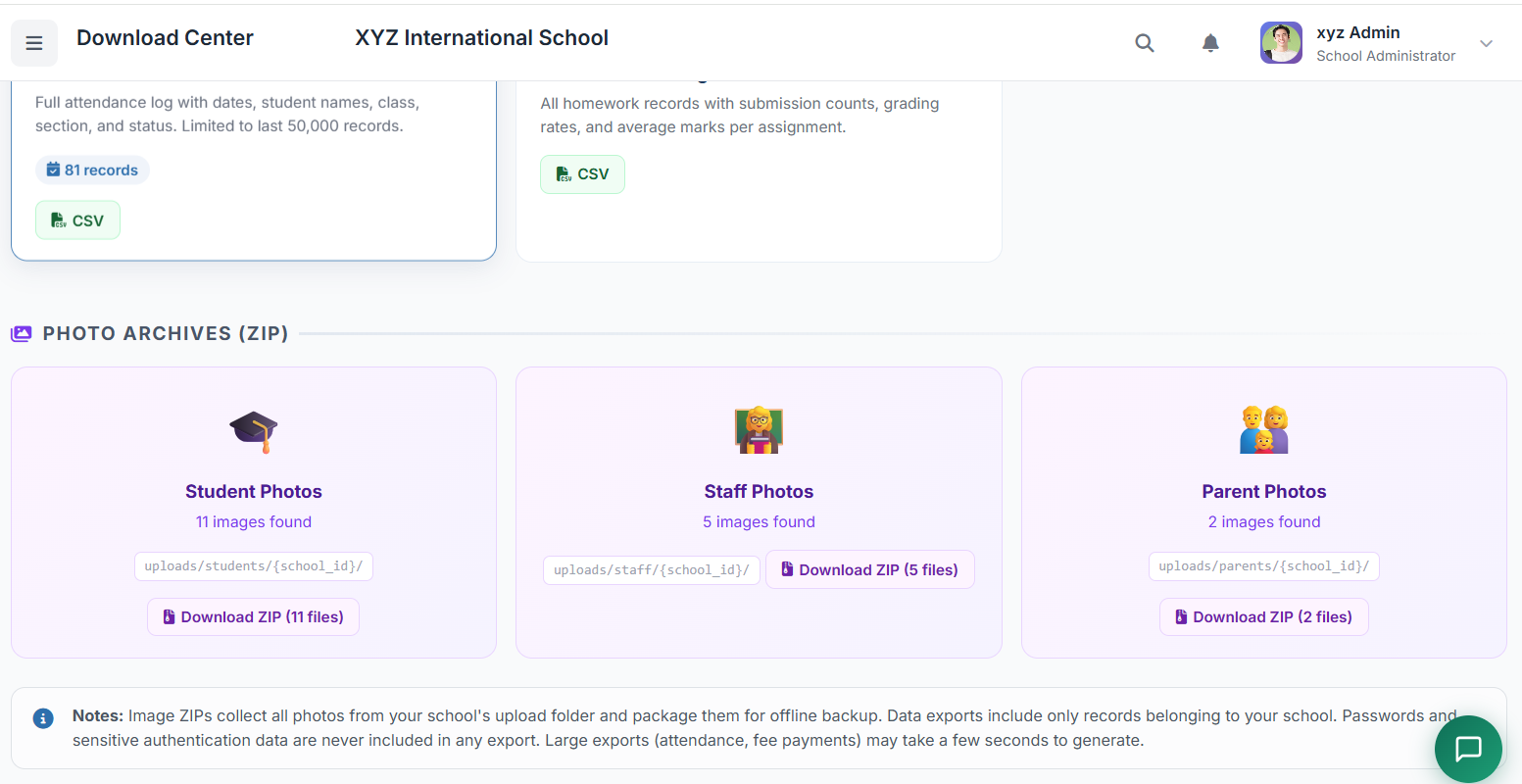
| Archive | Source Folder | Contents |
|---|---|---|
| Student Photos | uploads/students/{school_id}/ | All student profile photos for your school |
| Staff Photos | uploads/staff/{school_id}/ | All staff and teacher profile photos |
| Parent Photos | uploads/parents/{school_id}/ | All parent profile photos |
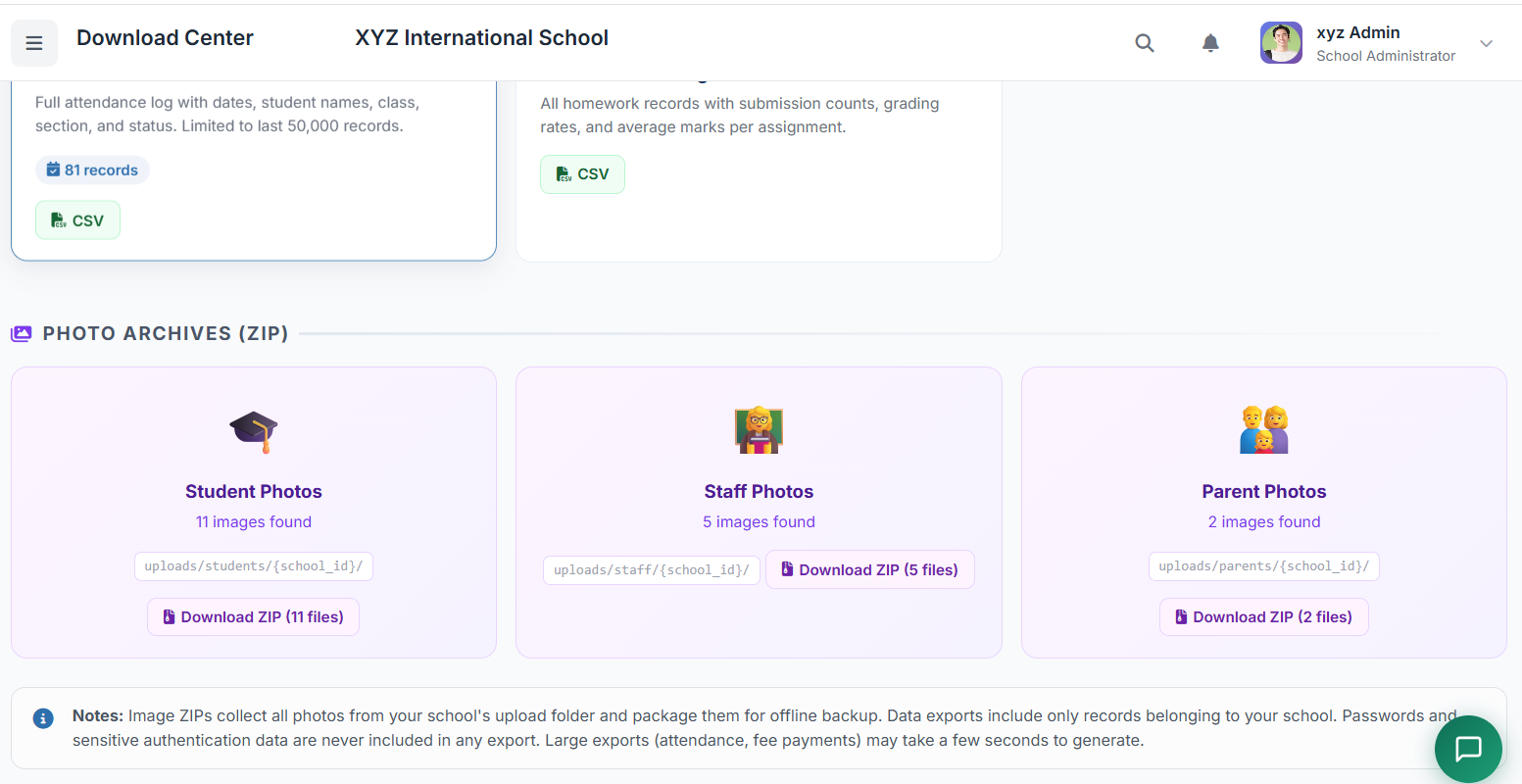
Each ZIP contains only image files (.jpg, .jpeg, .png, .gif, .webp) from your school's upload folder. The file count is shown on the card before you download.
Permissions
| Permission Code | Who Has It | What It Allows |
|---|---|---|
download.export | School Admin, Principal, Vice-Principal | Access the Download Center and export CSV files |
download.images | School Admin, Principal, Vice-Principal | Download photo ZIP archives |
Step-by-Step Guide for Administrators
Step 1 – Access the Download Center
Log in as School Admin, Principal, or Vice-Principal
In the left sidebar, look for the Download Center link (usually under Reports or Tools section)
Click it – the browser navigates to
/admin/downloadThe page loads showing all available export cards with live record counts
Step 2 – Read the Record Counts
Each card displays a count badge showing how many records exist for that export type (e.g., "124 students", "18 staff members").
A zero count means no data has been entered for that category yet
Photo cards show the number of image files found in the upload folder
If a photo count shows 0, the folder either doesn't exist or no photos have been uploaded yet
Step 3 – Download a Data File (CSV)
Locate the card for the data type you want (e.g., Student Data)
Click the green CSV button on that card
A loading overlay appears with the message "Preparing your download…"
The file downloads automatically to your browser's default download folder
The overlay disappears once the download starts
Step 4 – Open the CSV File
The CSV files include a UTF-8 BOM (Byte Order Mark) so they open correctly in Microsoft Excel, Google Sheets, and LibreOffice without character encoding issues.
To open in Microsoft Excel:
Double-click the downloaded
.csvfile – Excel opens it directlyIf columns appear merged in one cell: go to
Data → Text to Columns → Delimited → Comma
To open in Google Sheets:
Go to
sheets.google.comClick
File → Import → UploadSelect the CSV file and click
Import Data
Step 5 – Download a Photo Archive (ZIP)
Scroll to the Photo Archives (ZIP) section
Locate the card for the photo type you want (Students, Staff, or Parents)
The card shows how many images are in the archive
Click the purple Download ZIP button
A loading overlay appears – ZIP creation may take longer for large collections
The
.zipfile downloads automatically
To extract the ZIP:
Windows: Right-click the file → Extract All
macOS: Double-click the file
Linux:
unzip ssms_students_photos_school3_20260321.zip
If the Download ZIP button does not appear and you see "No photos uploaded yet", it means no images have been saved to that school's upload folder yet.
Step 6 – Cancel a Download in Progress
If you need to cancel while the loading overlay is showing:
Press the Escape (Esc) key on your keyboard
The overlay will close immediately
Any in-progress download can be cancelled from your browser's download bar
Tips & Best Practices
For large datasets:
The Attendance export is capped at 50,000 records to prevent server timeouts. For full history exports, filter by date range in the Attendance module first, then export.
The Fee Payments export includes all transactions – for very active schools this file can be large. Allow a few seconds for it to generate.
For regular backups:
Download Student Data and Staff Data at the end of each term
Download Fee Payments monthly for finance reconciliation
Download Photo Archives at the start and end of each academic year
For CSV compatibility:
All exports use comma-delimited format with UTF-8 encoding
Date fields are in
YYYY-MM-DDformatMonetary amounts are plain decimal numbers (e.g.,
1500.00)Multi-value fields (e.g., parent's children list) are separated by semicolons (
;)
For photo archives:
All photos are named with their original upload filenames
Photos are stored flat in the ZIP (no subdirectory structure)
Only image file types are included – no documents or other uploads
Troubleshooting
| Problem | Likely Cause | Solution |
|---|---|---|
| Page shows "Access Denied" | User role doesn't have download.export permission | Ask system admin to assign the permission |
| Record count shows 0 but data exists | Data belongs to a different school or centre scope | Confirm you are logged in under the correct school account |
| ZIP download shows "No images found" | Upload folder for that type/school doesn't exist | Verify photos have been uploaded via the student/staff/parent profile pages |
| CSV opens with garbled characters | Encoding issue in the spreadsheet app | In Excel: use Data → From Text/CSV and select UTF-8 encoding |
| Loading overlay stays on screen | Large export taking longer than expected | Wait up to 30 seconds; press Esc to dismiss if needed |
| ZIP download fails with server error | ZipArchive PHP extension not enabled | Contact your hosting provider to enable the php-zip extension |
Closing
The Download Center puts the power of data export directly into administrators' hands – no technical expertise required. Whether you need a quick CSV for reporting, a complete backup of student records, or a ZIP archive of all staff photos, everything is just one click away.