👨👩👧👦 Module Overview
In this tutorial, we'll learn How to manage parent/guardian records, link them to students, and provide portal access for communication, fee tracking, and updates.
The Parent Module is the central hub for managing all guardian records. It allows you to create profiles, link them to their children, and enable secure portal access so parents can actively engage with their child’s education.
🧭 How to Access
Navigate to: People → Parents
📋 Parents List Overview
The main page displays all parent accounts in a table:
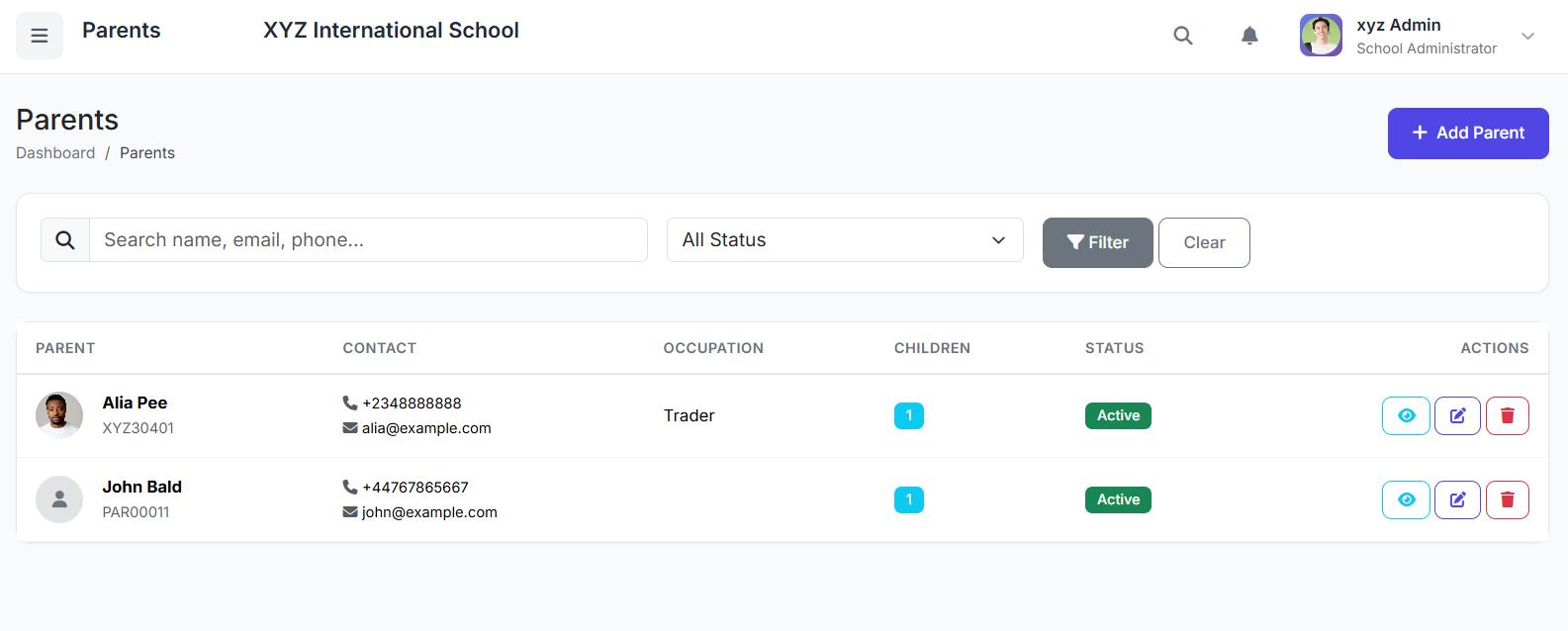
| Column | Description |
|---|---|
| Parent ID | Unique system identifier. |
| Name | Full name of parent/guardian. |
| Primary contact email. | |
| Phone | Primary contact number. |
| Children | Number of linked students. |
| Status | Active or Inactive. |
| Actions | View, Edit, Delete. |
➕ Adding a New Parent
Click Add Parent.
Fill in the form:
Personal Information
Full Name (Required)
Relationship (Required: Father, Mother, Guardian, etc.)
Gender (Required)
Phone (Required)
Email (Required)
Occupation, Address, Workplace, Office Phone (Optional)
Linking Children
Click Link Student.
Search for a student by name or admission number.
Select the correct student(s). Repeat for multiple children.
Click Create Parent to save.
👀 Viewing a Parent Profile
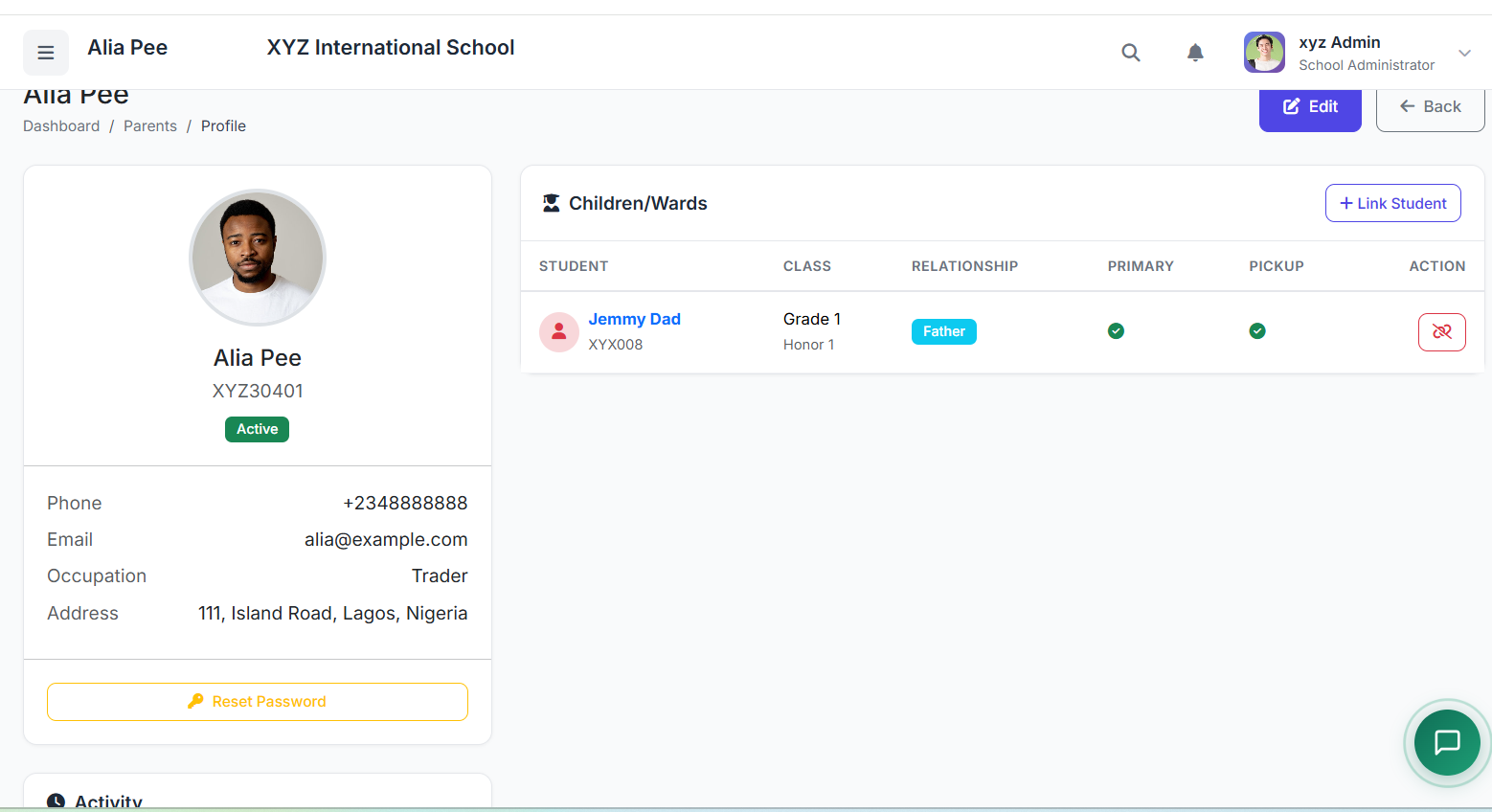
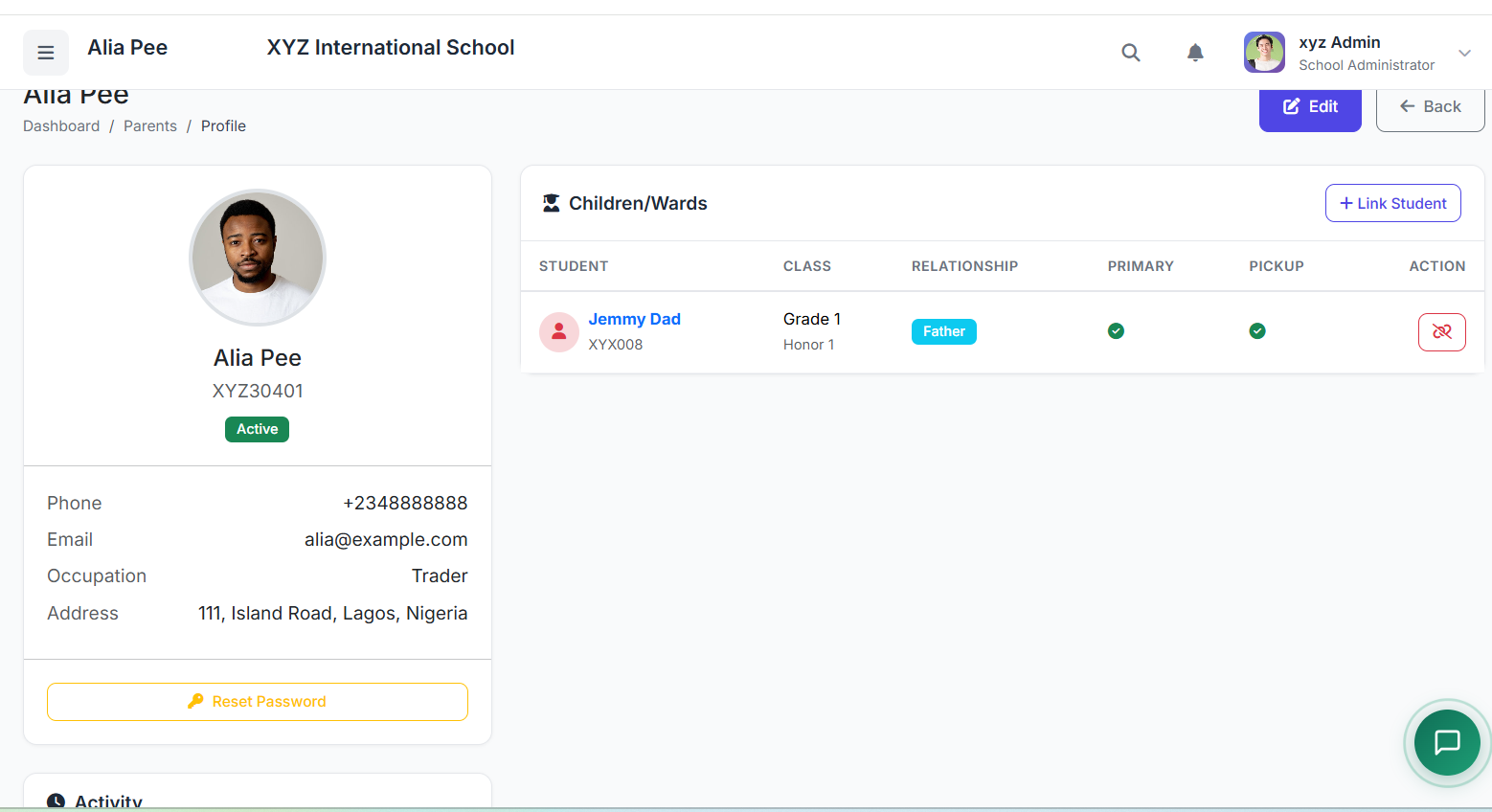
Click View on a parent record to see their detailed profile, which includes:
Personal Information: Contact and demographic details.
Children List: All linked students with quick links to their profiles.
Communication Log: History of messages sent and received.
Fee Summary: Aggregated fee status for all their children.
✏️ Editing Parent Information
Click Edit from the list or profile.
Update any field (contact info, address, etc.).
Add/Remove Child Links in the Children section.
Click Update Parent.
🔑 Enabling Parent Portal Access
To give a parent login credentials:
In the parent profile, click Create Account.
The system uses the parent's email as the username.
Set an initial password.
Save. Login details can be sent via email/SMS.
Portal Features for Parents:
View children’s profiles, attendance, and grades.
Check fee statements and make payments.
Receive announcements and school notices.
Communicate with teachers and administration.
👶 Managing Child Links
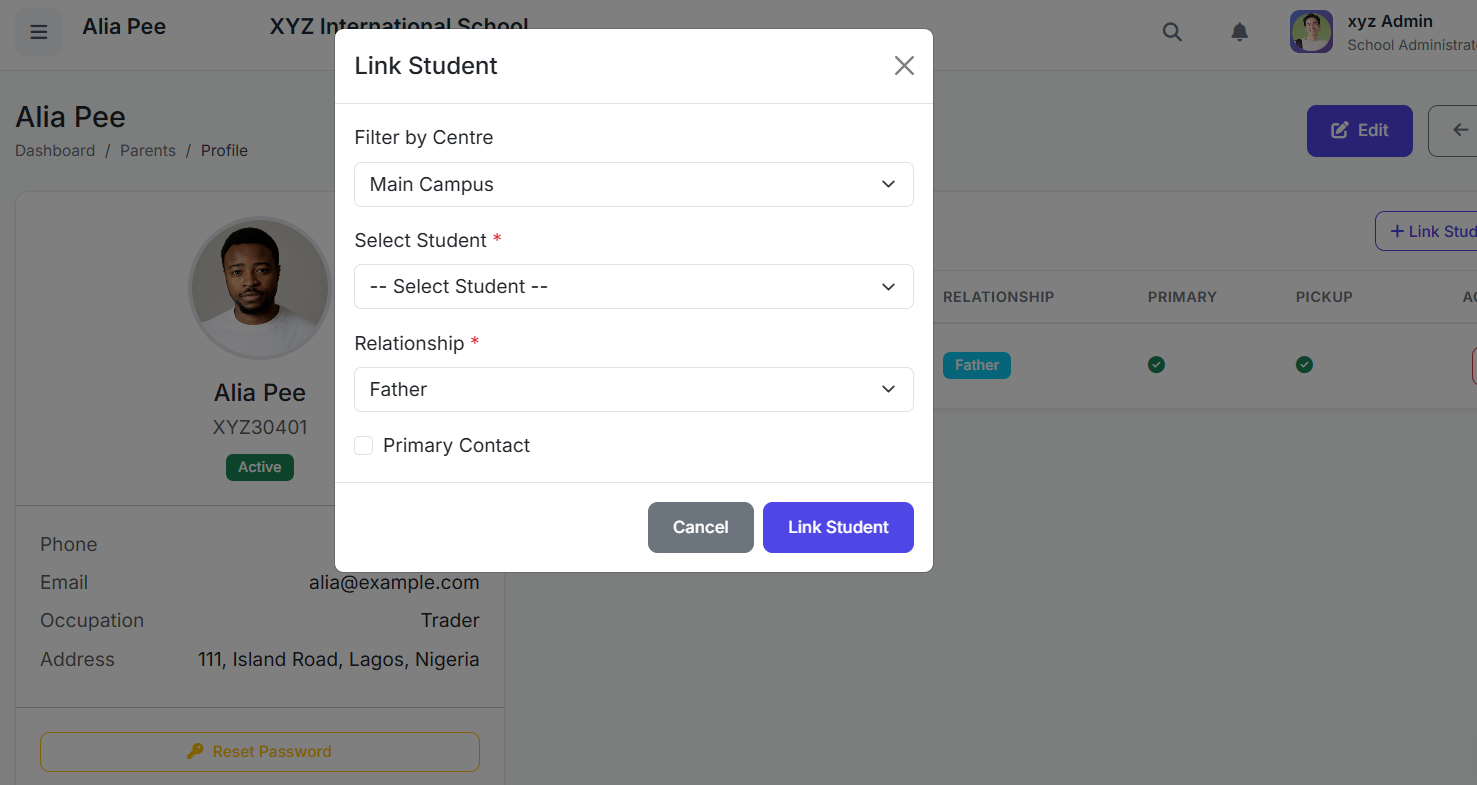
To Add a Child:
Edit the parent record.
In the Children section, click Add Child.
Search and select the student.
Save.
To Remove a Child Link:
Edit the parent record.
Click Remove next to the child's name.
Confirm. (This only severs the link; the student record remains.)
🧾 Parent Categories (Relationship Types)
Common relationship types include:
Father
Mother
Guardian
Grandparent
Uncle/Aunt
Other
(Demo: Show the relationship dropdown in the Add Parent form)
⚠️ Duplicate Prevention
The system checks for duplicates using Email and Phone Number.
If a match is found, you can choose to link the student to the existing parent.
Or, proceed to create a new record if it's a different individual.
🗑️ Deleting a Parent Record
Click the Delete action.
Confirm the deletion.
Note: This only removes the parent record. Linked students remain in the system and can be linked to a different guardian.
✅ Best Practices
Link All Siblings: Ensure all children are linked to their parent's single record.
Accurate Contact Info: Use valid email and phone numbers for portal access and notifications.
One Record Per Person: Maintain one profile per parent/guardian, not per child.
Specify Relationship: Always document the correct relationship type.
Enable Portal Access: Maximize engagement by providing login credentials to all parents.