🩺 Part 2: Medical Visits (Clinic Logs)
Module Overview
In this tutorial, we'll learn how to log student clinic visits for accurate health records and manage emergency contact information for swift response during crises.
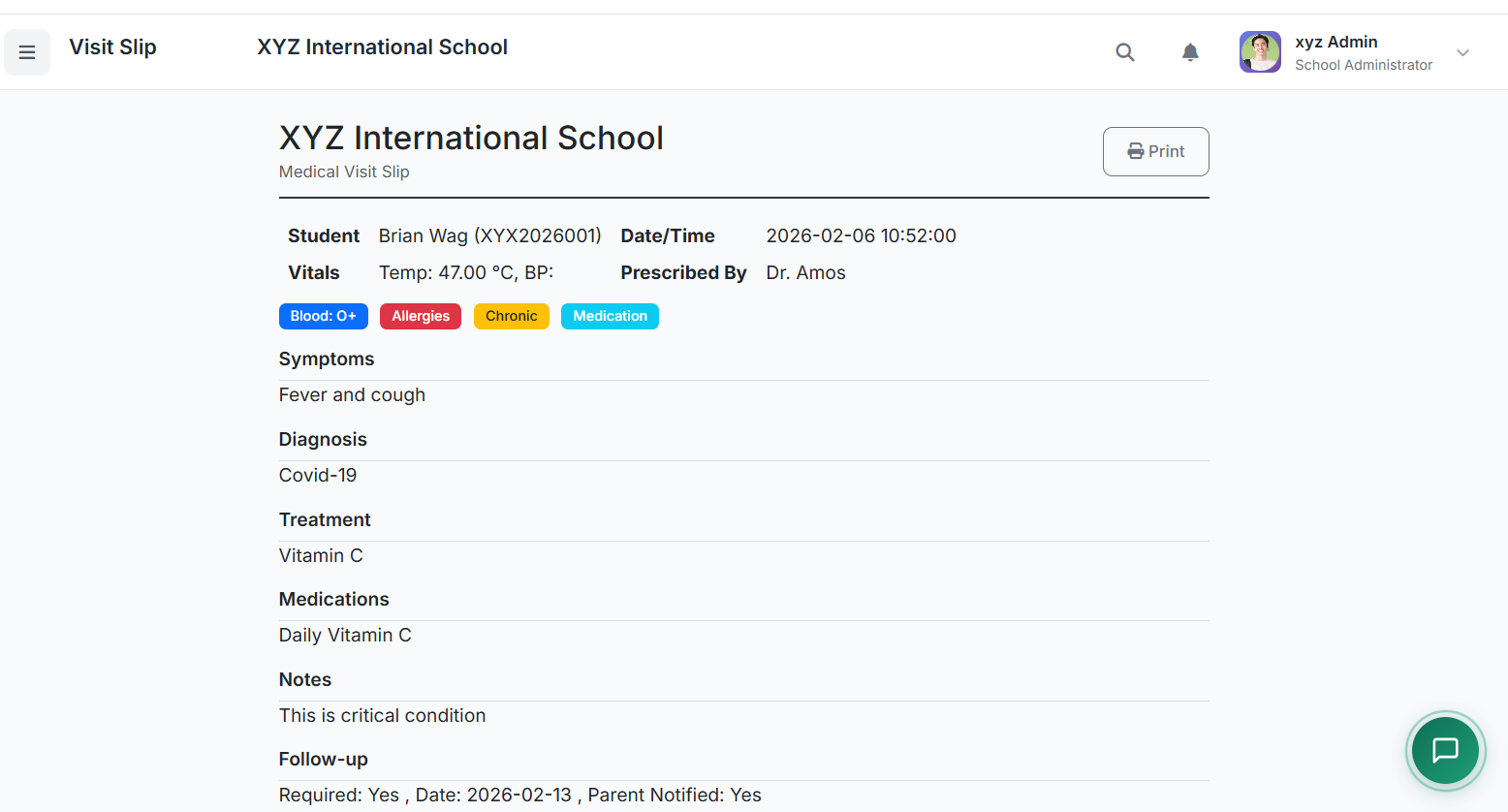
Medical Visits is a digital logbook for the school clinic. It records every student visit, including symptoms, treatment, and outcomes, creating an essential health history and aiding in pattern recognition.
🧭 How to Access
Navigate to: Health → Medical Visits
📋 Medical Visits List Page
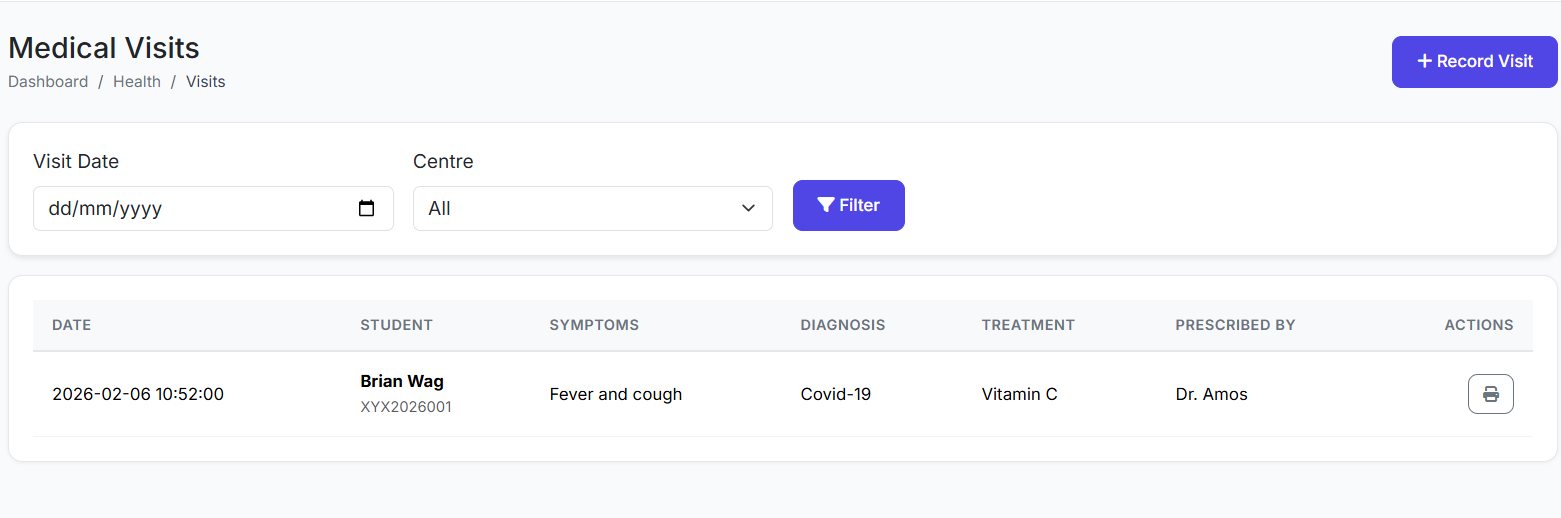
View all clinic visits. Key columns include:
Visit Date & Time
Student Name
Reason for visit (e.g., Headache, Injury)
Diagnosis & Treatment
Referred? (Yes/No for hospital referral)
Actions (View, Edit)
➕ Recording a New Clinic Visit
Click Record Visit.
Fill in the form:
Student: Select the student.
Date & Time: Of the visit.
Reason: Primary complaint (e.g., "Fever", "Fall on playground").
Symptoms: (Optional) Detailed description.
Diagnosis: (Optional) Nurse's/Doctor's assessment.
Treatment Given: (e.g., "Rest", "Antiseptic applied", "Paracetamol 250mg").
Medications Given: Name, dosage, time.
Referral: Check if referred to a hospital/clinic.
Parent Notified: Check if parents were informed.
Action Taken: Final disposition (e.g., "Sent back to class", "Sent home", "Monitoring in clinic").
Click Save Visit.
Result: The visit is logged, linked to the student's Health Profile, and appears in the list.
📊 Viewing Visit History
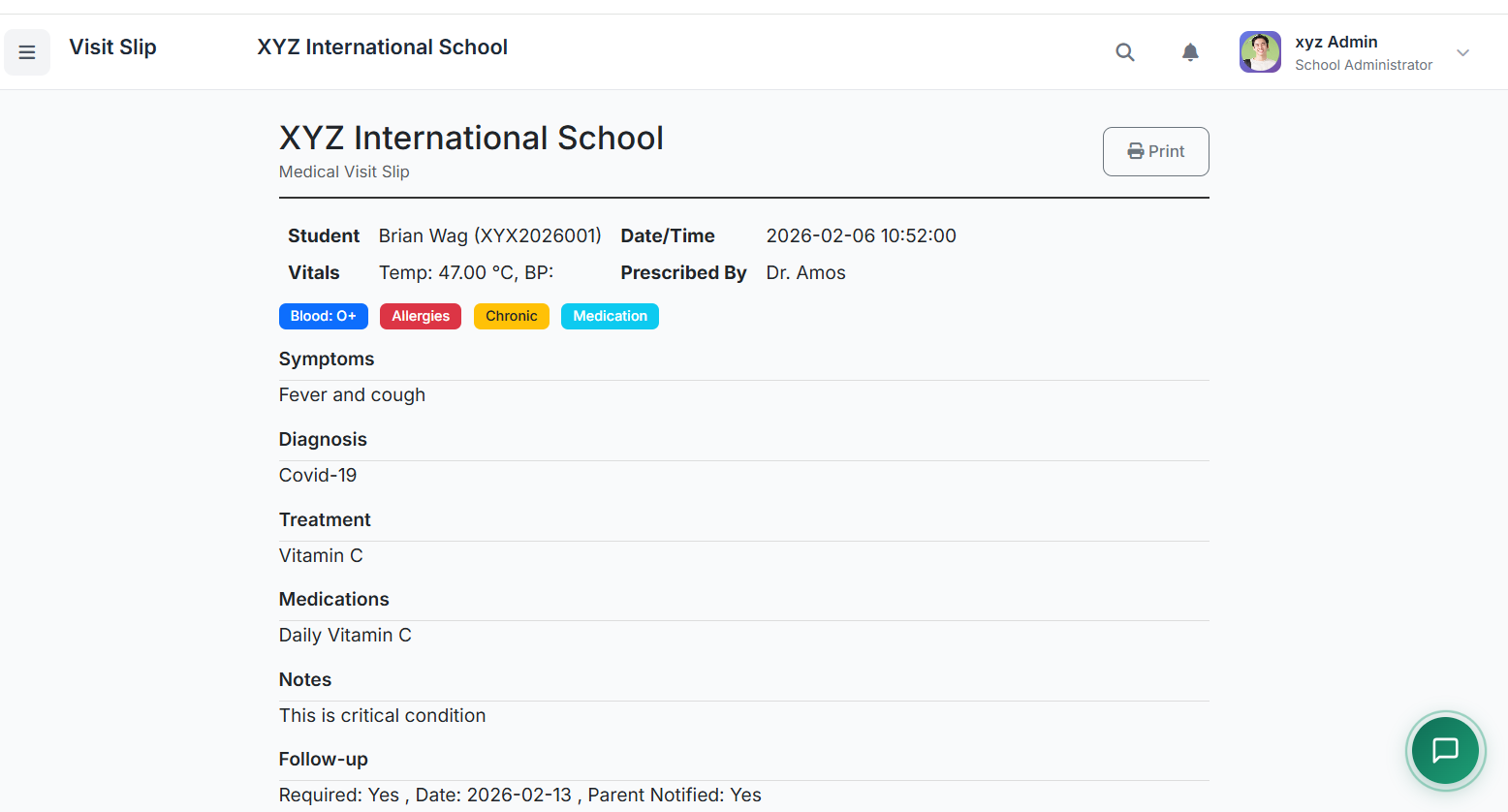
Via the Medical Visits List: Use filters (Date, Student) to find specific records.
Via the Student's Health Profile: The most integrated view; all visits for that student are listed within their profile, showing patterns over time.
🚨 Emergency Contacts
Emergency Contacts ensures that up-to-date contact information for parents/guardians is always at hand. It defines who to call and in what order during a health emergency or other crisis.
🧭 How to Access
Navigate to: Health → Emergency Contacts
📋 Emergency Contacts List
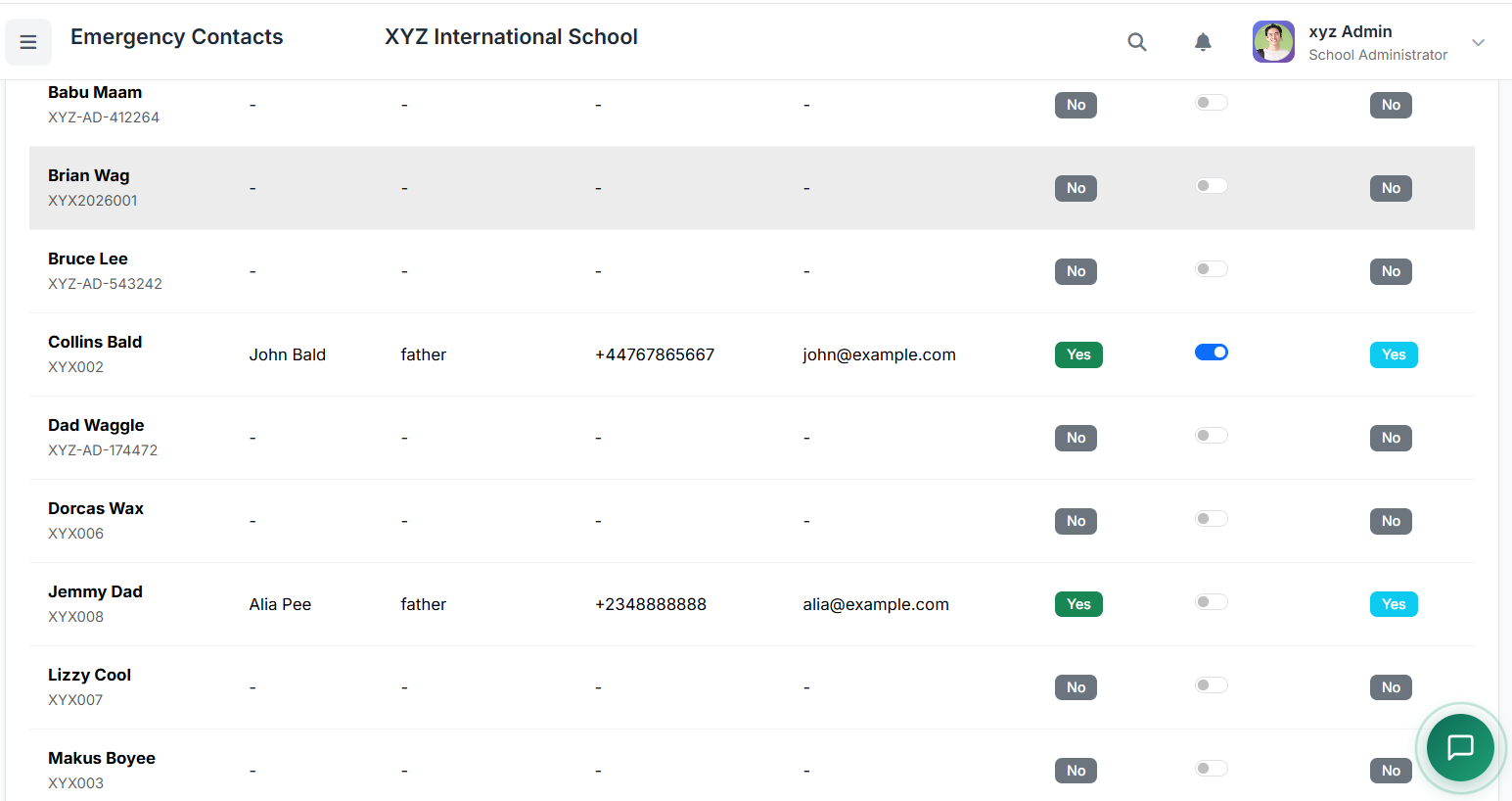
View contact information for all students. Columns typically show:
Student Name
Primary Contact (Name & Phone)
Secondary Contact (Name & Phone)
Actions (Edit)
✏️ Managing Emergency Contacts
Find the student and click Edit.
Update the contact form:
Contact Names (e.g., "Father: John Doe", "Mother: Jane Doe").
Relationship (Father, Mother, Guardian, etc.).
Primary & Secondary Phone Numbers (mandatory).
Address: (Optional) Home address.
Priority/Order: Define calling sequence (e.g., Call Mother first, then Father).
Click Save.
Best Practice: Verify and update these contacts at least twice a year (start of each term) as phone numbers can change.
✅ Best Practices
For Medical Visits:
Log Every Visit: Even minor visits should be recorded to build a complete history.
Be Specific: In "Treatment Given," note exact medication names and dosages for legal and medical accuracy.
Use for Trends: Regularly review the visit log to spot patterns (e.g., frequent headaches in a class) that may indicate environmental or other issues.
Parent Communication: Use the "Parent Notified" flag consistently and consider sending an automated summary for significant visits.
For Emergency Contacts:
Multiple Contacts: Always collect at least two contacts per student.
Clear Priority: Set a clear calling order to avoid confusion in an emergency.
Rapid Access: Ensure the Emergency Contacts list is easily accessible to front-office staff, the school nurse, and administrators.
Integration: The contacts listed here should ideally sync with the main student/parent record to avoid data duplication.
The Medical Visits and Emergency Contacts features complete the school's health management system. Together, they ensure not only that day-to-day health incidents are properly documented, but also that the school is prepared to act swiftly and correctly in any emergency situation.
This concludes the Health & Medical module series.