Library Module in SSMS
🎯 Module Overview
In this tutorial, we'll look at comprehensive overview of the Library module, starting with the Books Management features for cataloging and organizing your school's book inventory.
The Library module is a complete digital management system for your school library. It handles book inventory, member management, borrowing/returning transactions, and digital resources, ensuring accurate tracking and streamlined operations.
🧭 How to Access
Navigate to: Library → Library
This opens the Library Dashboard.
📊 Library Dashboard
The dashboard provides a real-time overview:
Total Books: Complete inventory count.
Books Issued: Currently borrowed.
Overdue Books: Past their return date.
Recent Transactions: Latest issue/return activity.
Quick Links: Direct access to key features.
📚 Part 1: Books Management
Accessing the Book Catalog:
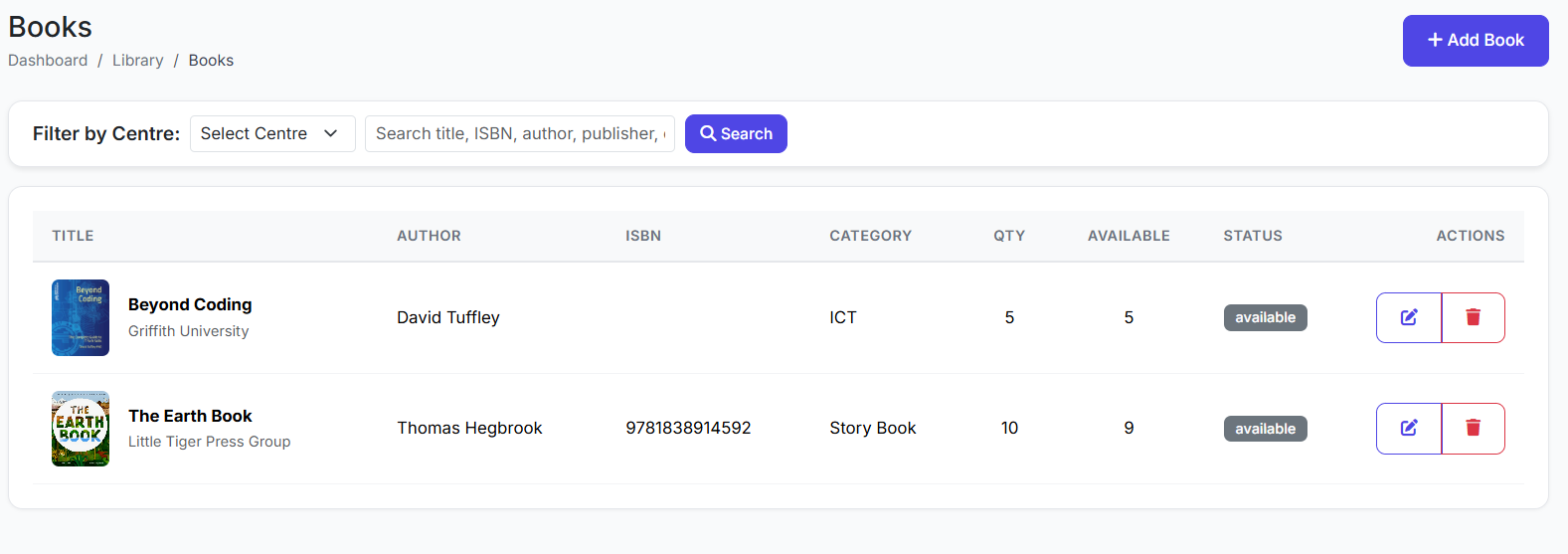
Navigate to: Library → Books
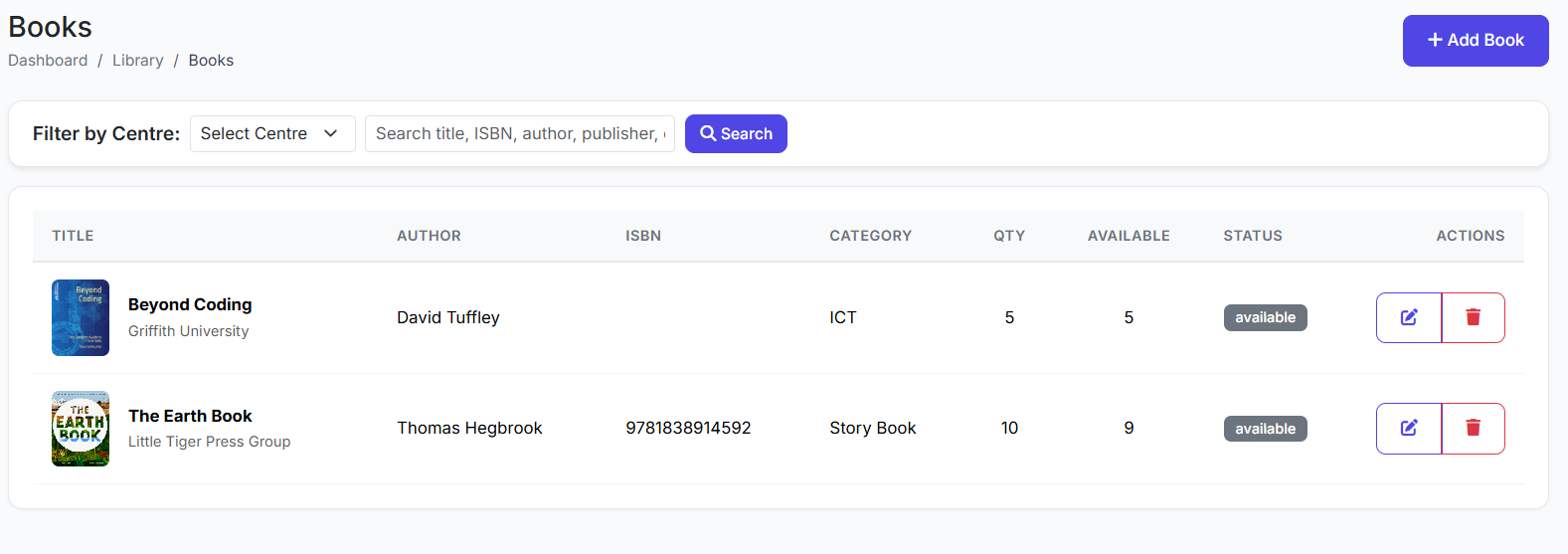
Books List Page:
The main table displays all books with key columns:
Book ID
Title & Author
ISBN
Category
Total Copies vs. Available Copies
Status (Available/Issued)
Actions (View, Edit, Delete)
➕ Adding a New Book
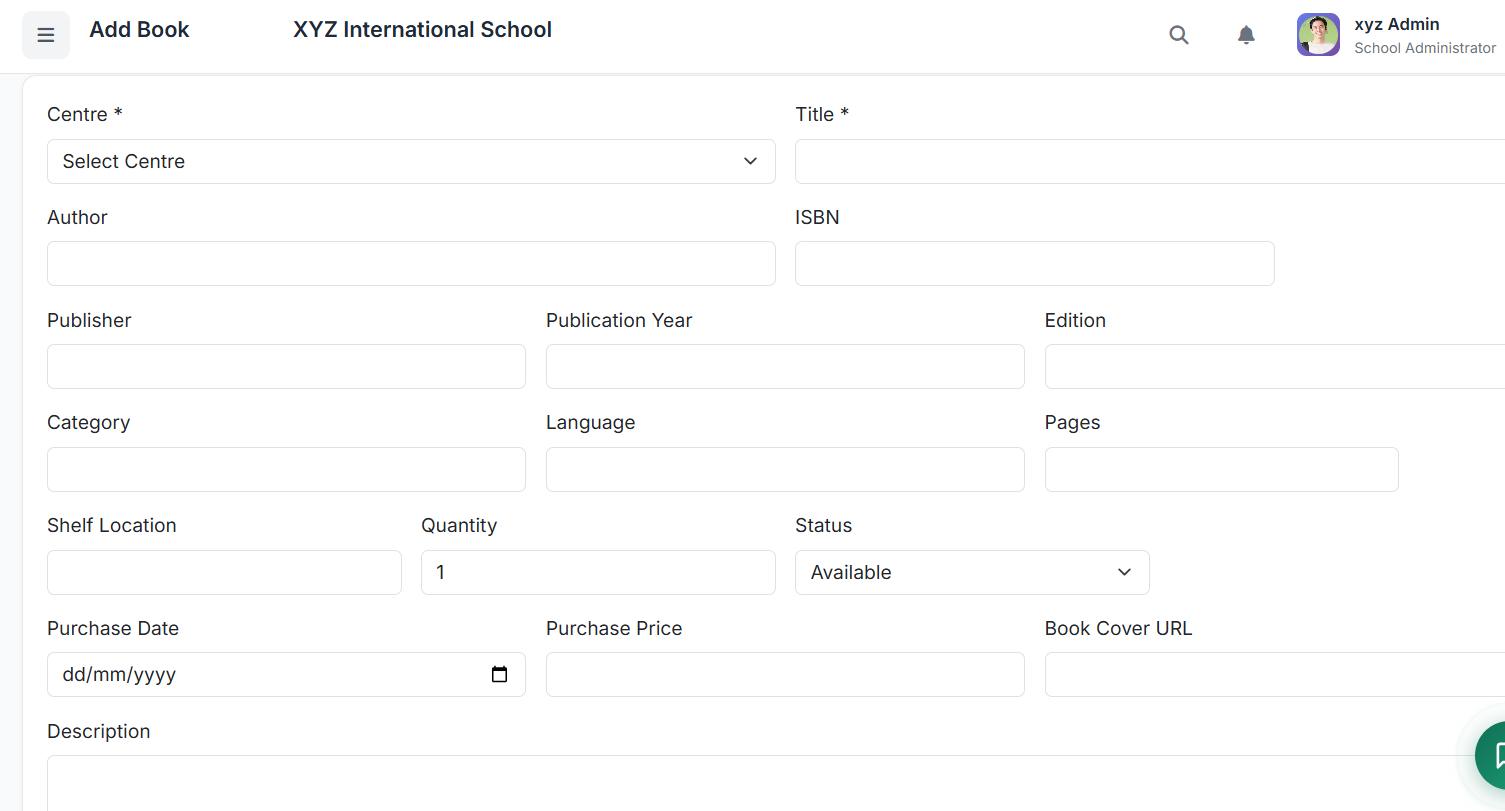
Click Add Book.
Fill in the form:
Required: Title, Author, Category, Number of Copies.
Optional: ISBN, Publisher, Publication Year, Language, Edition, Description.
Cover Image: Upload a book cover for easy identification.
Click Add Book to save to the catalog.
📌 Important: The Number of Copies is critical. The system uses this to automatically calculate Available Copies as books are issued and returned.
 🗂️ Book Categories
Organize books into standard categories for easy searching and reporting:
Fiction / Non-Fiction
Science, Mathematics, History
Literature, Reference
Textbooks, Magazines
🔍 Searching & Filtering
Search Bar: Find books by Title, Author, or ISBN.
Filters: Narrow results by Category or Availability (e.g., show only "Available" books).
✏️ Editing Books & Managing Copies
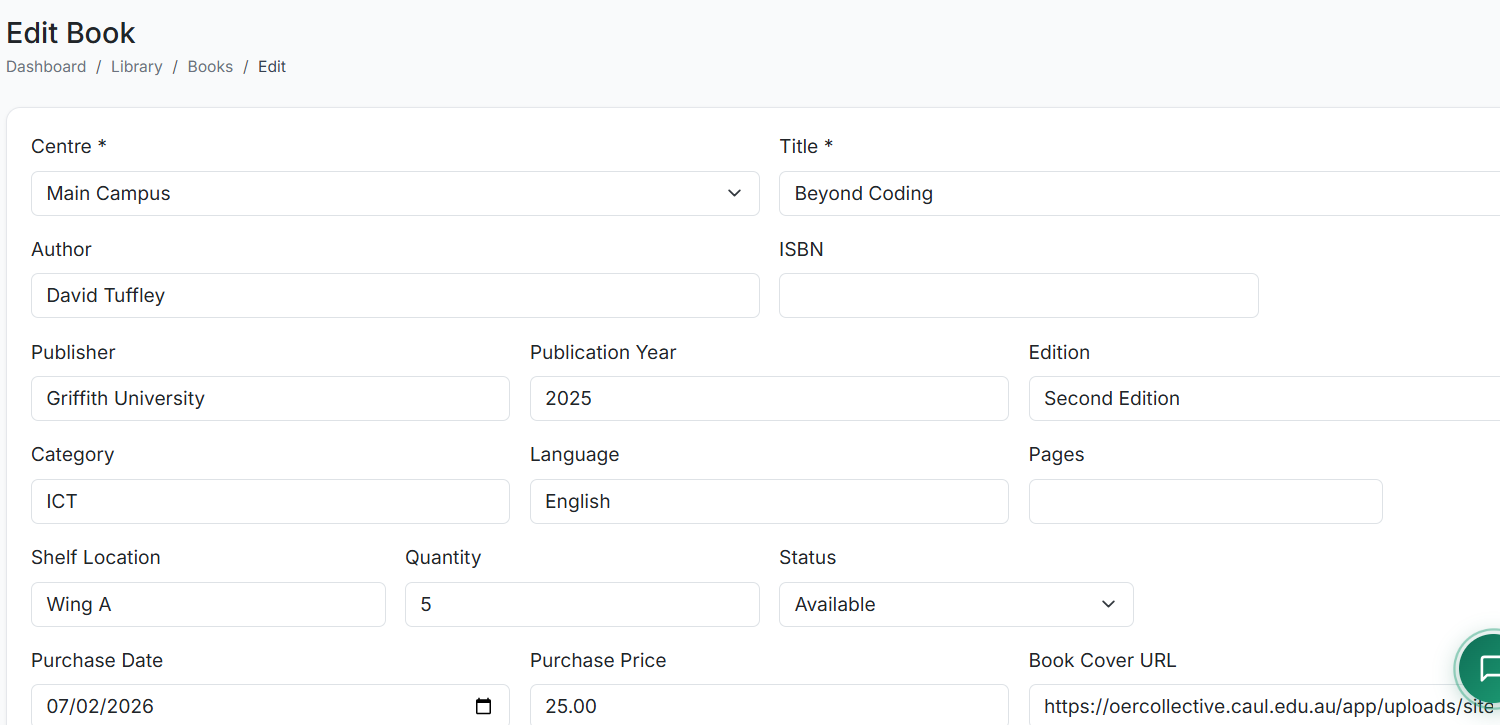
To Edit Details: Click Edit on any book record, update fields, and save.
To Update Copies: Edit the Number of Copies field. The system instantly recalculates availability.
Example: If you add 2 new copies of a book, increase the total; if you remove damaged copies, decrease the total.
✅ Best Practices for Books Management
Complete Entries: Fill in as many details (ISBN, Publisher) as possible for better searchability and reporting.
Accurate Copy Count: Always keep the Total Copies field updated to reflect physical inventory.
Use Categories Consistently: Apply the same category names (e.g., "Science") across all relevant books.
Regular Audits: Periodically compare the system's "Available Copies" count with the physical shelf count to catch discrepancies.
The Books Management section forms the foundation of your digital library, creating a searchable, accurate catalog that powers all other library functions like issuing books and generating reports.
In the next section, we will cover Library Transactions (Issuing and Returning Books).