Audit Logs Module in SSMS
Presenter: Ola, Lakesoft Solutions
Topic: How to use the Audit Logs module to track user activities, view detailed change histories, and maintain security and accountability across your school's SSMS.
🎯 Module Overview
In this tutorial, we'll learn How to use the Audit Logs module to track user activities, view detailed change histories, and maintain security and accountability across your school's SSMS.
The Audit Logs module provides a secure, school-specific record of all user and system activities. It allows administrators to see who did what, when, and from where, including detailed "before" and "after" snapshots of changed data. This is essential for security, troubleshooting, and accountability.
🔐 Access & Permissions
Access Path: Maintenance → Audit Logs
Authorized Roles: School Administrators & designated admin roles.
Isolation: Each school can only view its own logs.
📋 Key Concepts & Log Details
Each log entry captures:
| Field | Description |
|---|---|
| User | Staff member who performed the action. Logs marked "System" are automated. |
| Action | Type of activity (e.g., login, create_student, update_fee, delete). |
| Entity | The object affected (e.g., Student, Fee, User). |
| Timestamp | Exact date and time of the action. |
| IP Address | Origin of the request. |
| User Agent | Browser/device used. |
| Old/New Values | (Where applicable) JSON snapshots of data before and after a change. |
🕵️ Using the Audit Logs Module
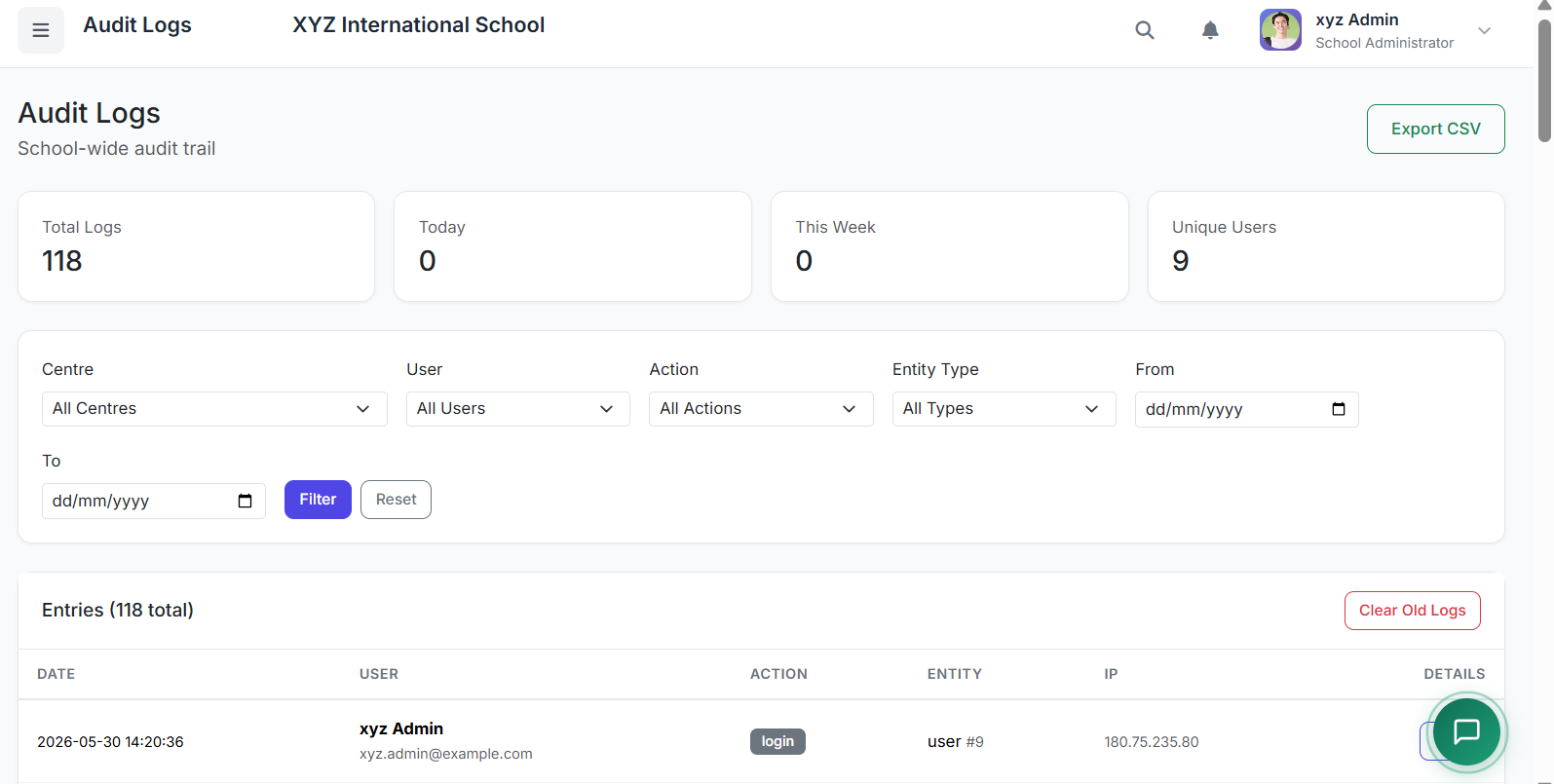
1. Open the Audit Logs Dashboard
Navigate to Maintenance → Audit Logs.
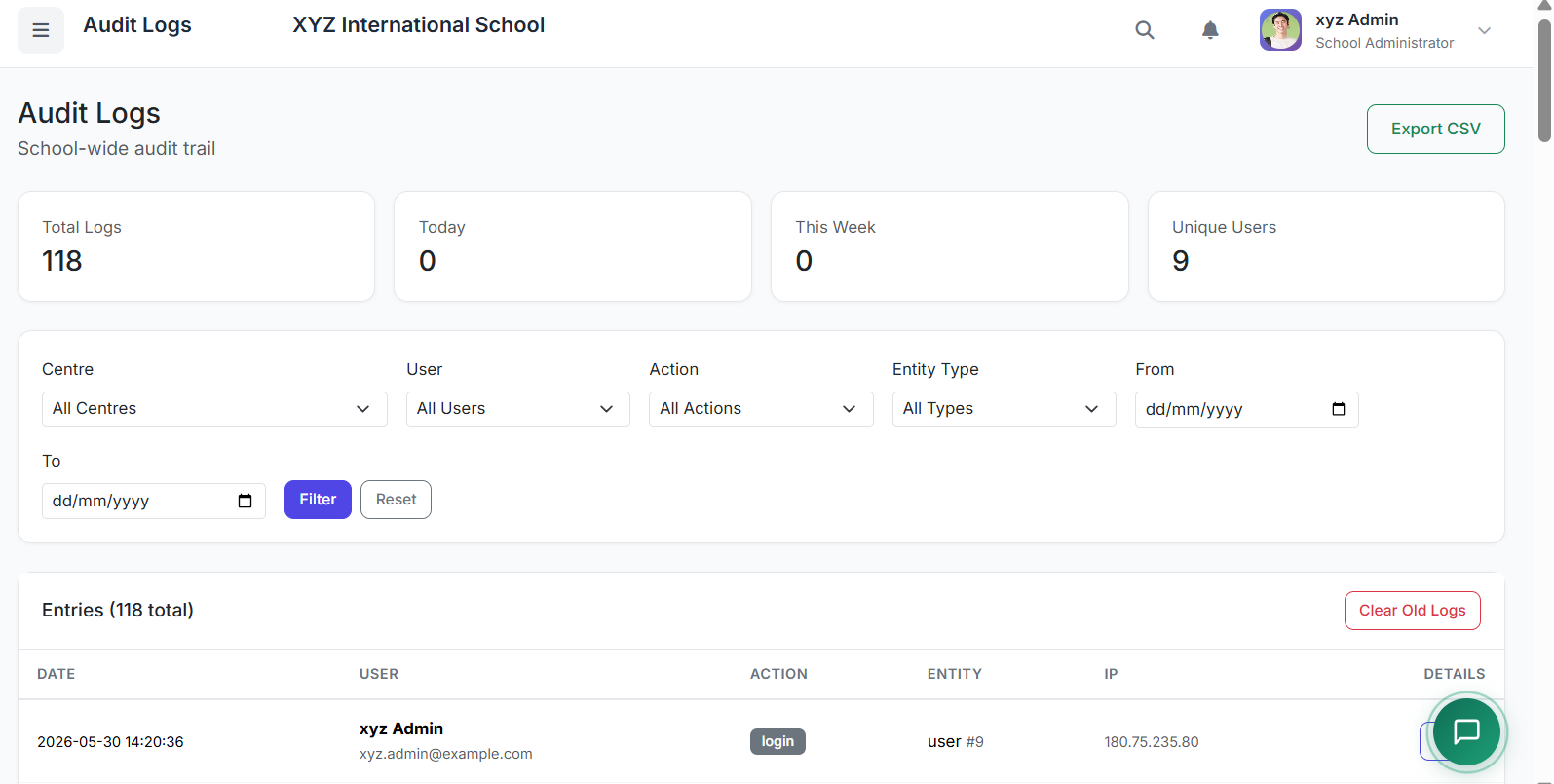
The dashboard shows summary cards: Today's Logs, This Week's Logs, Unique Active Users.
2. Filtering Logs for Precision
Use the filter bar at the top to narrow results:
| Filter | Purpose |
|---|---|
| Centre | View logs for a specific school branch only. |
| User | Isolate actions by a specific staff member. |
| Action | Filter by activity type (e.g., only update actions). |
| Entity Type | Filter by affected object (e.g., only Student records). |
| Date Range | Focus on a specific time window. |
Click "Filter" to apply. Click "Reset" to clear all filters.
3. Viewing Detailed Log Information
In the logs table, click View on any entry.
This opens a detailed view showing:
All metadata (User, IP, Timestamp, etc.)
Old Values – The state of the record before the change.
New Values – The state of the record after the change.
User Agent details.
Click Back to return to the list.
4. Exporting Logs (CSV)
Click the Export CSV button in the header.
Important: The export will respect your current filters (Centre, Date Range, etc.).
Use the CSV file for deeper analysis in Excel, external audits, or reporting.
5. Managing Log Data (Clearing Old Logs)
Click Clear Old Logs.
Enter a retention period (e.g., 90 days). The system will delete logs older than this period.
⚠️ Minimum Retention: Typically 30 days. This action is irreversible; ensure you have exported necessary data first.
✅ Best Practices
Proactive Monitoring: Review logs weekly for unusual activity (e.g., multiple failed logins, unauthorized access attempts).
Targeted Investigations: Use Centre + User + Date Range filters to quickly investigate specific incidents.
Data Retention Policy: Establish a school policy for log retention (e.g., keep logs for 1 year) and use the Clear Old Logs feature accordingly.
Privacy & Security: Restrict access to the Audit Logs module to trusted administrators only. Logs contain sensitive data.
Export for Audits: Regularly export and archive logs as part of compliance and annual audit procedures.
🐛 Troubleshooting
| Issue | Likely Solution |
|---|---|
| "No logs found" | Widen your Date Range or remove restrictive filters. |
| Missing "Old/New Values" | Not all system actions capture field-level changes (e.g., a simple view). The core action is still logged. |
| Export is slow/fails | Apply stricter filters (narrow Date Range) to reduce the data size before exporting. |
| Cannot see logs for other centres | You are likely not a School Admin with cross-centre access. Audit logs are isolated per school/centre based on role permissions. |
The Audit Logs module is a powerful tool for transparency, security, and operational integrity. It ensures every action within SSMS is recorded and traceable, helping you maintain trust, comply with policies, and swiftly resolve any issues; though, still under fine-tuning.
For further configuration or support regarding audit settings, please contact the Lakesoft Solutions team.