📘 Module Overview
Subjects represent the academic and extracurricular courses taught in your school, such as Mathematics, English, Science, or Physical Education. They form the building blocks of your curriculum.
🧭 How to Access
Click Academic in the main sidebar.
Select Subjects.
📐 How Subjects Work
In SSMS, subjects are created as standalone items in a central list. They are later assigned to specific classes in a separate step (covered in the Class Subjects module). This design allows for:
Reuse: A single subject (e.g., Mathematics) can be assigned to multiple classes.
Flexibility: Easy updates to a subject's details apply everywhere it's used.
Efficient Management: Prevents duplication of effort.
🗂️ Subject Categories
All subjects must be assigned to one of three categories:
| Category | Description | Example |
|---|---|---|
| Core / Compulsory | Required for all students in a class. | Mathematics, English Language |
| Elective | Chosen by students based on interest or stream. | Fine Art, Music, Economics |
| Extra-Curricular | Non-academic activities. | Sports, Chess Club, Debate |
📋 Subjects List Overview
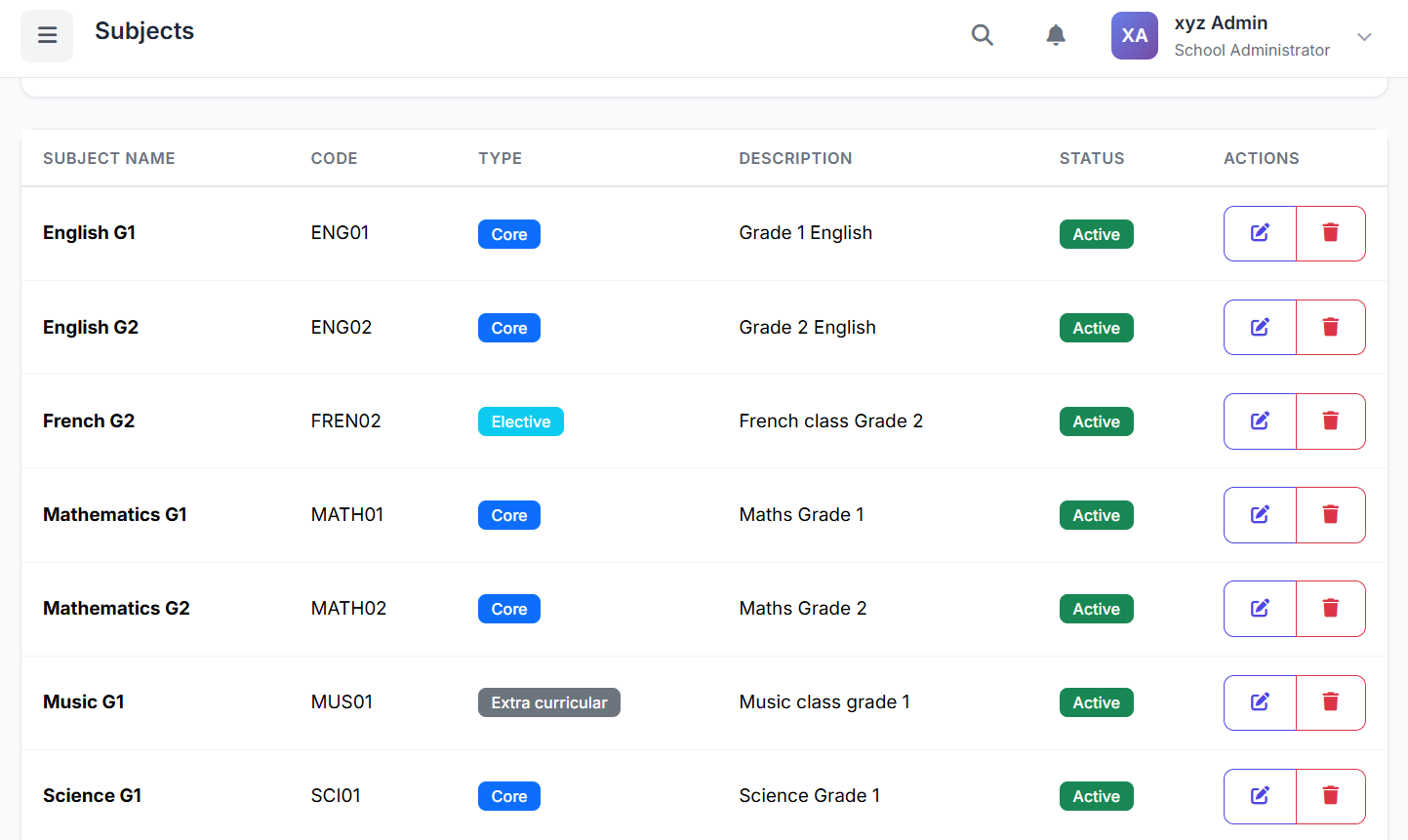
The main page displays all subjects. Key columns include:
| Column | Description |
|---|---|
| Subject Name | e.g., Mathematics |
| Subject Code | A short identifier (e.g., MATH). |
| Category | Core, Elective, or Extra-Curricular. |
| Pass Mark | Minimum score to pass (e.g., 40). |
| Full Mark | Maximum obtainable score (e.g., 100). |
| Status | Active or Inactive. |
| Actions | Edit, Delete. |
➕ Adding a New Subject
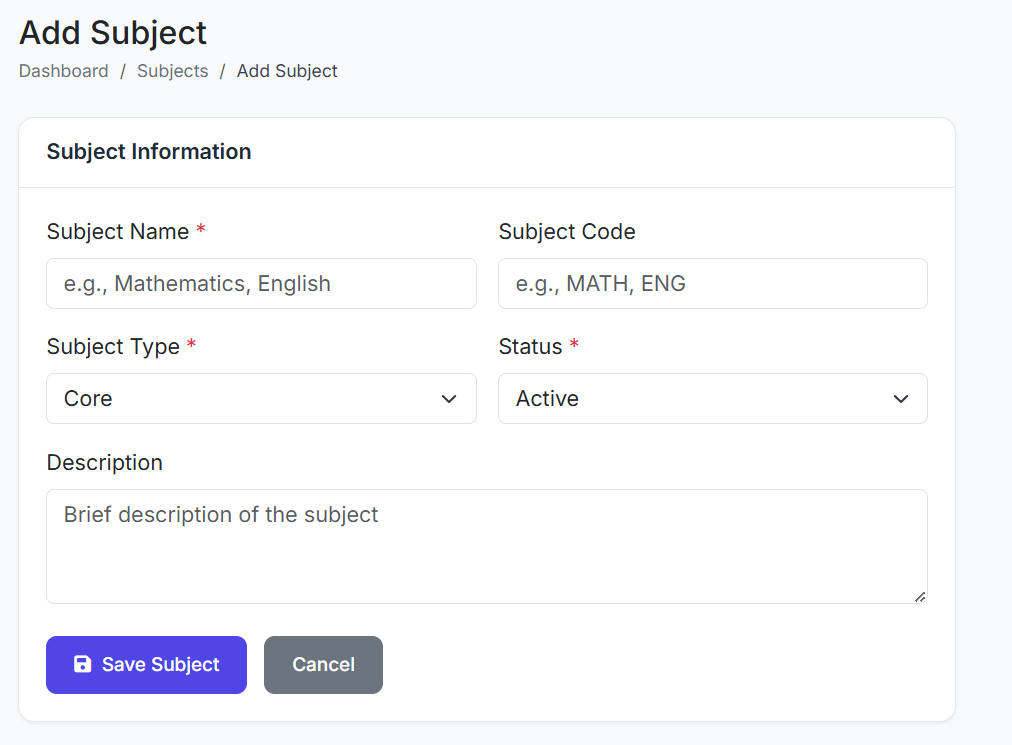
Click the Add Subject button.
Fill in the form:
Subject Name (e.g.,
Mathematics)Subject Code (e.g.,
MATH)Category (Select from dropdown)
Pass Mark (e.g.,
40)Full Mark (e.g.,
100)Description (Optional notes)
Status (Active or Inactive)
Click Create Subject to save.
🧾 Example Subject Setup
Core Subjects: Mathematics (
MATH), English Language (ENG)Elective Subject: Fine Art (
ART)Extra-Curricular Subject: Physical Education (
PE)
Using consistent naming and coding helps maintain a clear academic structure.
✏️ Editing a Subject
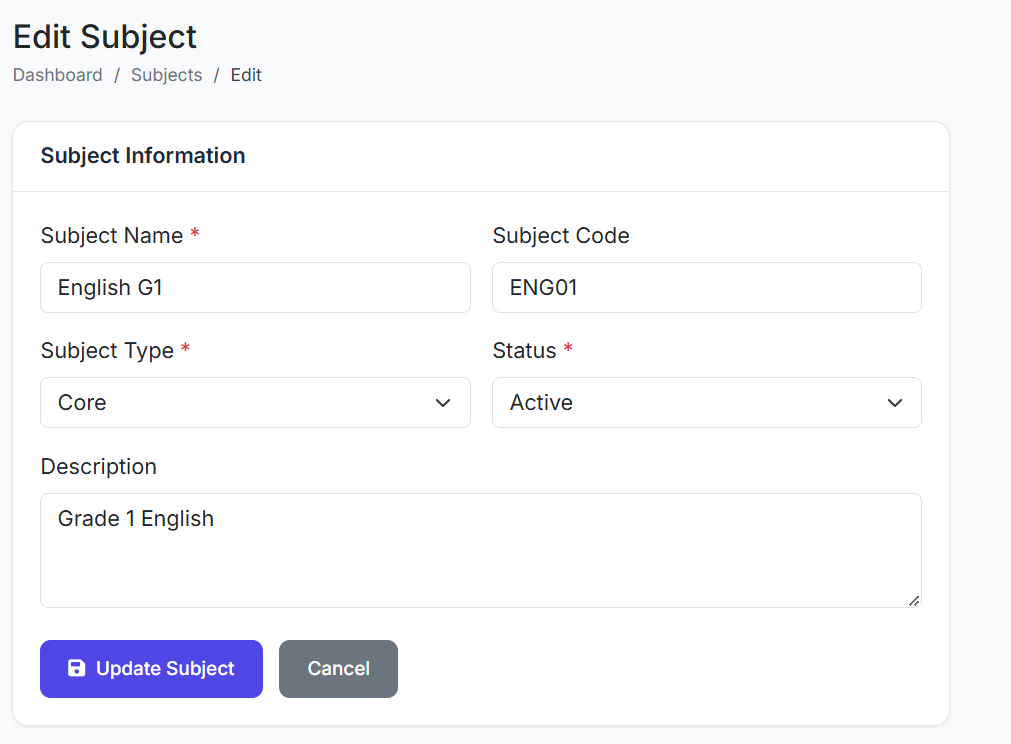
To modify a subject's details:
Find the subject in the list.
Click the Edit (pencil) icon.
Update any field (Name, Code, Marks, etc.).
Click Update Subject.
📊 Pass Mark & Full Mark Explained
These two values are critical for assessment:
Pass Mark: The minimum score a student must achieve to pass the subject.
Full Mark: The total possible score for the subject.
They are used for:
Automatic grade calculation and pass/fail determination.
Generating accurate report cards.
Academic performance analysis and reporting.
Note: These are default values. They can be overridden for specific classes when subjects are assigned in the Class Subjects module.
🗑️ Deleting a Subject
⚠️ Important Restrictions: A subject cannot be deleted if:
It is assigned to any class.
Exam results have been recorded for it.
If deletion is necessary:
First, remove all class assignments for the subject.
Then, click the Delete button.
Confirm the action.
✅ Best Practices
Create First, Assign Later: Set up all your subjects before assigning them to classes.
Standardize Codes: Use clear, standardized subject codes (e.g.,
BIOfor Biology).Set Policy-Based Marks: Configure Pass/Full Marks according to your school's assessment policy.
Archive, Don't Delete: Mark obsolete subjects as Inactive to preserve historical data instead of deleting them.
You now know how to manage the master list of Subjects in SSMS.
Next, we will cover Class Subjects, where you assign these subjects to specific classes and configure their detailed settings.