Introduction
Today, I’ll demonstrate the Reports Module, focusing on Student Reports, Financial Reports, and Attendance Reports – three powerful tools that provide actionable insights to support data-driven decision-making.
Access Note: The Reports Module is primarily designed for school administrators. However, principals of each centre may be granted access – but they can only view records from their own centre.
1. Student Reports
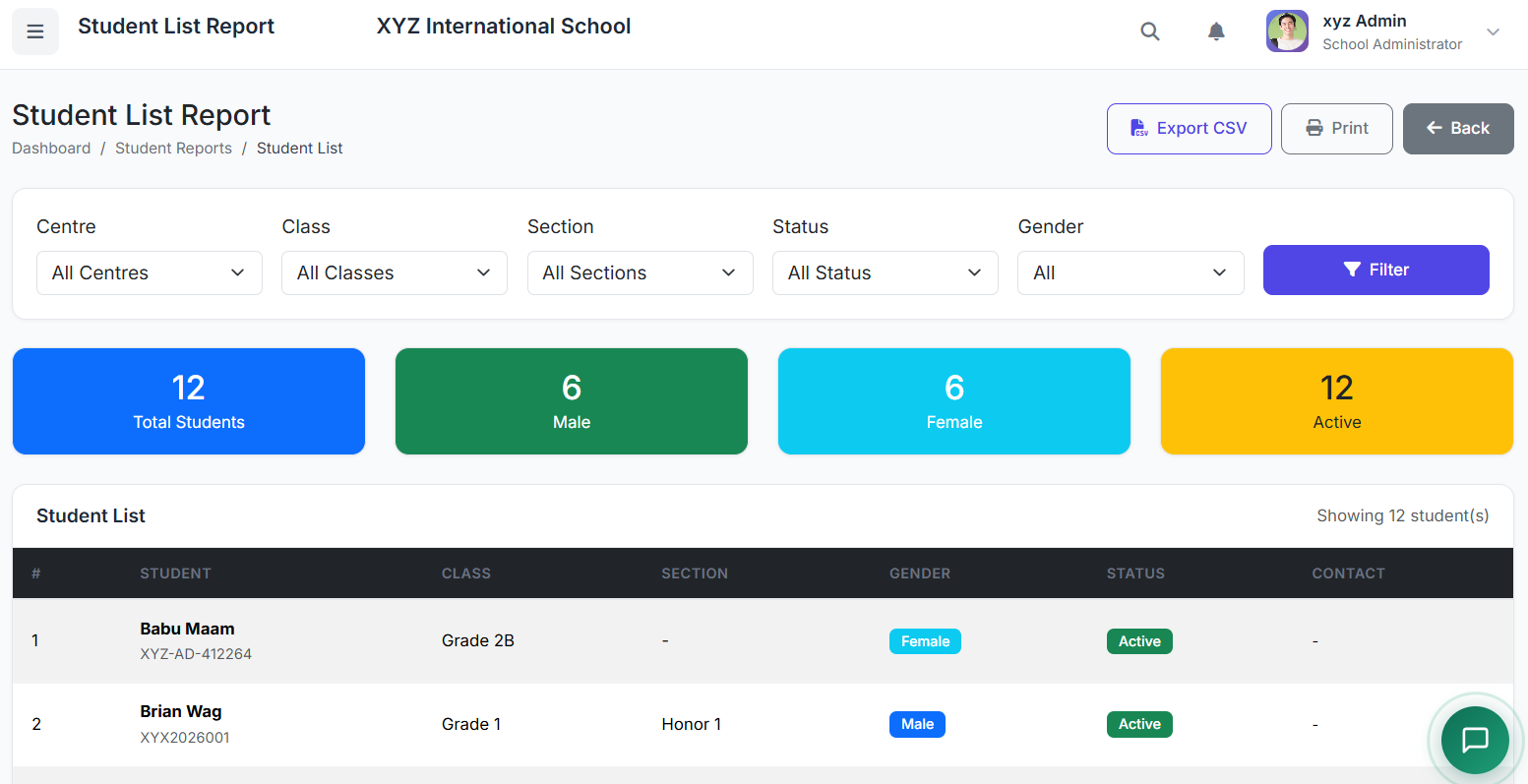
The Student Reports module provides comprehensive information about students, including enrollment, demographics, and movement across classes.
Module includes: Student List | Student Attendance | Performance Report | Fee Status
Navigation
Path: Reports → Student Reports
Path: Reports → Student Reports
Available Student Reports
From here, you can generate reports such as:
Student List
Enrollment Report
Class-wise Report
Gender Distribution
Age-wise Report
Category Report
Transfer Report
Generating a Student Report
Select the Report Type
Apply filters – Academic Year, Class, Section, Centre, or Date Range
Click Generate Report to view results on screen
This approach applies to all reports under the Reports Module.
Select the Report Type
Apply filters – Academic Year, Class, Section, Centre, or Date Range
Click Generate Report to view results on screen
This approach applies to all reports under the Reports Module.
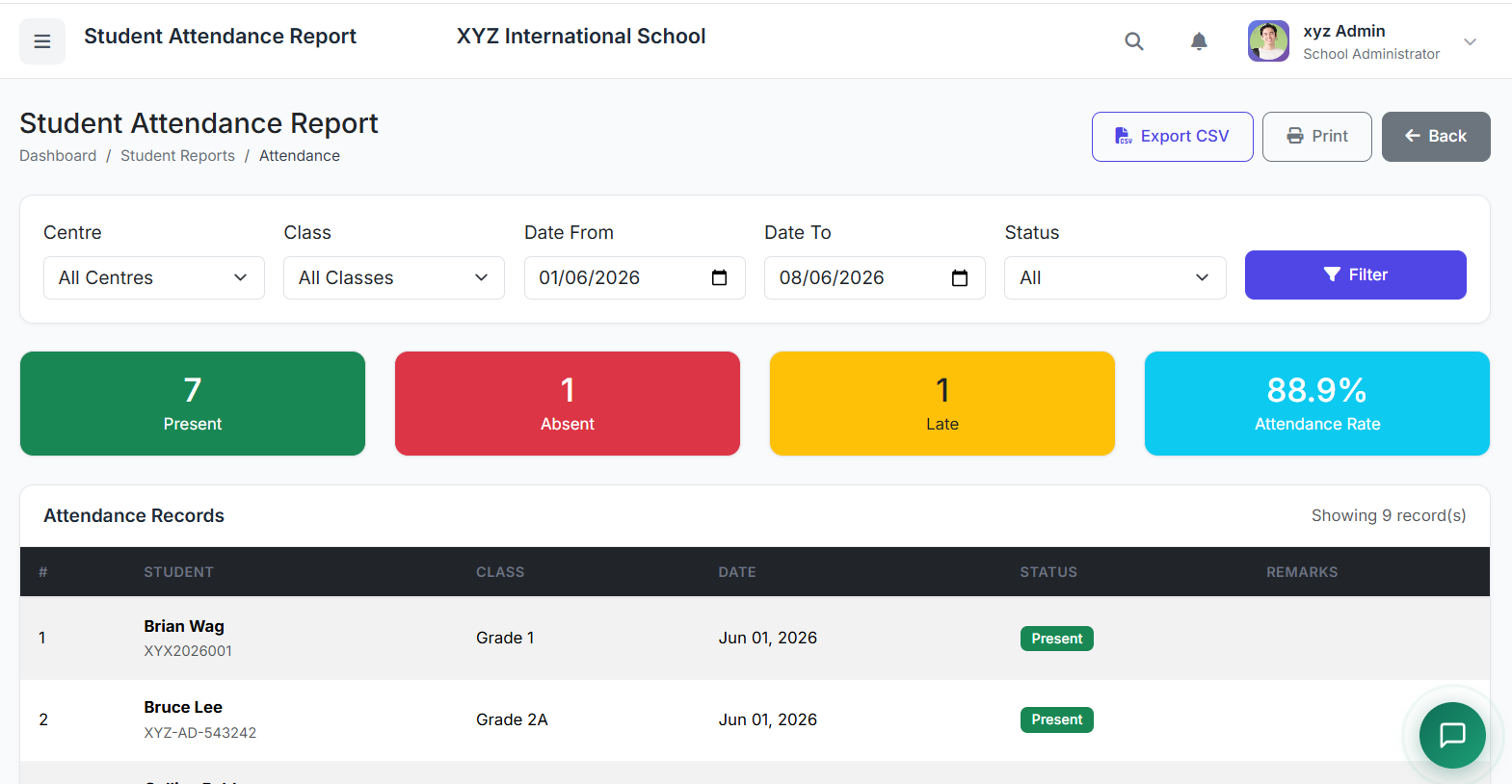
Student Attendance
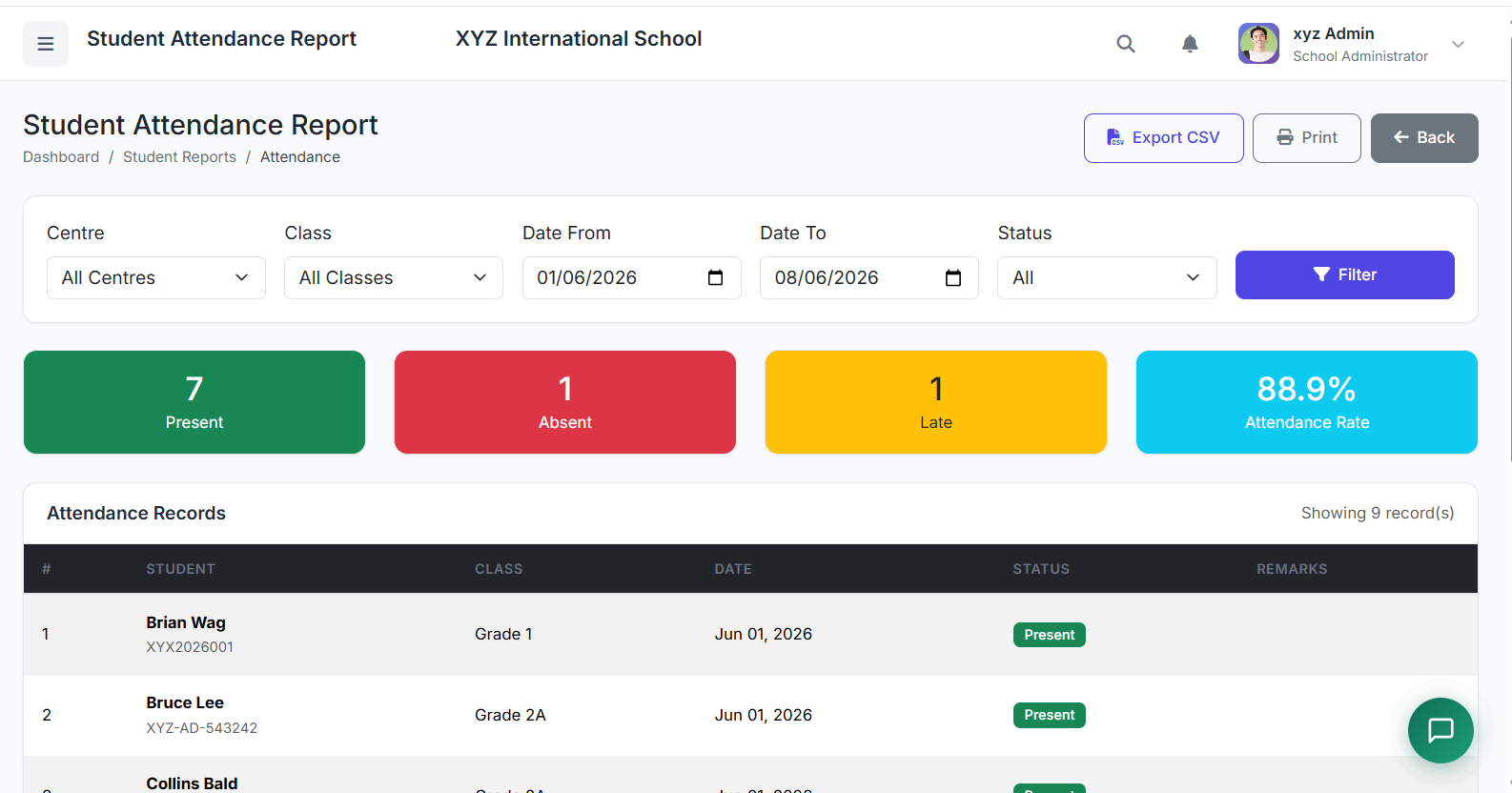
The Student Attendance Report shows attendance records by class or student with date range filters.
Key Statistics:
Present
Absent
Late
Attendance Rate
Detailed Table Includes: Student | Class | Date | Status | Remarks
Use case: View overall attendance details for each student per centre or per class within a specified time period.
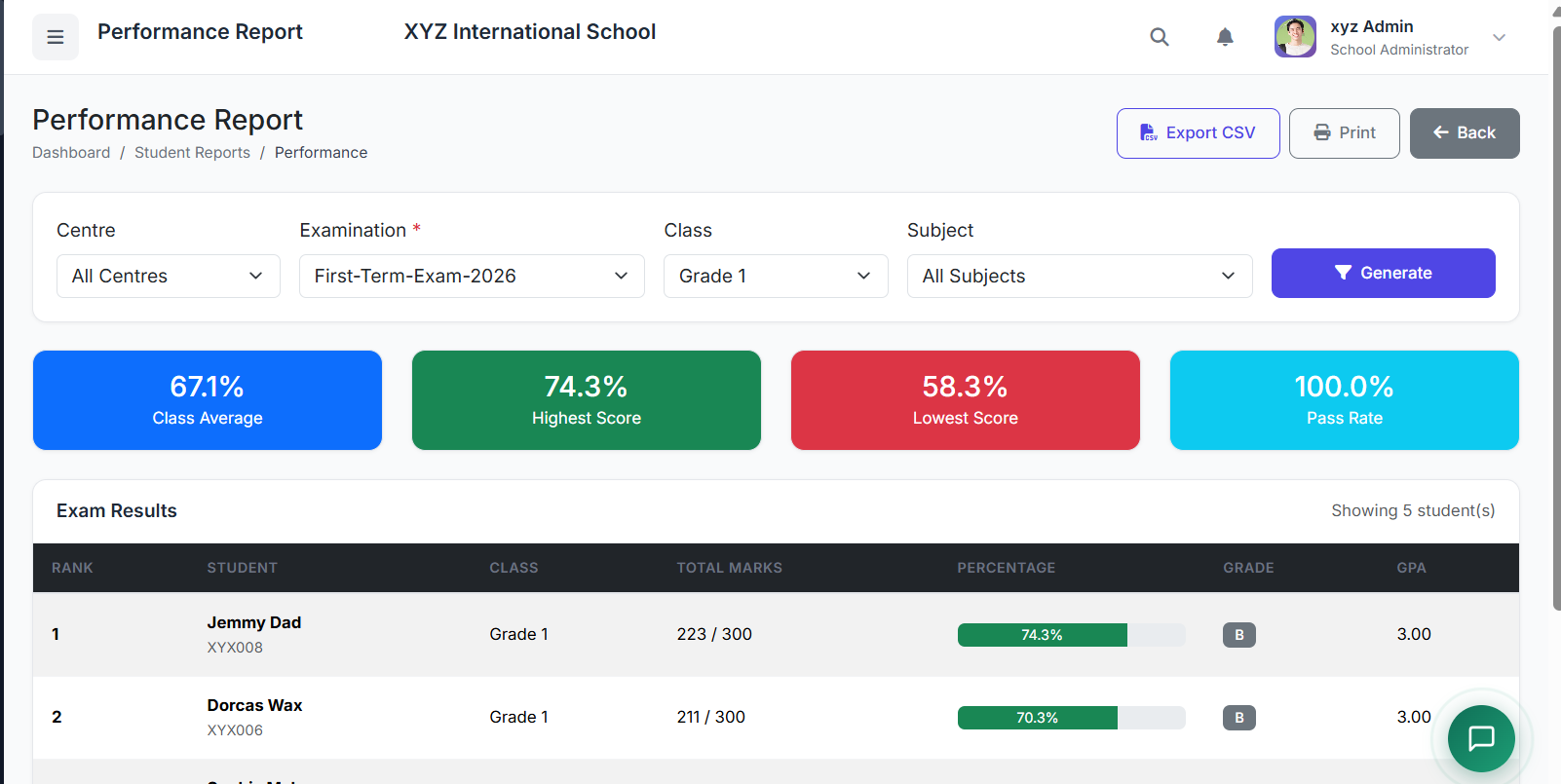
Performance Report
The Performance Report displays exam results, rankings, and subject-wise analysis.
Key Statistics:
Class Average
Highest Score
Lowest Score
Pass Rate
Detailed Table Includes: Rank | Student | Class | Total Marks | Percentage | Grade | GPA
Use case: Identify the best-performing students per centre, class, or subject – ideal for year-end awards.
Fee Status
The Fee Status report presents student fee payment status and pending amounts.
Key Statistics:
Total Fees
Fees Collected
Fees Pending
Fees Collection Rate
Detailed Table Includes: Student | Class | Total Fees | Paid | Balance | Status (Pending / Paid / Partial)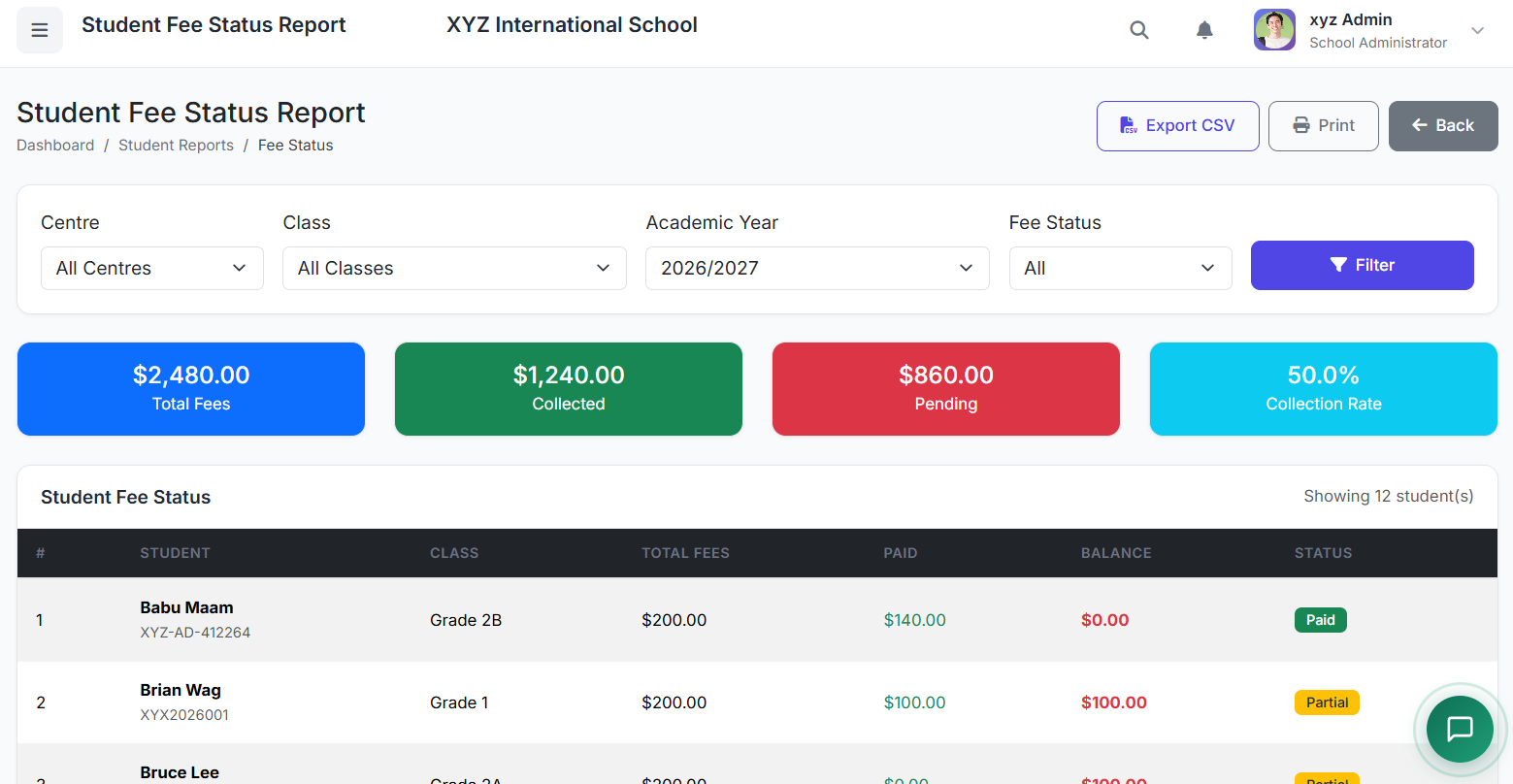
Exporting Student Reports
All student reports can be:
Exported to Excel
Exported to PDF
Printed directly
2. Financial Reports
The Financial Reports module gives a clear picture of the school’s financial health – covering fee collection, outstanding balances, expenses, and overall financial summaries.
Navigation
Path: Reports → Financial Reports
Path: Reports → Financial Reports
Available Financial Reports
Fee Collection
Outstanding Fees
Fee Defaulters
Collection by Class
Payment Methods
Expense Reports
Income vs Expense
Fee Collection
Outstanding Fees
Fee Defaulters
Collection by Class
Payment Methods
Expense Reports
Income vs Expense
Fee Collection Report
Daily or monthly fee collections with payment method breakdown.
Filters: Date Range | Class | Category | Centre
Output: Total collections + detailed breakdowns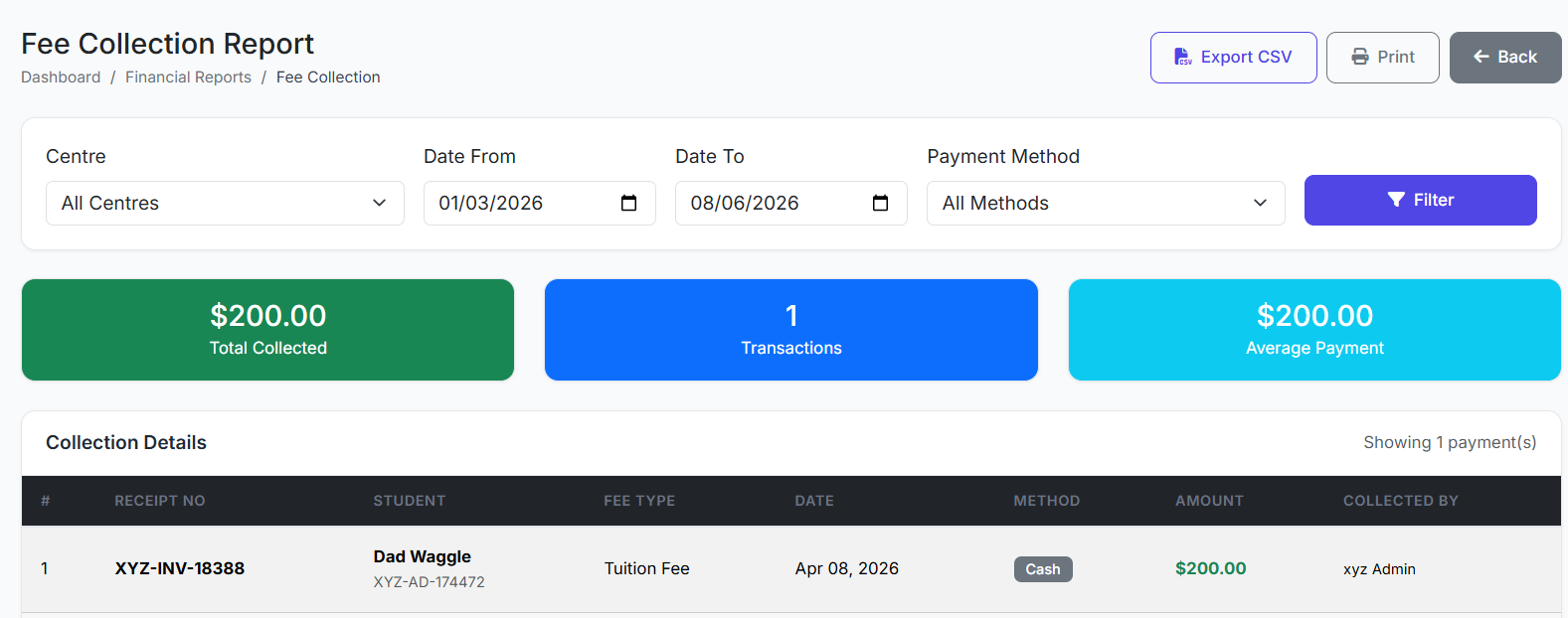
Outstanding Fees Report
Highlights unpaid balances, helping administrators quickly identify fee defaulters and total outstanding amounts.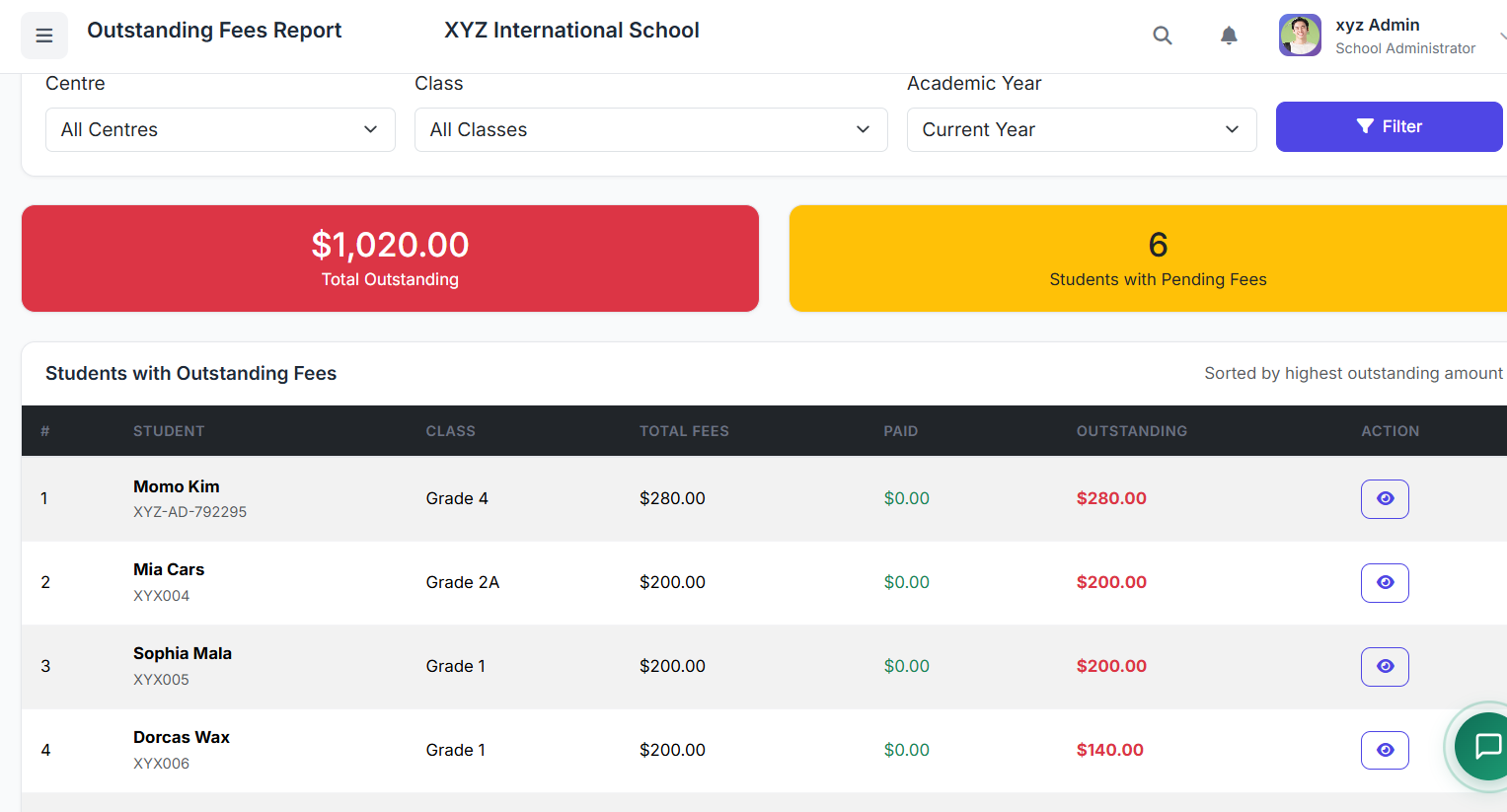
Expense Report
Tracks spending by category over a selected period – makes budgeting and cost control much easier.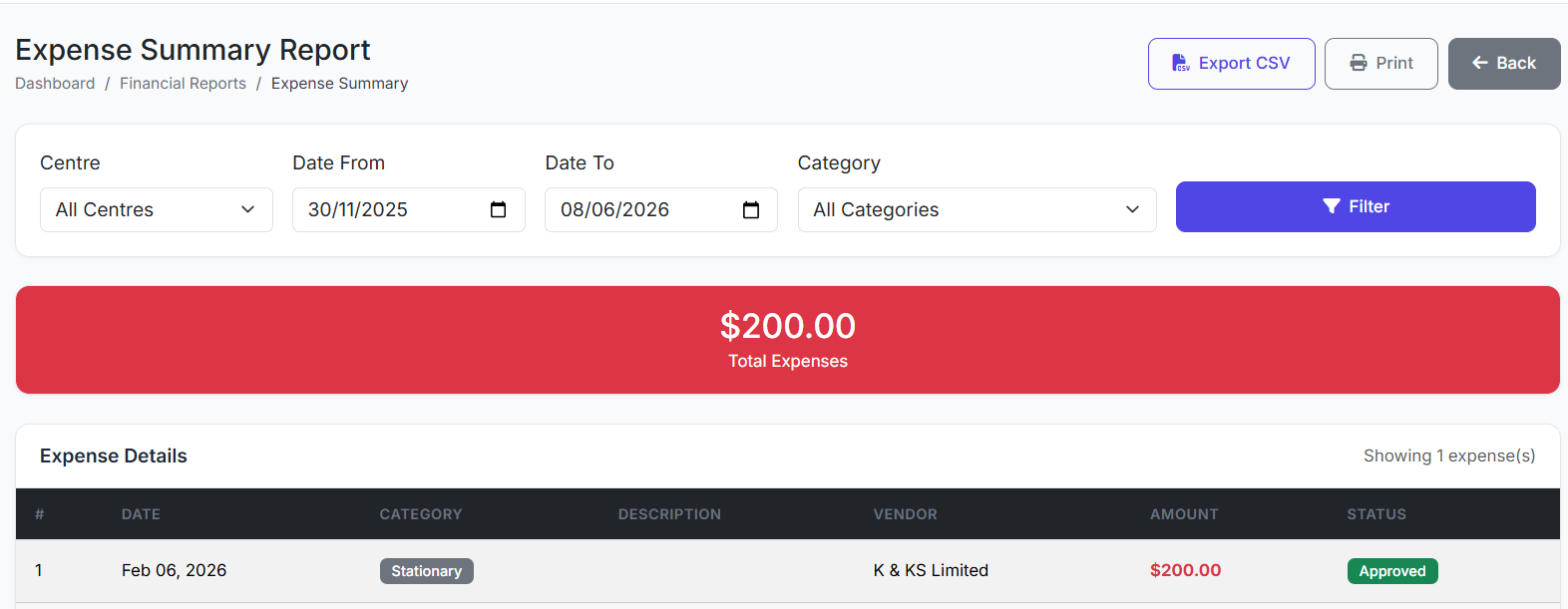
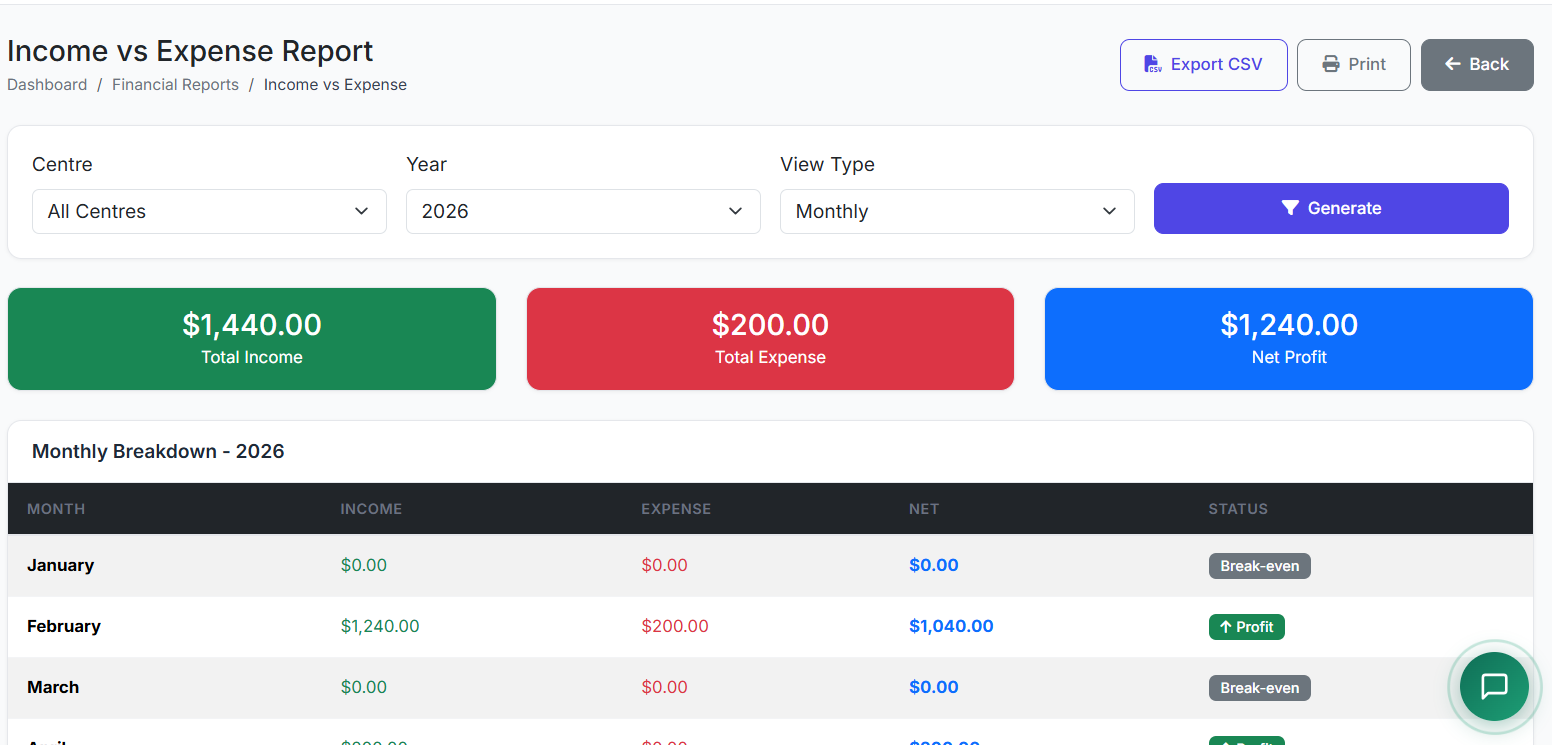
Income vs Expense Summary
View monthly profit/loss analysis at a glance.
Includes:
Total Income
Total Expense
Net Profit
Monthly or yearly breakdown table per centre
3. Attendance Reports
The Attendance Reports module analyzes attendance patterns for both students and staff – helping identify absenteeism issues and long-term trends.
Navigation
Path: Reports → Attendance Reports
Path: Reports → Attendance Reports
Available Attendance Reports
Daily or monthly Staff Attendance
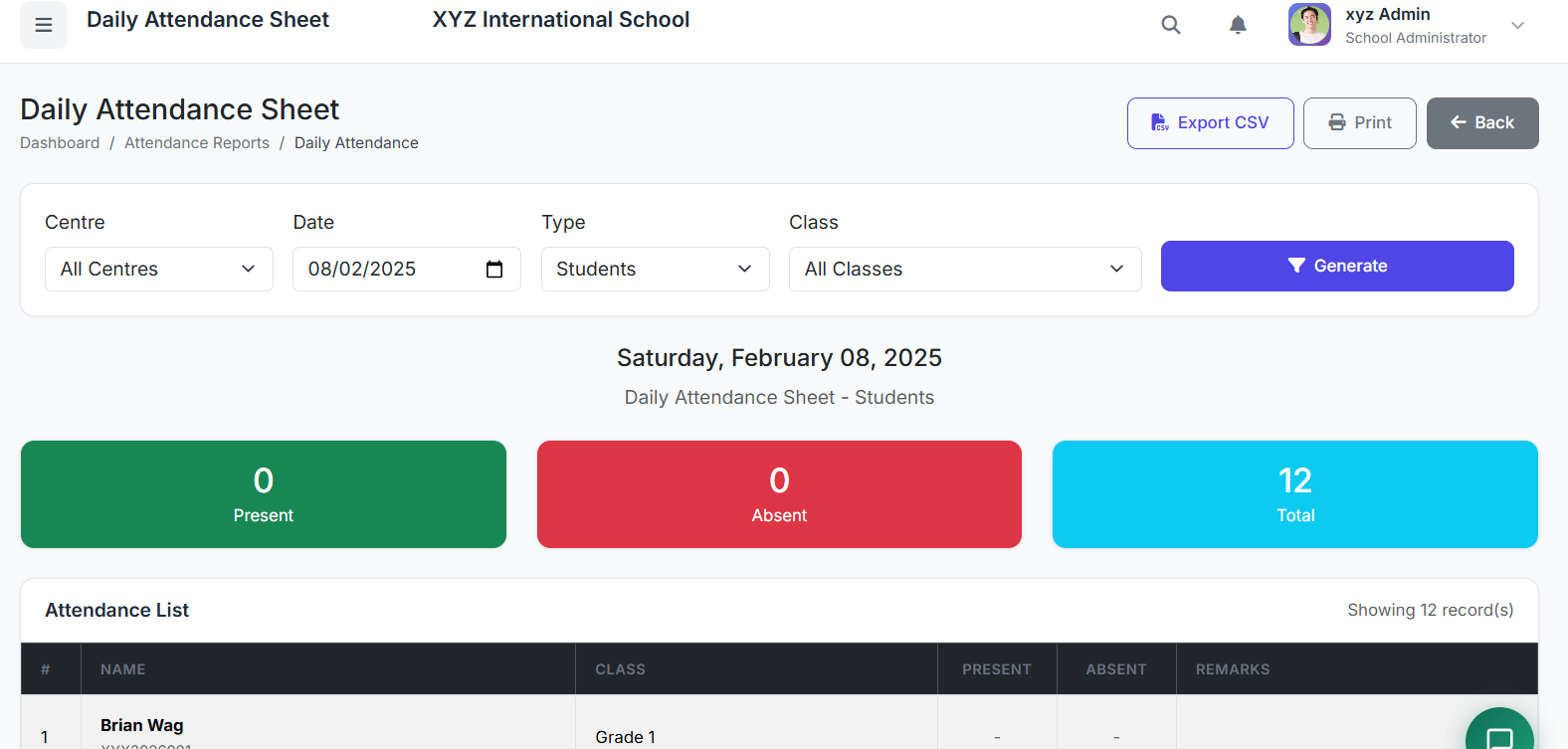
Daily Student Class Attendance
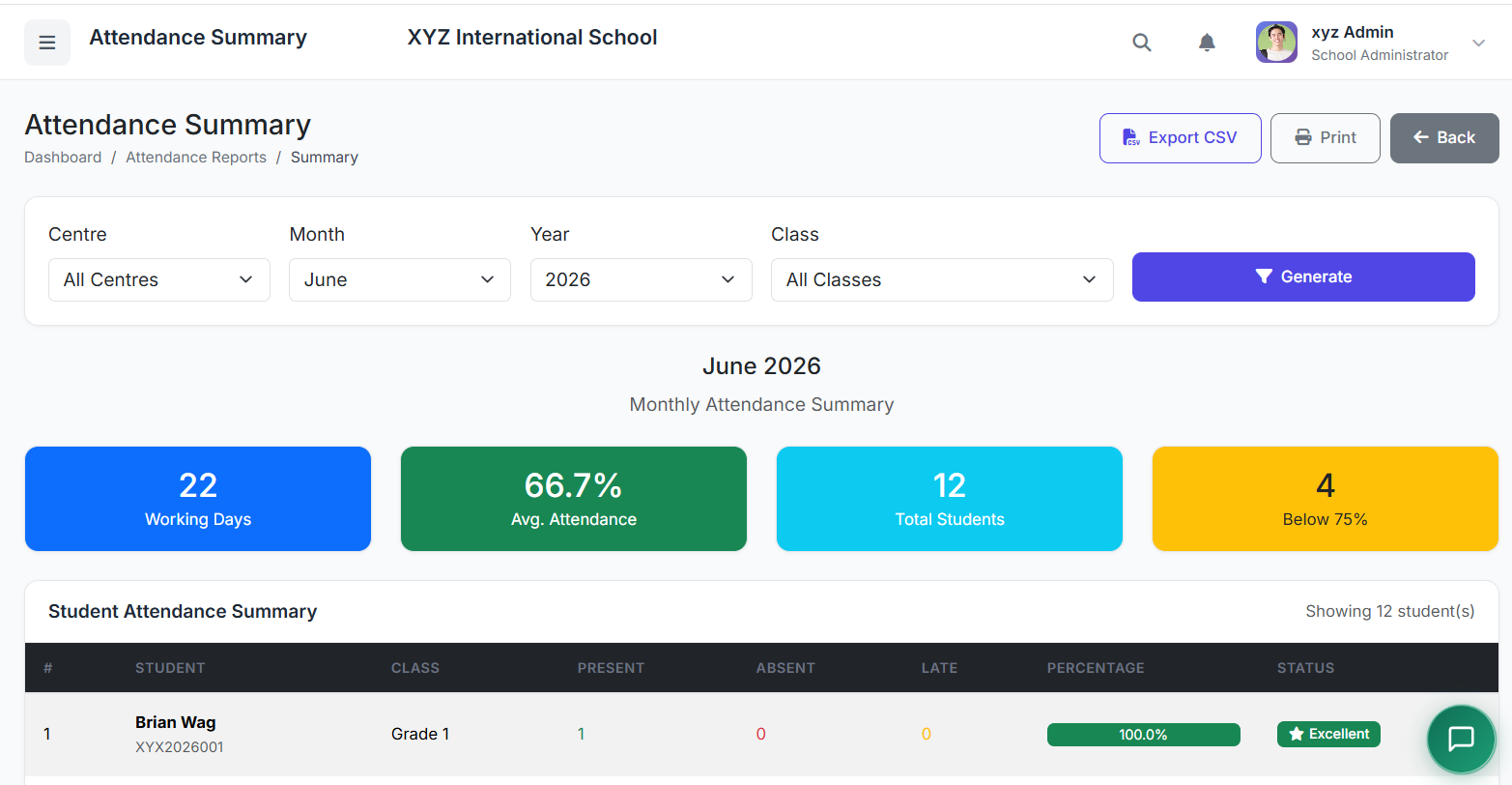
Student Monthly Attendance Summary
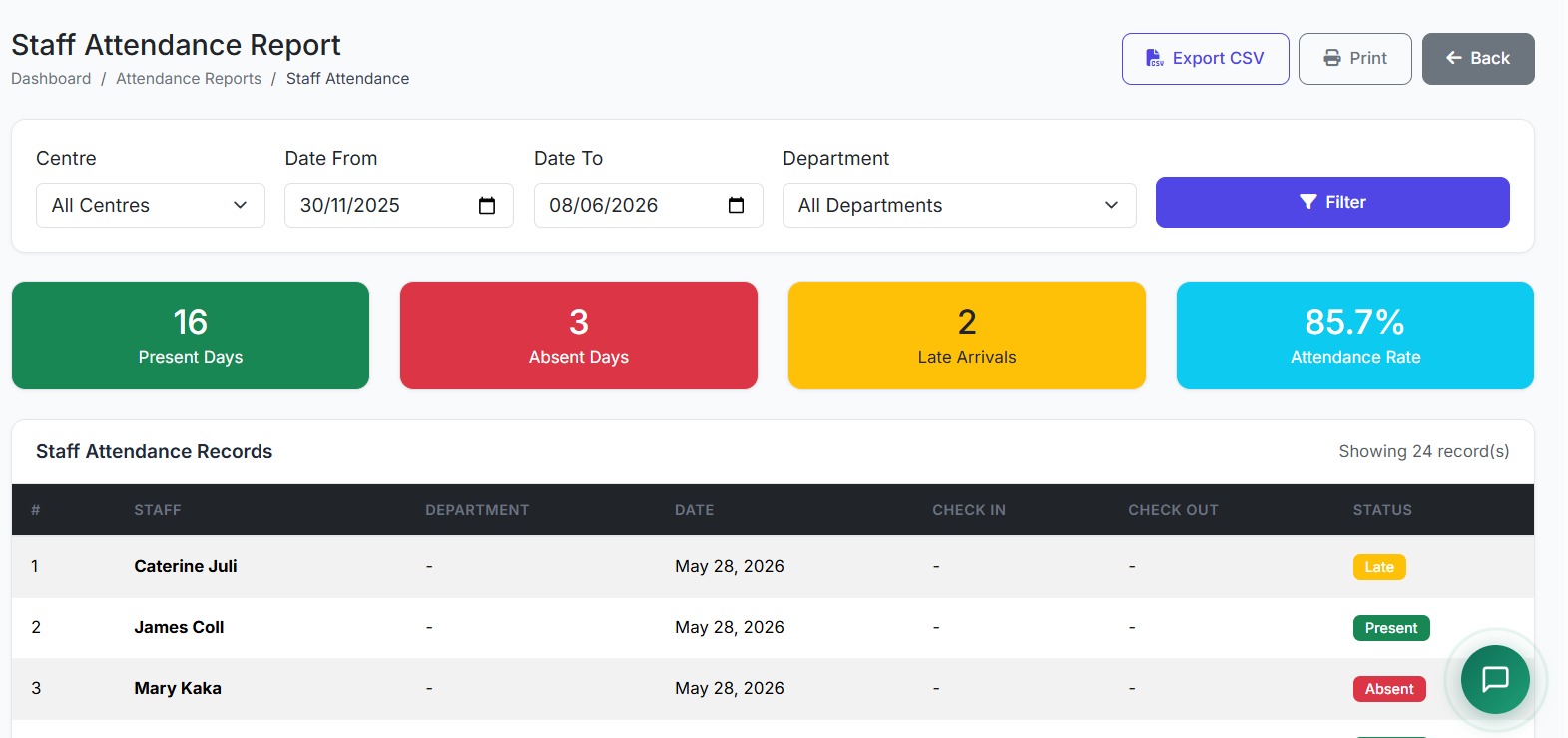
Daily or monthly Staff Attendance
Daily Student Class Attendance
Student Monthly Attendance Summary
Daily / Monthly Staff Attendance Report
Select a date or date range, optionally filter by department – the system displays present and absent counts instantly.
Student / Staff Daily Attendance Report
For individual tracking: select a student or staff member, choose a date range, and view attendance percentage and details.
Monthly Attendance Summary
Shows working days, days present, days absent, and overall attendance percentage:
Per centre (for multi-centre schools)
Per class
For each month in a year
Exporting Attendance Reports
All attendance reports can be:
Viewed on screen
Exported to Excel or PDF
Printed
Closing
The Reports Module transforms raw data into meaningful insights, helping school administrators make informed decisions. Yet it remains a simple and flexible module for anyone to understand.