🚌 Part 1: Transport Assignments
Module Overview
In this tutorial, we'll learn how to assign students to specific bus routes and stops, and track their daily pickup/drop-off attendance for safety and accountability.
Transport Assignments links each student to a specific bus route and pickup stop. This defines their transport schedule and is essential for routing, fee calculation, and attendance tracking.
🧭 How to Access
Navigate to: Transport → Assignments
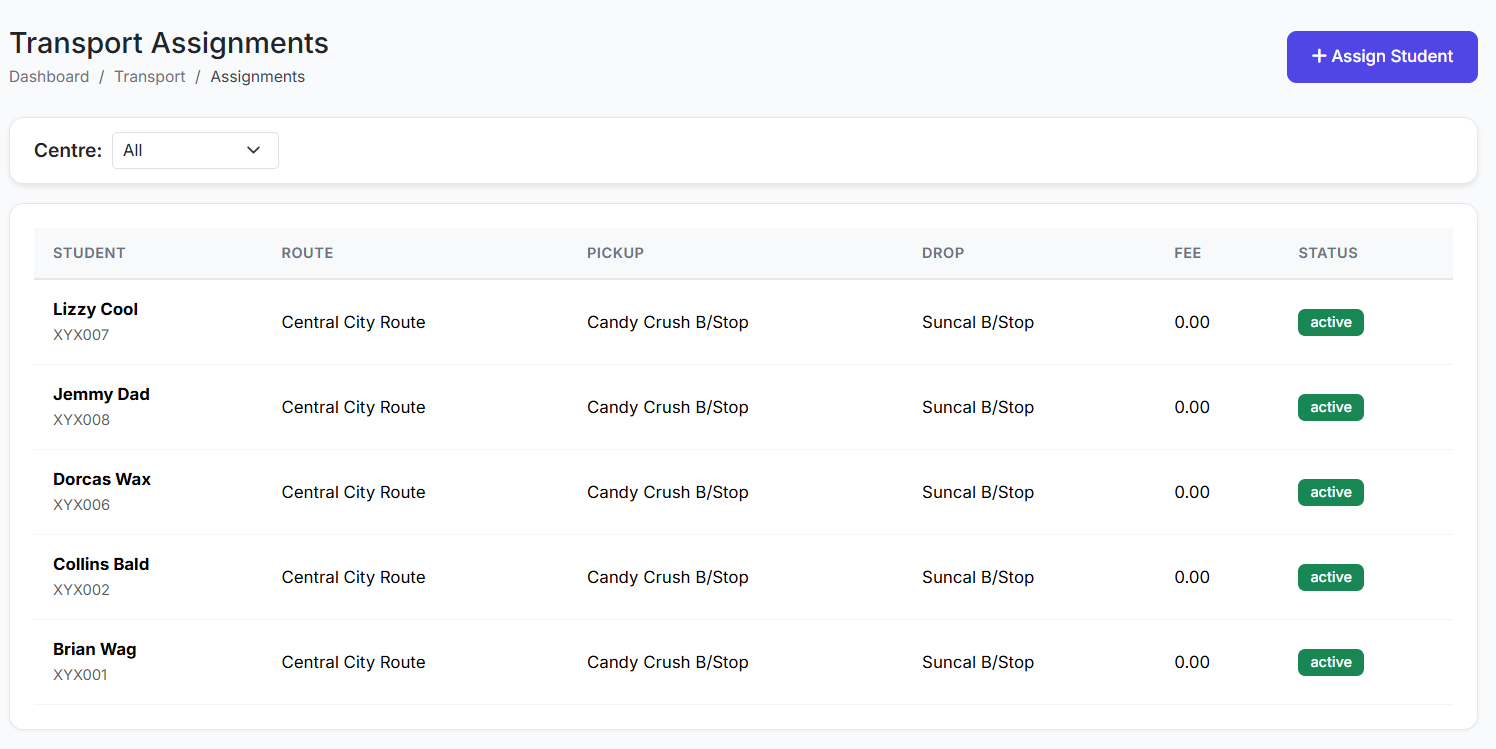
📋 Assignments List Page
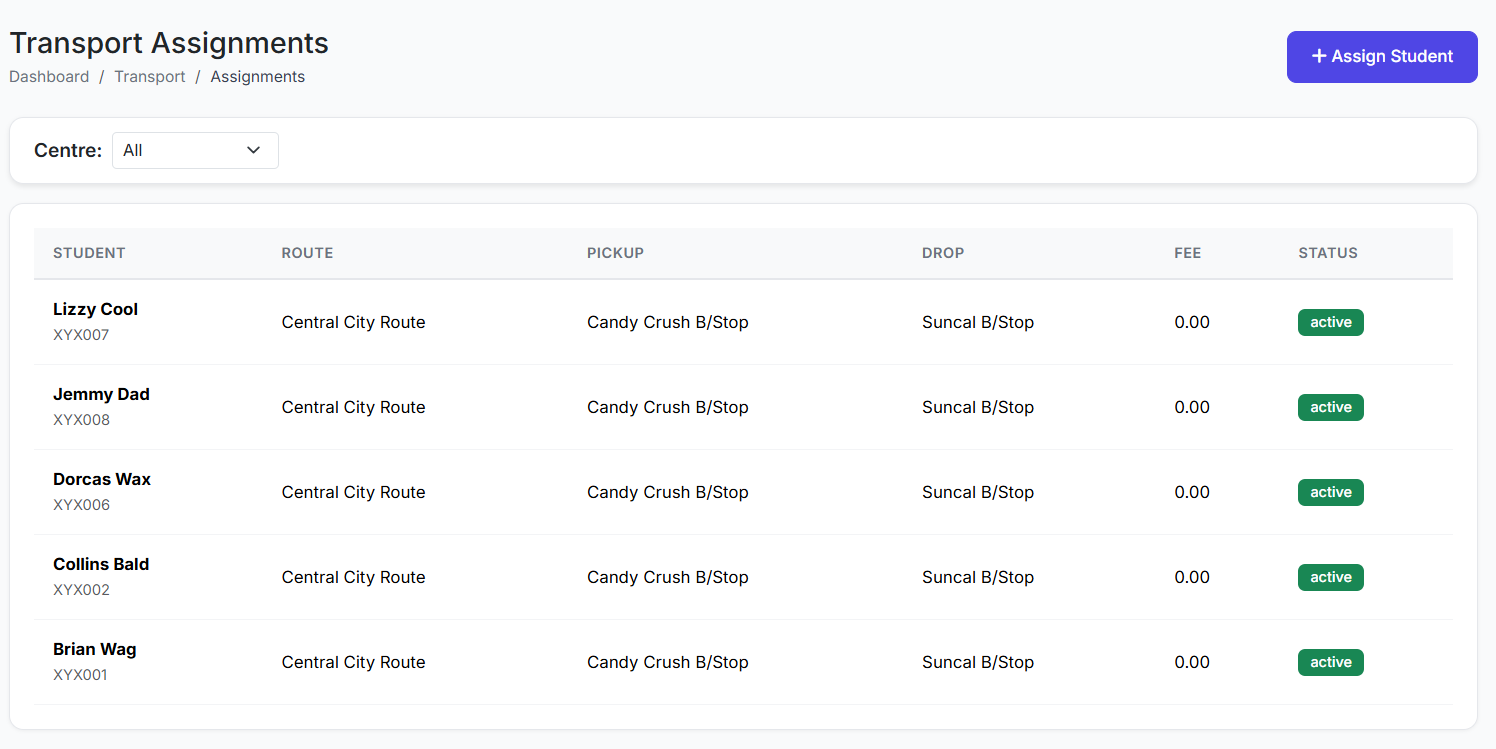
View all current transport assignments. Key columns include:
Student Name & Class
Assigned Route & Pickup Stop
Monthly Transport Fee
Status (Active/Inactive)
Actions (Edit, Remove)
➕ Assigning a Student to Transport
Individual Assignment:
Click Assign Student.
Fill in the form:
Student: Select the student.
Route: Choose a route → the system then shows only stops on that route.
Pickup Stop: Select the student's specific stop.
Start Date: When the assignment becomes effective.
Monthly Fee: (Optional) Can auto-fill from the route's default fee.
Remarks: (Optional) Add notes.
Click Assign.
Bulk Assignment (For a Whole Class):
Click Bulk Assign.
Select the Class and Section.
Choose the Route and Stop.
A list of students in that class appears. Check the boxes for students to assign.
Click Assign Selected.
This is efficient at the start of a term or for group onboarding.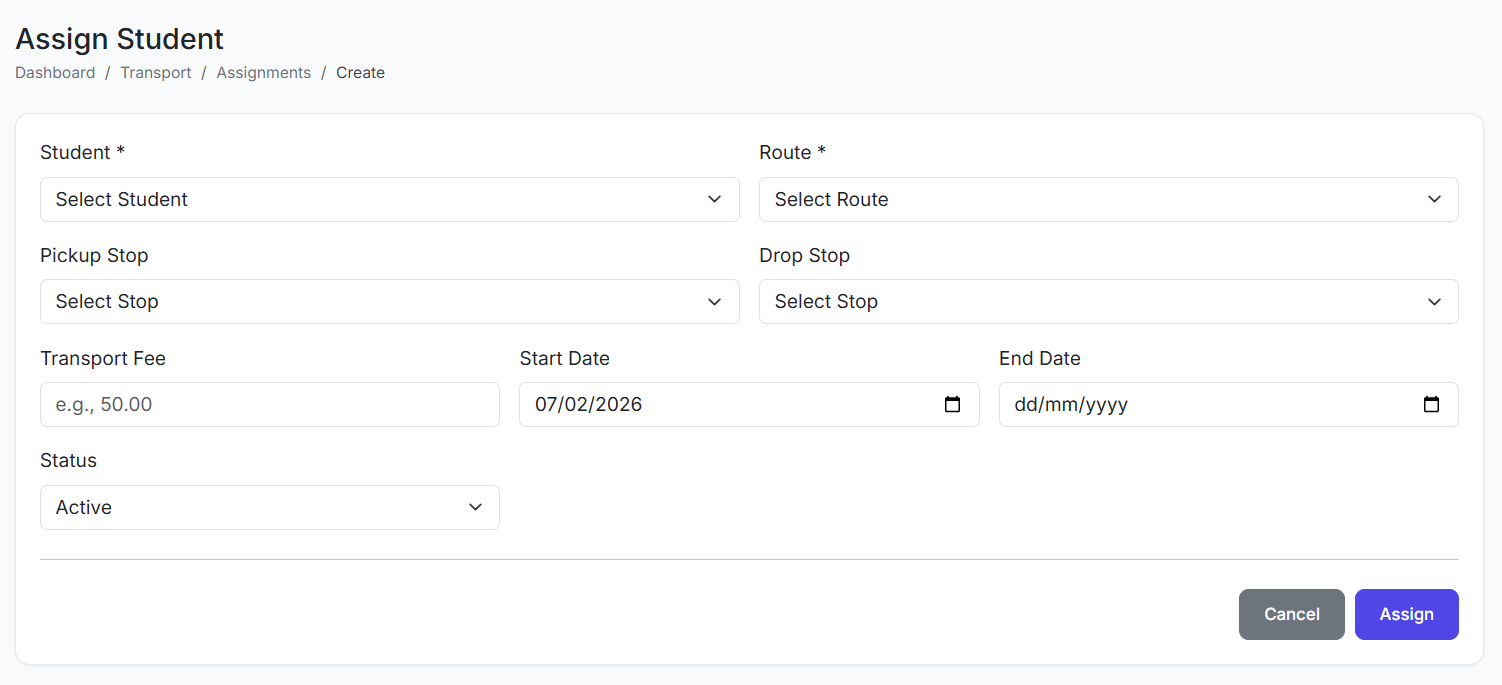
❌ Removing an Assignment
If a student stops using the service:
Find their assignment and click Remove or Deactivate.
Confirm.
Their status changes, and they are removed from daily attendance lists.
✅ Transport Attendance
Transport Attendance tracks whether students board their assigned bus for pickup and drop-off. This is a critical safety feature to confirm student whereabouts and ensure accountability.
🧭 How to Access
Navigate to: Transport → Attendance
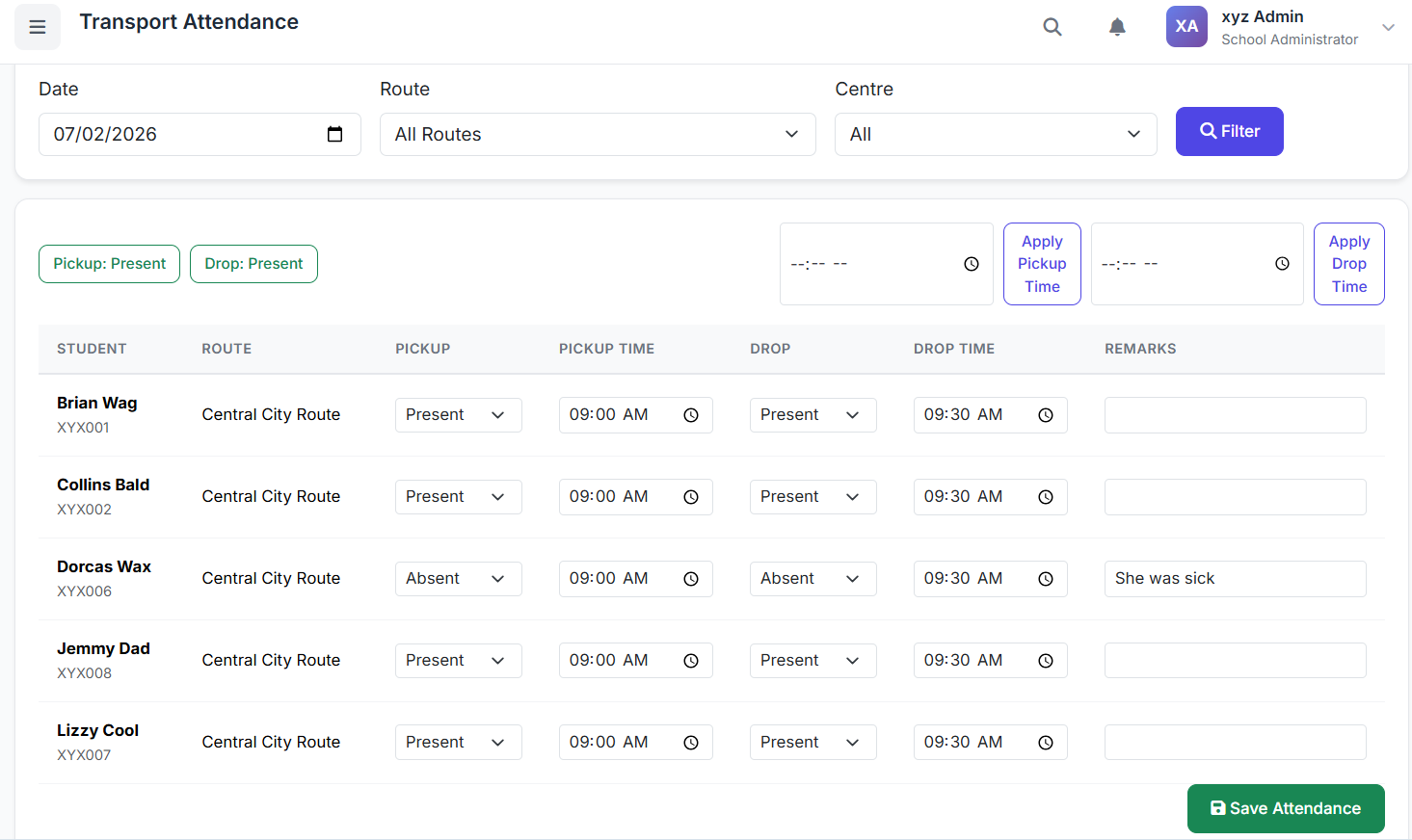
📋 Attendance Interface
Select the Date (defaults to today).
Select a Route → the system loads all students assigned to that route.
For each student, mark their status:
Morning Pickup: Picked Up / Not Picked Up
Afternoon Drop-off: Dropped Off / Not Dropped Off (if tracked)
Save the attendance.
📊 Viewing Attendance History & Reports
Use filters to select a Date Range, specific Route, or Student.
View historical records to identify patterns (e.g., frequent absences from the bus).
Export data for record-keeping or analysis.
✅ Best Practices
Accurate Assignments: Ensure each student's Route and Stop are correct at the start of the academic year.
Daily Tracking: Make Transport Attendance a mandatory daily routine for bus conductors or monitors.
Immediate Follow-up: "Not Picked Up" status should trigger an immediate protocol (e.g., alert class teacher/parent) to ensure student safety.
Regular Reviews: Periodically review assignment lists against class rosters to catch students who have left the school or changed address.
Fee Integration: Ensure the Monthly Fee from the assignment syncs with the Finance module for automated billing.
The Transport Assignments and Attendance modules work together to create a safe, organized, and accountable school transportation system. They provide peace of mind for administrators and parents by ensuring every student's journey to and from school is tracked and managed.
This concludes the Transport Management module series.