💰 Module Overview
In this tutorial, we'll learn how to process periodic salary payments for all staff, from calculation and approval to payment and payslip generation.
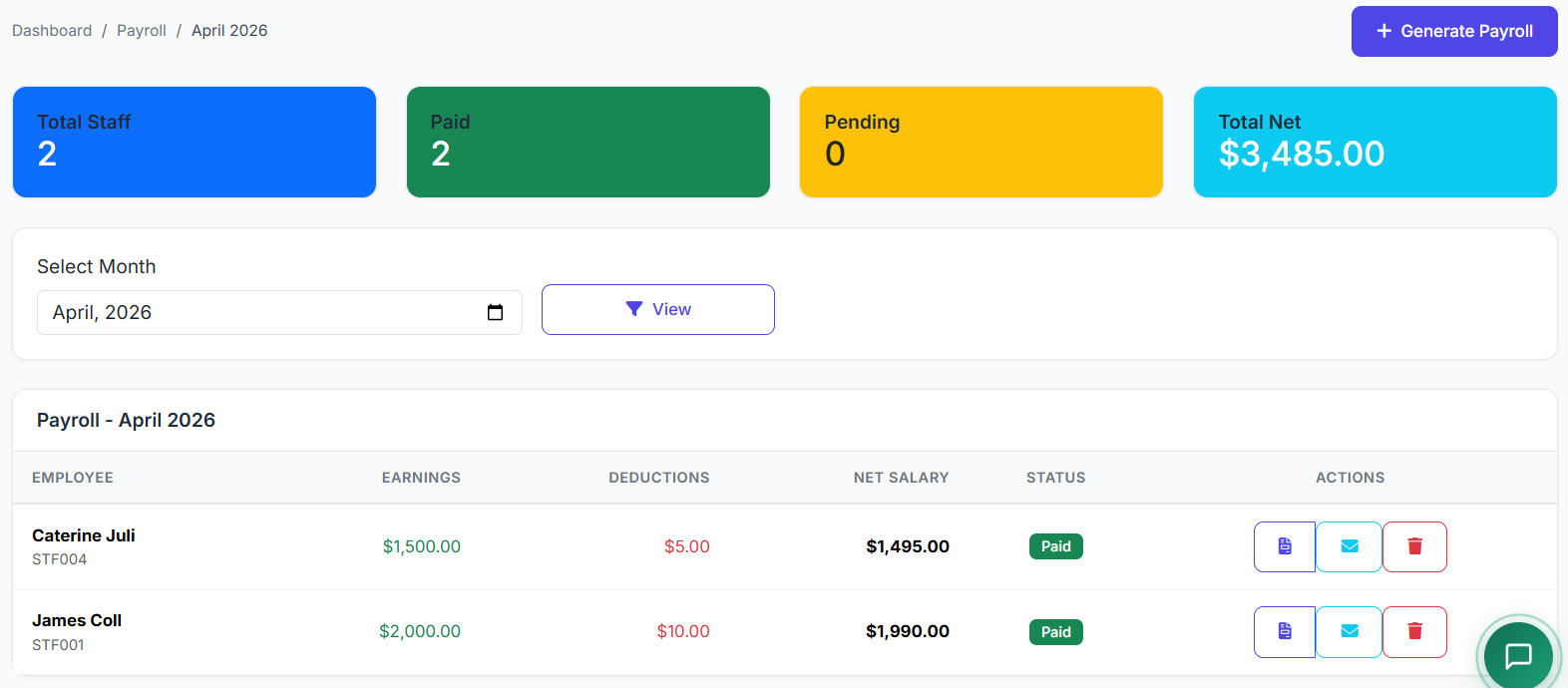
The Payroll module automates the entire salary payment cycle. It calculates each staff member's pay based on their Salary Structure, allows for adjustments, manages approvals, processes payments, and generates detailed payslips—all within a controlled, auditable workflow.
🧭 How to Access
Navigate to: Salary → Payroll
📋 Payroll List Overview
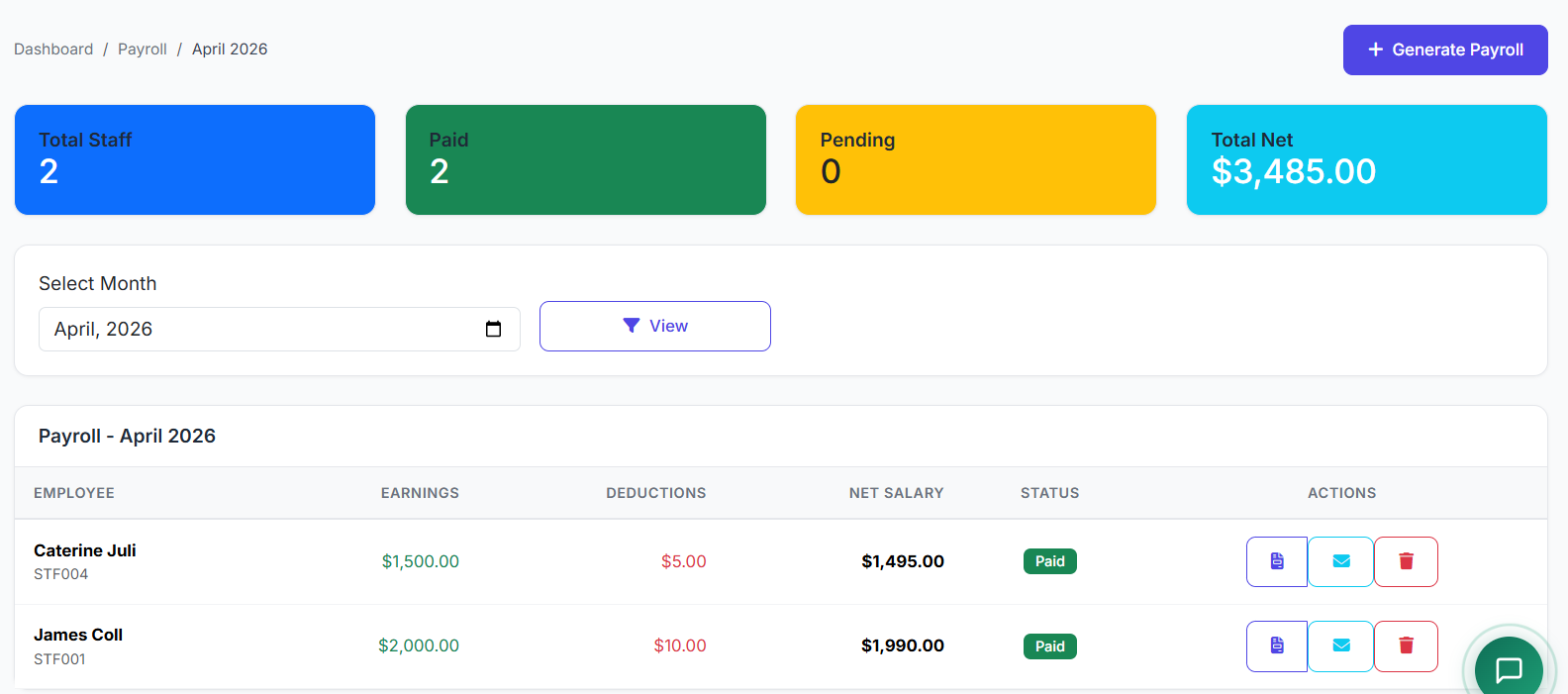
The main page lists all payroll cycles (periods). Key columns include:
| Column | Description |
|---|---|
| Payroll Month/Period | e.g., "March 2025". |
| Status | Draft, Approved, or Paid. |
| Staff Count | Number of staff included. |
| Total Gross Salary | Sum of all earnings before deductions. |
| Total Net Salary | Sum of all take-home pay. |
| Actions | View, Edit, Process. |
🔄 Payroll Process Overview
The payroll workflow follows a clear, sequential path to ensure accuracy:
1. Generate → 2. Review → 3. Adjust → 4. Approve → 5. Process Payment → 6. Generate Payslips
🔧 Step-by-Step Payroll Processing
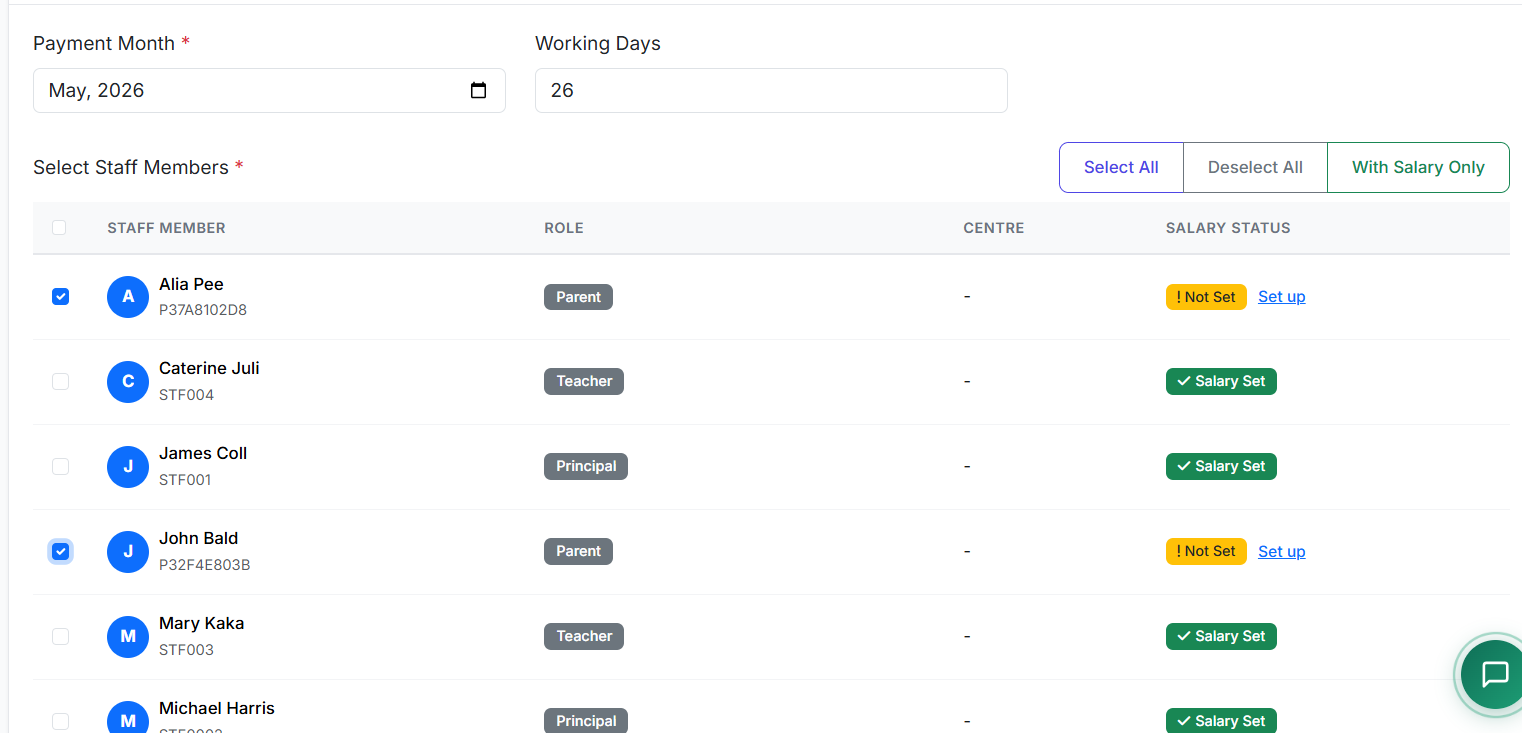
Step 1: Generate Payroll
Click Generate Payroll.
Select the Month & Year for the pay period.
Choose to include All Staff or filter by Department.
Click Generate.
The system automatically calculates each staff member's salary using their assigned Salary Structure.
Step 2: Review Calculations
Open the generated payroll to review a detailed list.
Check each staff member's Basic Salary, Total Earnings, Deductions, and Net Salary.
This is a critical verification step before proceeding.
Step 3: Make Adjustments (If Needed)
Before approval, you can add one-time adjustments:
Positive Adjustments: Bonuses, Overtime pay, Allowances.
Negative Adjustments: Special deductions, Attendance penalties, Loan recoveries.
Process: Select a staff member → Add Adjustment → Enter Type, Amount, and Reason → Save. The system recalculates the Net Salary instantly.
Step 4: Approve Payroll
Once all calculations are verified, click Approve.
Status changes from Draft to Approved.
⚠️ Important: Further edits are typically locked after approval to maintain integrity. An administrator may need to revert to Draft status for changes.
Step 5: Process Salary Payments
With payroll approved, click Process Payments.
Choose the Payment Method (e.g., Bank Transfer, Cash).
For bank transfers, the system can often generate a bank payment file for bulk processing.
Once payments are confirmed, update the status to Paid.
Step 6: Generate & Distribute Payslips
After payment, click Generate Payslips.
Options:
Print Individual slips.
Email slips to staff directly.
Download Bulk PDF containing all payslips.

🧾 Payslip Contents
A standard payslip provides full transparency and includes:
Staff Name, ID, and Department
Pay Period (e.g., March 1-31, 2025)
Itemized Earnings (Basic, Allowances, etc.)
Itemized Deductions (Tax, Pension, etc.)
Gross Salary (Total Earnings)
Total Deductions
Net Salary (Take-Home Pay)
Year-to-Date (YTD) Totals (optional)
✅ Best Practices
Stick to a Schedule: Process payroll on a consistent, predictable date each month.
Dual-Check Review: Have two authorized persons review calculations before approval.
Backup Data: Maintain secure backups of all payroll records for each period.
Timely Distribution: Distribute payslips promptly after payment processing.
Ensure Confidentiality: Treat all payroll data as highly confidential. Use secure channels for distribution.
Annual Reconciliation: Reconcile total annual payroll with your general ledger and tax filings.
The Payroll module streamlines one of the school's most critical and sensitive administrative functions, ensuring staff are paid accurately, on time, and with full transparency.
This concludes our series on the core Finance and HR modules. Next will, look at Leave modules.